
SignSealer Wordpress Plugin - Rating, Reviews, Demo & Download

Plugin Description
Your site sends somebody a document to sign, and later wants to know whether they signed it. That is the whole job of this plugin.
Everything that makes a signature worth having happens on SignSealer: consent recorded as its own event before the signature is accepted, the document’s exact text fingerprinted into every entry on the trail, and a hash chain that breaks if any entry is altered. A certificate can be checked afterwards by anyone holding its code, without an account.
You need a SignSealer account. This plugin is a client for it. See https://signsealer.com.
Three things this plugin refuses to do
These are limits on purpose, not features that are missing.
It never renders a signature pad. Signing happens on SignSealer’s own pages. A drawing captured in WordPress and posted to an API would make every claim on the certificate untrue — the certificate says what the signing engine observed, and it cannot observe something that arrived as a form field.
It never stores evidence. Document ids, a status and a link. If you restore a six-month-old backup of this site, nothing about any signature changes, because nothing about any signature was here.
It never holds a master credential. The connection is OAuth 2.0 with PKCE, scoped to one business, and you can end it from your own SignSealer account without touching WordPress. There is no key here that reaches two accounts.
Why a link, and a frame only where the site is proven
SignSealer’s signing pages refuse to be framed (frame-ancestors) on any site the business has not proven is its own. A signing page inside another site’s frame is a clickjacking target, and the thing being clicked is a signature. So the block, the shortcode and the forms send the signer to SignSealer’s own page, where they can see whose address bar they are signing on. The frames are where signing comes first, on this site: WooCommerce’s Before payment, a form set to be signed before it is sent, and Amelia’s and Simply Schedule Appointments’ signing before the booking. Connecting the plugin proves the site to SignSealer, which is what lets its signing page be shown here.
What it does
- Connects your site to one SignSealer business over OAuth 2.0 with PKCE.
- Registers its own webhook endpoint when you connect, so there is no secret to copy between two screens.
- Verifies every delivery: the HMAC signature, a five-minute freshness window, and a replay it has already seen. Fires a
signsealer_eventaction your own code can hook. - Has its own SignSealer item in the admin menu. Start here says what the plugin does, whether the site is connected, and — for every integration — whether its plugin is on the site, whether it is set up, and the steps to set it up.
- Lists that business’s forms and templates under SignSealer Templates, with the shortcode for each one beside it.
- Gives you a SignSealer agreement block, and
[signsealer_sign workflow="your-form"]if you prefer a shortcode. - WooCommerce: mark a product as needing an agreement, and the document is started when the order is paid (or placed, your choice), offered on the thank-you page, in the order email and under My Account, with its status on the order screen and in the order notes. Or have it signed before payment: the cart’s checkout button becomes “Sign the agreement”, the customer signs on your site, in a frame, and the checkout will not place the order until it is signed. Its settings are under WooCommerce Settings SignSealer.
- Details the agreement needs: a template that asks for more than an order knows — where it takes place, a vessel’s name — is answered on the product by you, or asked of the customer before they sign.
- WooCommerce Bookings: a booking you confirm starts its agreement straight away, paid or not, and the booking’s date, time, number of people and resource are filled into the template.
- Amelia, LatePoint and Simply Schedule Appointments: choose the workflow a booking of each service starts, under SignSealer Bookings. The person who booked is emailed the link to sign, and the booking fills in the service, the date and time, how many people, who runs it and where. Amelia’s form opens the agreement before it books, and books once it is signed; Simply Schedule Appointments opens it over the page as soon as the booking is made; LatePoint’s confirmation step shows a button to sign.
- Event Tickets: RSVPs and tickets for your events, under SignSealer Bookings: one workflow every ticket and RSVP starts, and a different one for any ticket that needs it. Whoever booked is emailed the link to sign, for everyone they booked, and the event fills in its name, date, time, venue and organizer, and how many people. The RSVP’s own message and the order page show a button to sign.
- Events Manager: bookings for your events, under SignSealer Bookings: one workflow every event’s bookings start, and a different one for any event that needs it. Whoever booked is emailed the link to sign, for the spaces they booked, and the event fills in its name, date, time, location and tickets. Events Manager’s own message after booking shows a button to sign.
- Booking Calendar: choose the workflow every booking starts, under SignSealer Bookings. Whoever booked is emailed the link to sign, and the booking fills in the date (and the time, for a time slot), how many people, and the name, email and phone from its form. Booking Calendar’s own message after booking shows a button to sign.
- FluentBooking: meetings, lessons and sessions booked on its event types, under SignSealer Bookings: one workflow every event type starts, and a different one for any that needs it. Whoever booked is emailed the link to sign, with the event type, the date and time, the host and an in-person place filled in, and FluentBooking’s own confirmation shows a button to sign.
- MotoPress Hotel Booking: stays at your accommodation types, under SignSealer Bookings: one workflow every booking starts, and a different one for any accommodation type that needs it. Once a booking is confirmed, the guest is emailed the link to sign, with the check-in date and time, the check-out date, the nights and everybody staying filled in, and its Booking Confirmed page shows a button to sign.
- Bookly: appointments booked with your services, under SignSealer Bookings: one workflow every service starts, and a different one for any service that needs it. Once a booking is approved, the customer is emailed the link to sign, with the service, the date and time, how many people and the staff member filled in, and the last step of Bookly’s booking form shows a button to sign.
- Gravity Forms, WPForms, Fluent Forms, Contact Form 7, Formidable Forms, Ninja Forms, SureForms, Forminator, MetForm, Everest Forms and JetFormBuilder: map a form to a workflow in that form’s own settings (in Ninja Forms, a SignSealer action) — which field is the email, which is the name, which field answers each blank the template asks — and a submission ends on the signing page, or with a button to sign in the form’s own confirmation. Or the form signs first: pressing its button opens the agreement over the form, and the form is sent once it is signed. A blank the form does not ask is asked on your site just before signing. SignSealer Forms lists every form, with a link to its settings.
- The button to sign is SignSealer blue, a colour of your own, or your theme’s own button, as you choose under SignSealer Settings.
- Sends the signer back to your site afterwards: the order they came from, or the page the form was on.
For developers
Every verified delivery fires an action:
add_action( 'signsealer_event', function ( $event, $payload ) {
    if ( 'signing.completed' === $event ) {
        // $payload['document']['id'] has signed.
    }
}, 10, 2 );
The signature is checked before this fires, so a handler can trust what it is handed.
Once a document completes, its signers’ answers to your form’s questions
are handed to signsealer_document_completed, asked for from SignSealer
just after the delivery. This plugin stores none of them; what your own code
does with them is up to it:
add_action( 'signsealer_document_completed', function ( $document ) {
    if ( 'Yes' === ( $document['answer']['married'] ?? '' ) ) {
        // "Are you married?" was answered Yes.
    }
} );

$document['answer'] has one value per question, by the question's key; a
tick box is Yes or No. A question more than one person answered (two
signers, each person in a party) holds every different answer, sorted and
joined with a comma: Yes means everyone said Yes, No, Yes that they
differed. answers_text is every answer,
one line each, for an email; answers has each one with who gave it.
Sensitive answers are masked, as your staff see them. To ask for a
document’s answers yourself: signsealer_get_answers( $document_id ).
It runs from WP-Cron, so on a site that runs WP-Cron from the server it
waits for the next run.
External services
This plugin connects to the SignSealer API at https://api.signsealer.com — the service it is a client for. It is required for the plugin to do anything.
What is sent, and when:
- When you press Connect: this site’s address and a one-time token, so SignSealer can fetch
/wp-json/signsealer/v1/siteon this site, confirm the plugin is running here, and register an application for this site. Then the PKCE challenge, once, as the browser is sent to approve, and, when you have approved, the code SignSealer hands back with the PKCE verifier and this site’s application id and secret, exchanged for an access token and a refresh token. The refresh token is exchanged again whenever the access token runs out. - Once connected: a request for your business’s name and address on SignSealer, and the registration of this site’s webhook address (
/wp-json/signsealer/v1/webhook, named “WordPress: ” and this site’s host) for SignSealer’s events. The Settings screen lists that registration, and can ask for a new webhook secret. - On every call afterwards: an access token, and this site’s address in the user-agent header so a support request can be traced.
- When you send a document: the template you chose, the values you filled in, and the signer’s name and email address.
- When a WooCommerce order starts a document: the customer’s name, email address and phone number if given, the order number, the product’s name and quantity, the answers you gave on the product to the agreement’s other blanks, any the customer typed on the page that asked them, and the address of the order-received page to send them back to.
- When a customer signs before payment: the name and email address they type, the product’s name and quantity, the answers to the agreement’s other blanks (yours from the product, and theirs from the page), and the address of the signing page on your site to send them back to. Their session keeps the document’s id and signing link until the order is placed.
- When a form submission starts a document: the values of the fields you mapped (email address, name, phone, and any template blanks), any answer you typed for a blank in the form’s settings, and the address of the page the form was on.
- When a booking starts a document (LatePoint, Amelia, Simply Schedule Appointments, Event Tickets, Events Manager, Booking Calendar, FluentBooking, MotoPress Hotel Booking or Bookly): the customer’s name, email address and phone if given; the service, event or room; the date and time; how many people; the staff member and location, and the check-out date and nights, where the booking has them; the booking’s id; and the answers you set for the agreement’s other blanks.
- While somebody signs first (before payment, before a form is sent, or before an Amelia or Simply Schedule Appointments booking): requests for whether they have signed yet. If an Amelia booking signed for in advance is never made, a request an hour later to void that document.
- When the “Signed with SignSealer” credit is on: a request for your business’s branding, for the credit’s wording, while the Settings screen shows it.
- When somebody ticks a box to be texted, at checkout or on a form, before the document starts: their phone number, the words beside the box exactly as they saw them, and which form or order it was, on which site. SignSealer keeps this as the record of their consent to be texted about that document.
- Every ten minutes at most, while an administrator screen or the checkout asks: a request for whether your SignSealer business can send texts, and the wording to show beside a box to be texted.
- When a document completes, and only if your own code or an Uncanny Automator recipe is listening for its answers (the
signsealer_document_completedaction): a request for that document, by its id, tried again up to four more times over about fifteen minutes if SignSealer cannot be reached. Its title, status, your reference and its signers’ answers come back, sensitive answers masked, and are handed to that code or recipe. This plugin stores none of it; Uncanny Automator keeps each run’s tokens in its own log, as it does for every trigger. - While you build an Uncanny Automator recipe with SignSealer’s trigger, and when that trigger runs: requests for your forms and, for the form chosen, the questions it asks. The questions are kept for an hour.
What is received: access and refresh tokens, your business’s name, address and branding, this site’s webhook registration and its secret, template and workflow lists, a form’s questions, document ids and statuses, whether a signer has signed, signing links, a completed document’s answers when asked for as above, and whether your business can send texts, with the wording for the box.
SignSealer is operated by Mashdun LLC.
Terms: https://signsealer.com/legal/terms
Privacy policy: https://signsealer.com/legal/privacy-policy
Subprocessors: https://signsealer.com/security/subprocessors
Screenshots
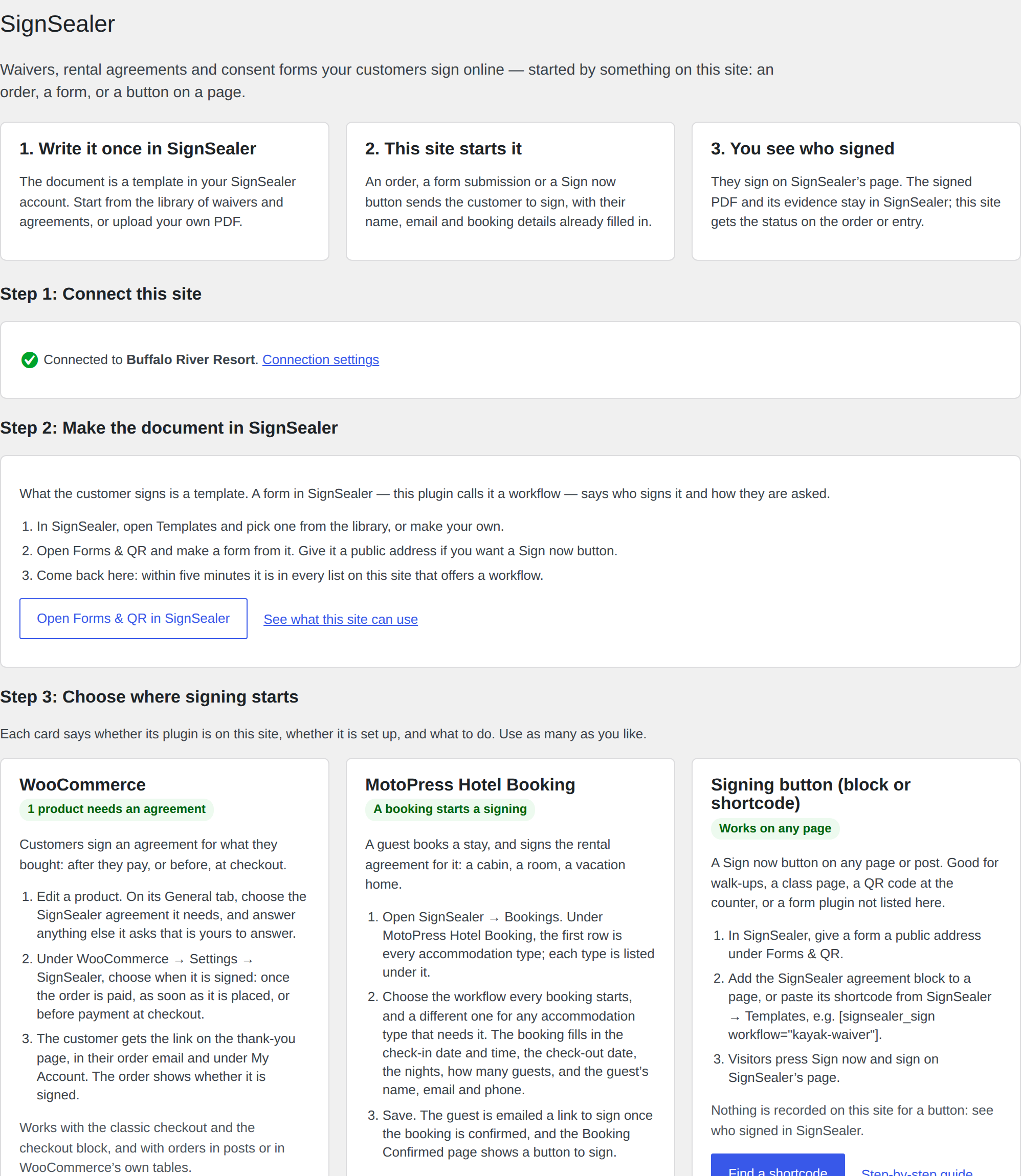
SignSealer → Start here: connected to the business, with a card for each
integration and its steps.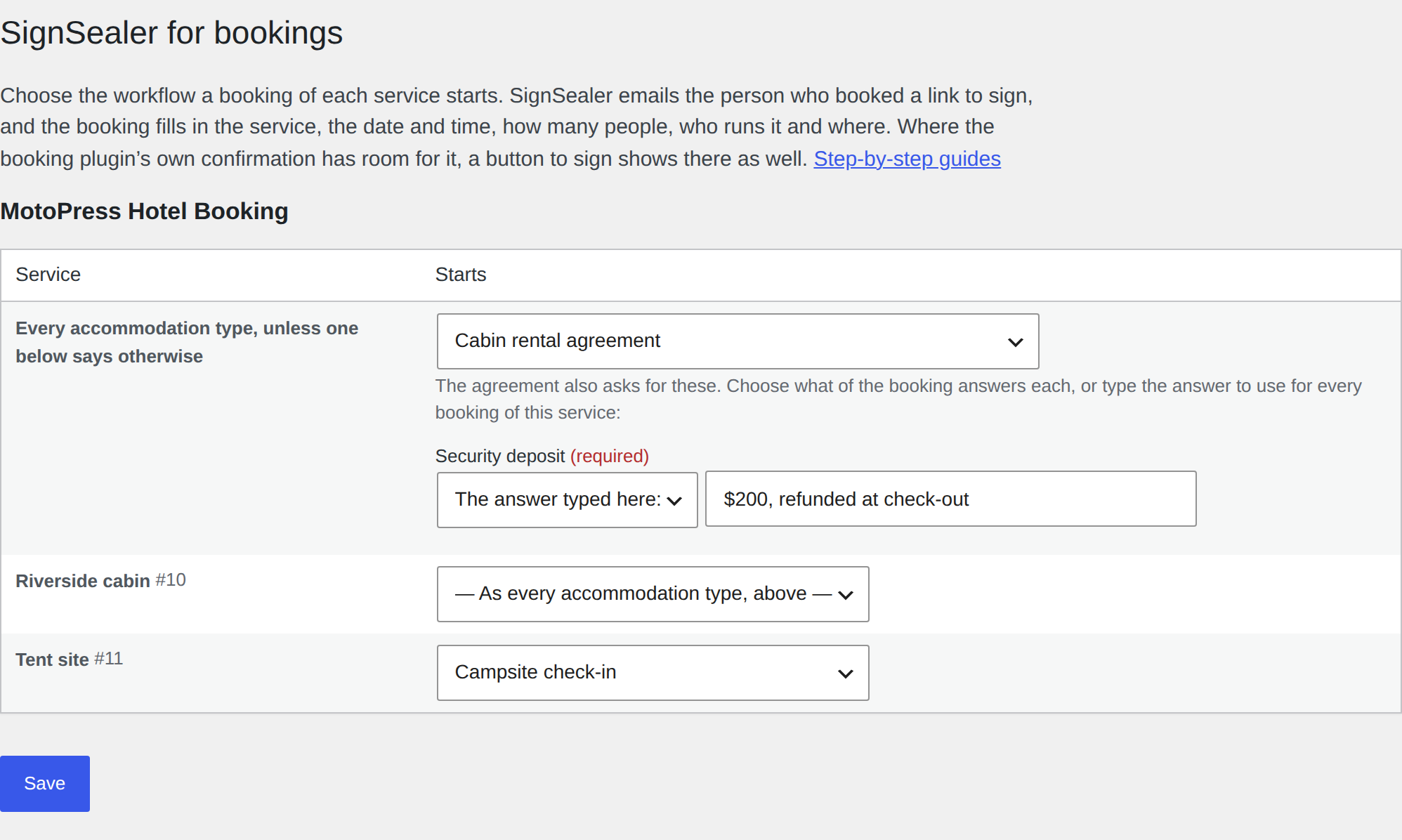
SignSealer → Bookings: the agreement each accommodation type starts, and
the answer to a blank the booking does not fill.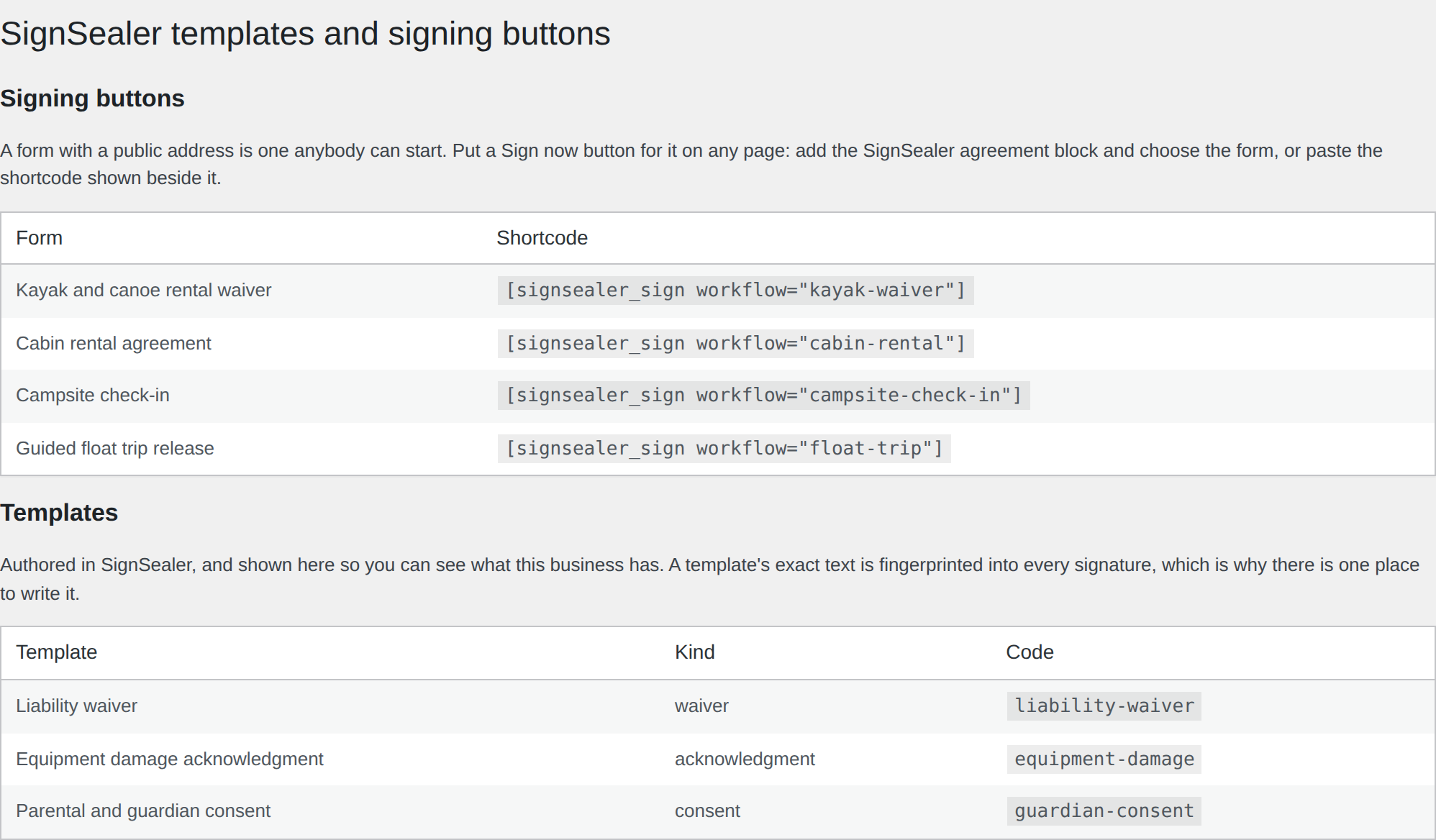
SignSealer → Templates: the business’s forms and templates, with the
shortcode for each.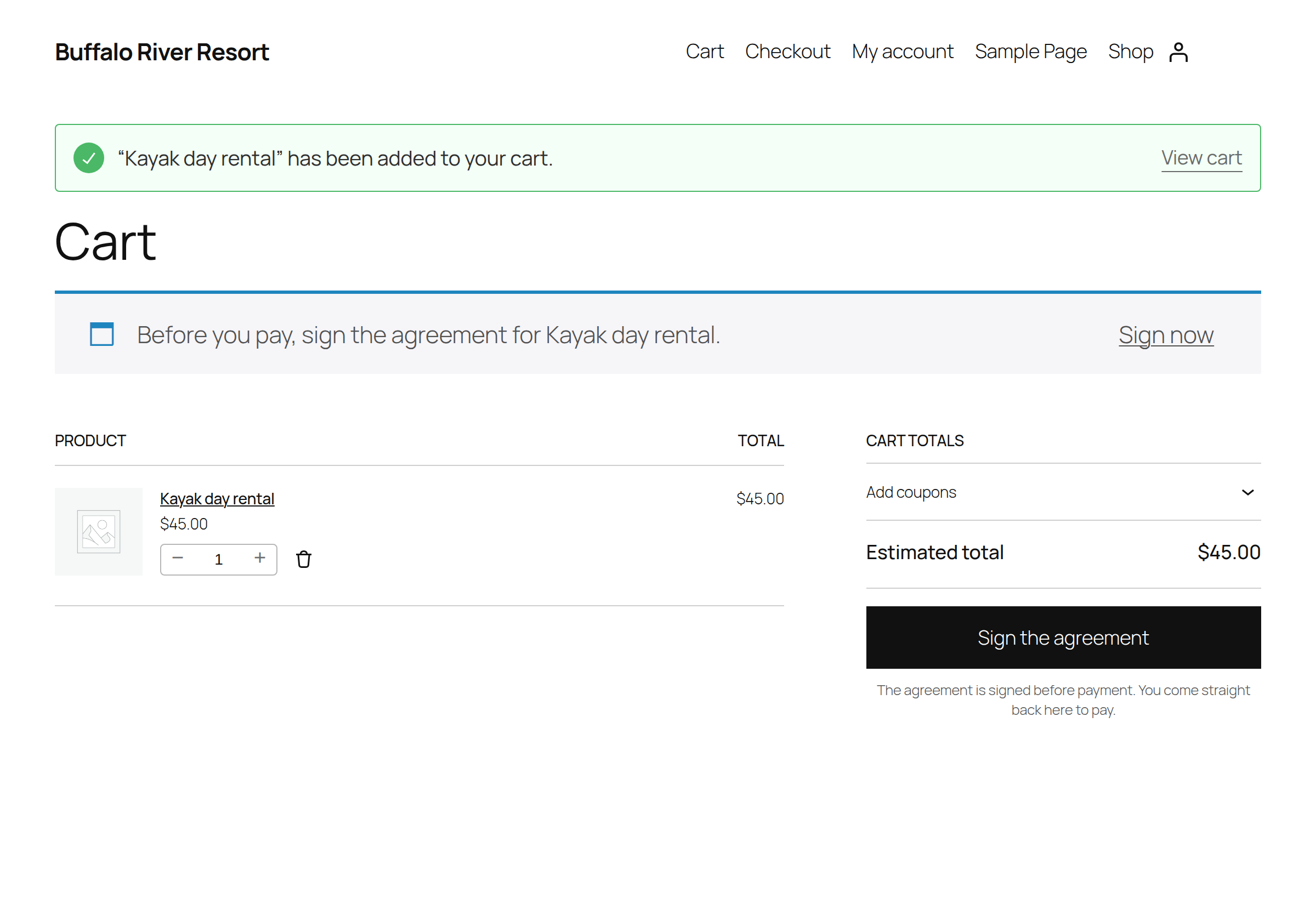
With Before payment, the cart sends the customer to sign the agreement
first.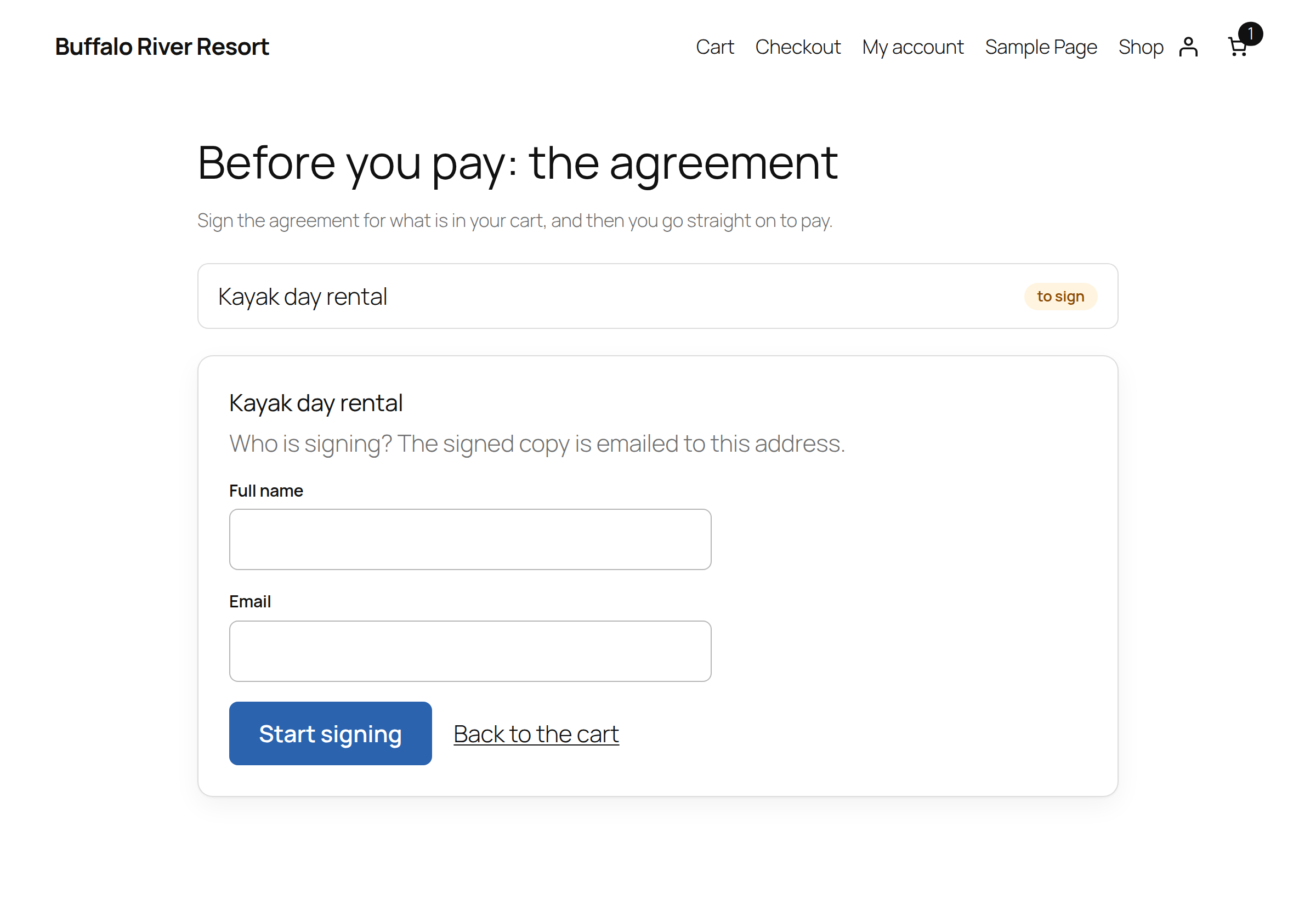
The signing page on your own site, in your theme.


