SiteCare File Permissions Wordpress Plugin - Rating, Reviews, Demo & Download
Plugin Description
File and directory permissions are one of the easiest things to get wrong on a WordPress site — and one of the most consequential. Set them too loose and you hand attackers an easy way in; set them too tight and updates, uploads, and plugins quietly stop working. The correct values are well known (755 for folders, 644 for files, locked-down config files), but applying them the usual way means FTP or SSH access, recursive chmod commands, and a real risk of breaking your site with a single typo.
SiteCare File Permissions removes all of that. From one screen under Tools Permissions, it recursively applies the safe, recommended permissions across your entire WordPress install — no FTP, no shell, no command line. The recommended values are pre-filled, so for most people it really is a single button.
Features
- One-click recursive chmod for the whole WordPress site.
- Separate, recommended values for directories (755) and files (644).
- Advanced overrides for sensitive files (.htaccess, wp-config.php, .user.ini, php.ini) with three modes: recommended read-only (444), the same value as your files, or a custom value per file.
- Live, expandable file tree that shows the current permission of every file and folder, with colour hints for safe vs. risky values.
- Real progress bar with batched processing, so it works on large sites without hitting PHP timeouts.
- Fully translation-ready and shipped with translations for major languages.
- No external scripts, fonts or trackers are loaded.
A rule for a sensitive file (for example php.ini) is only applied when that file actually exists on the server. Missing files are simply skipped.
Screenshots
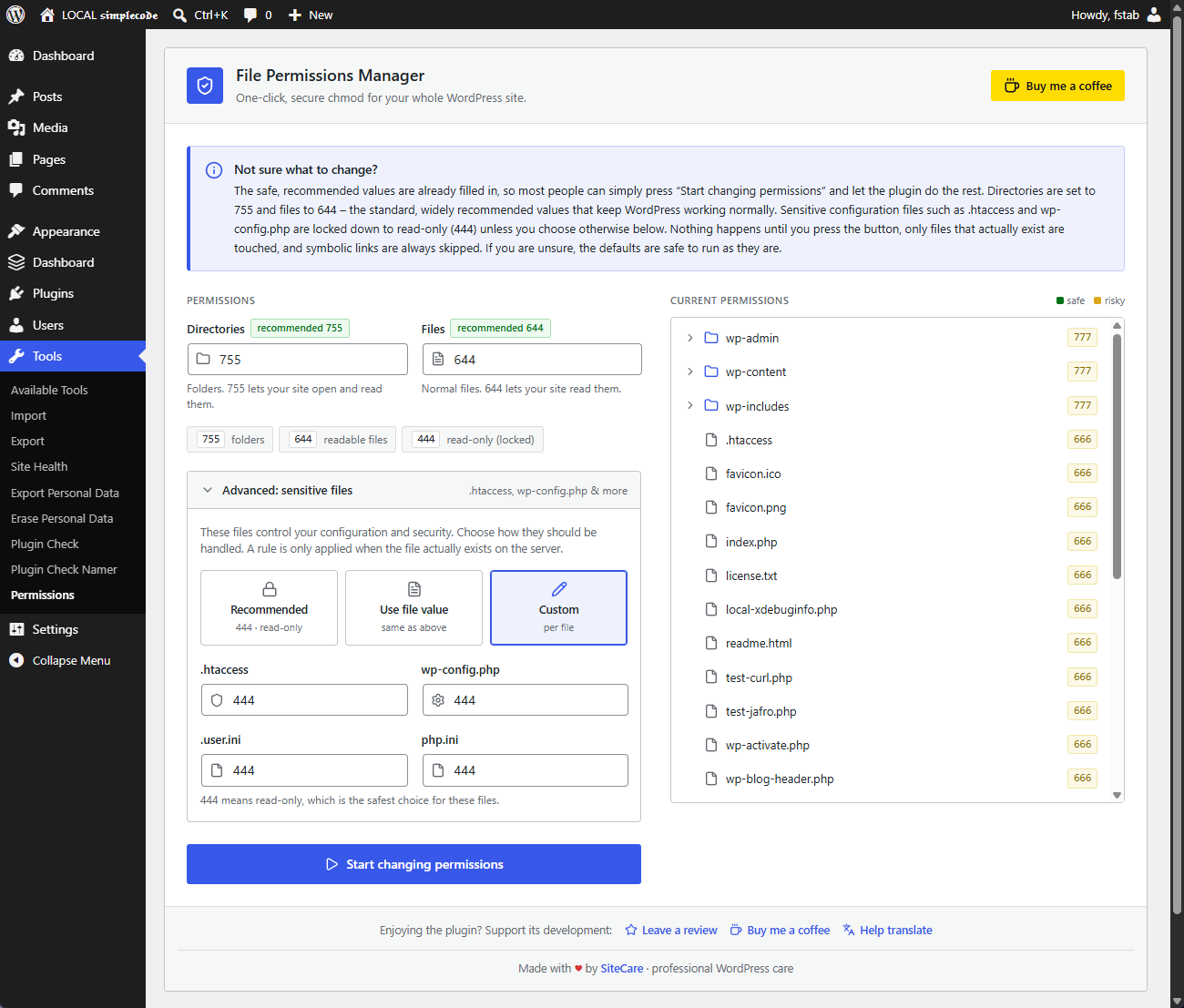
The two-column interface: settings and advanced per-file overrides on the left, live permission tree on the right.
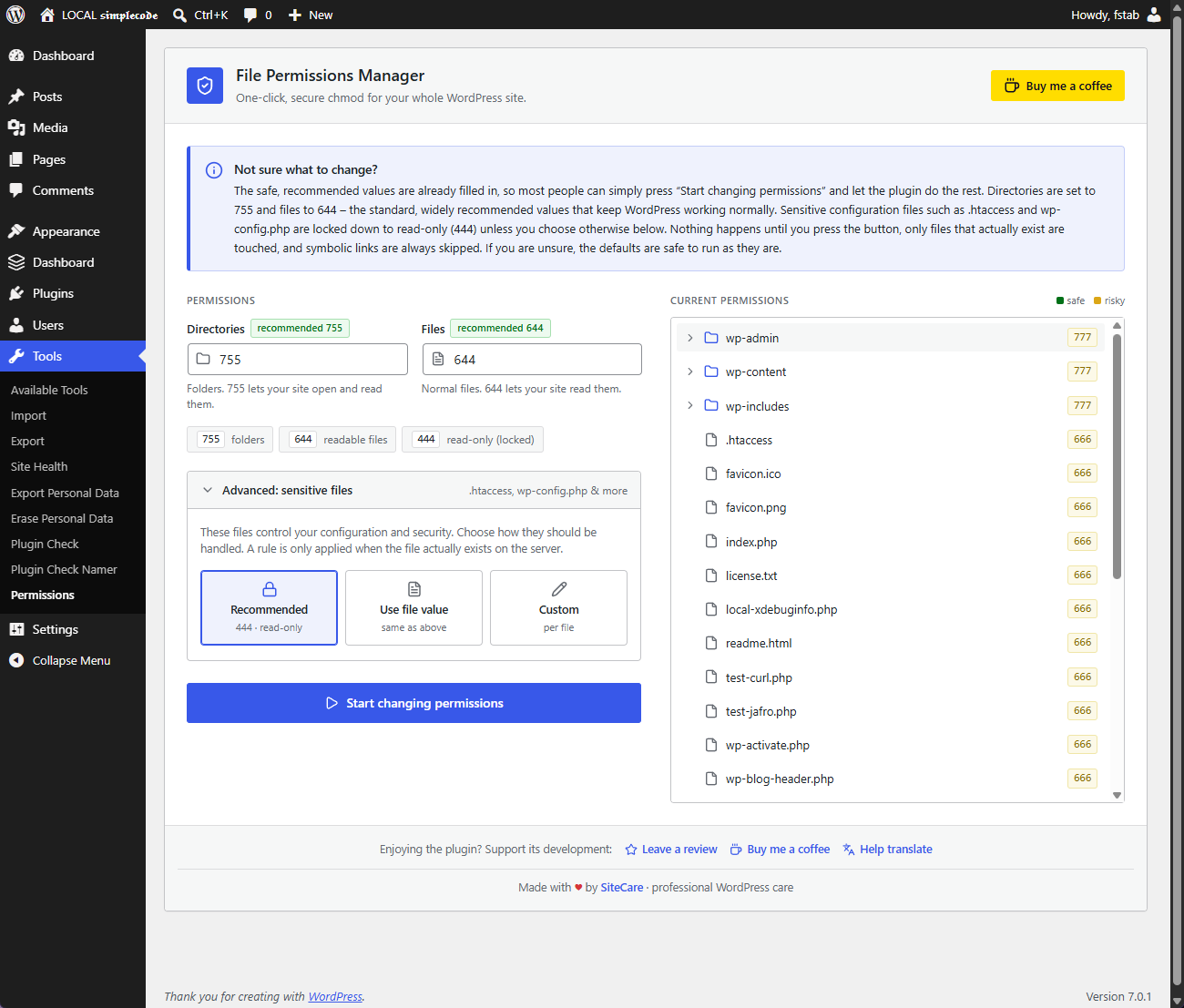
Advanced options for sensitive files with recommended, global or custom modes.