Sonaar MP3 Audio Player Cloud Wordpress Plugin - Rating, Reviews, Demo & Download
Plugin Description
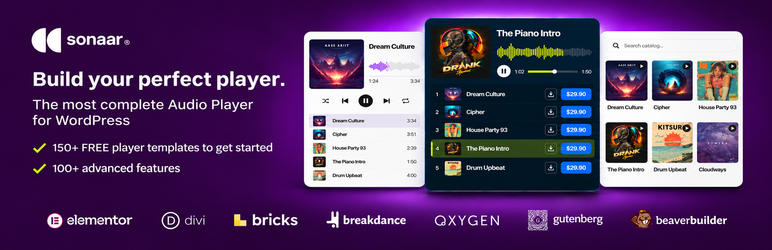
Add an MP3 audio player to your WordPress pages with Sonaar Cloud. Create music playlists, showcase podcast episodes, and customize your player with templates, artwork, waveforms and playback controls. Use the Gutenberg block, Elementor widget or a shortcode to place your player on your website.
Built by Sonaar Music, Sonaar MP3 Audio Player Cloud connects your WordPress editor to a hosted audio library and visual player designer. Open Studio to create or edit a player, then preview it on your page.
A Sonaar Cloud account and an internet connection are required. Start with the free plan for up to 10 tracks and three saved players. Uploaded audio and player designs are managed through the hosted service. Larger libraries and additional hosted features are available on paid plans.
Explore Sonaar Cloud for WordPress
Gutenberg, Elementor and shortcode support
- Gutenberg audio player: insert the Sonaar MP3 Audio Player Cloud block, connect your account, and create or select a player. Edit it from the block toolbar or sidebar and preview the result in the editor.
- Elementor audio player: add the native Sonaar MP3 Audio Player Cloud widget, marked with a purple CLOUD ribbon. Use its controls to choose a player and open Studio. Elementor Pro is not required.
- Audio player shortcode: embed a saved player in the Classic Editor, a Shortcode block or another builder that supports WordPress shortcodes. The Sonaar plugin must be installed and active.
Music playlists and podcast episodes
Present an album, a music portfolio, a beat collection, podcast episodes or voice demos with a player built around your audio. Select individual tracks or use collections and categories from your Sonaar library to build a playlist.
Add track titles, artist names and cover artwork so listeners can identify what is playing. Use one saved player on several pages, or create separate players for different playlists.
Player templates, artwork and waveforms
Choose a template in Sonaar Cloud Studio and customize its colors, artwork, layout and playback controls. Configure the tracklist and waveform or progress display to suit your content. Responsive players adapt to the available space, with automatic height or a manual height setting in WordPress.
Save a design once and reuse it across your website. Changes saved to that cloud player appear wherever the same player is embedded. Duplicate the player in Studio when you want an independent version.
Assign audio to posts, pages and custom post types
Give each page its own song or ordered playlist while reusing a player design. A site administrator sets up Posts, Pages or a supported public custom post type through Sonaar > Set up a new player.
- Choose a shared player design and insert it automatically before or after the page content.
- Alternatively, use an existing Gutenberg block or Elementor widget and enable Use this page’s audio. Each block or widget keeps its selected design and plays the current page’s assigned tracks.
- Search your Sonaar library or upload audio from the WordPress editor, then arrange the page’s playlist and save the page.
- Manage existing page assignments together and review title-based matching suggestions before applying them.
Audio stays hosted by Sonaar Cloud and counts toward your account’s track allowance. Assignments use WordPress post IDs, so changing a page title or permalink keeps its audio association. This workflow assigns audio to existing content; it does not create WordPress posts.
Sticky audio player and playback between pages
Enable the sticky bar to keep playback controls at the bottom of your published website. Enable Continuous Player in Sonaar Cloud to remember the current track and playback position as visitors move between pages in the same browser tab, including pages without a player block.
Full-page navigation briefly interrupts audio while the next page loads, and browser autoplay rules may require another click on Play. Uninterrupted playback requires a compatible AJAX navigation setup. The plugin does not add AJAX navigation to your theme.
Audio library, collections and listener analytics
Open Dashboard from WordPress to manage your audio library, collections, categories and workspace settings. Upload audio to Sonaar Cloud and reuse it in your players and page assignments. Listener analytics are available according to your Sonaar plan and playback analytics settings.
Studio opens inside an editor dialog, with a separate-window option when needed. Billing and account administration open separately on Sonaar.
Free account and hosted service requirements
The WordPress plugin is free to install. Sonaar Cloud provides the account, audio hosting, player designer and player delivery. Its free plan includes up to 10 tracks and three saved players; paid plans offer more capacity and additional service features.
WordPress stores player references and page-audio assignments. Uploaded audio and player settings stay on Sonaar Cloud rather than in your WordPress Media Library. Published players need access to the hosted service to load and play.
Screenshots

Add and edit a Sonaar player directly in Elementor, with native widget controls and a live player preview.

Insert the Sonaar Gutenberg block and manage its playlist with native WordPress block settings.

Customize your player in Sonaar Studio, with design controls beside the live preview.

Manage track artwork, title, artist, album, tempo, categories, lyrics and audio settings in the track editor.

Find your perfect player. Explore all templates at sonaar.com.