TomatoSHIFT Image Uploader For Figma Wordpress Plugin - Rating, Reviews, Demo & Download

Plugin Description
Send images from Figma straight to WordPress. tomatoSHIFT Image Uploader for Figma is the WordPress half of a two-part tool: select layers in the Figma plugin, hit upload, and the images land in your Media Library. No exporting to your Downloads folder, no drag and drop, no renaming files.
The plugin adds a REST endpoint protected by an API key you generate in WordPress. Nothing else is exposed, and the plugin makes no outbound requests of its own.
Key features:
- Figma to WordPress in one click — no manual export, download or upload step
- Bulk upload — send a whole batch of selected layers at once
- PNG, JPG and WebP — the Figma plugin resizes, compresses and converts before sending, so what reaches your Media Library is already web-ready
- Alt text and titles carried over — set them in Figma, keep them on the attachment
- Secure API key authentication with constant-time comparison
- No third-party service — images go from Figma to your own site
Typical uses: shipping design assets to a blog post, keeping a landing page in sync with the Figma file, or handing a client site a batch of optimized WebP images without leaving the design tool.
Figma is a trademark of Figma, Inc. This plugin is developed by tomatoSHIFT and is not affiliated with, sponsored by or endorsed by Figma, Inc.
Figma is a trademark of Figma, Inc. This plugin is developed by tomatoSHIFT and is not affiliated with, sponsored by or endorsed by Figma, Inc.
Screenshots
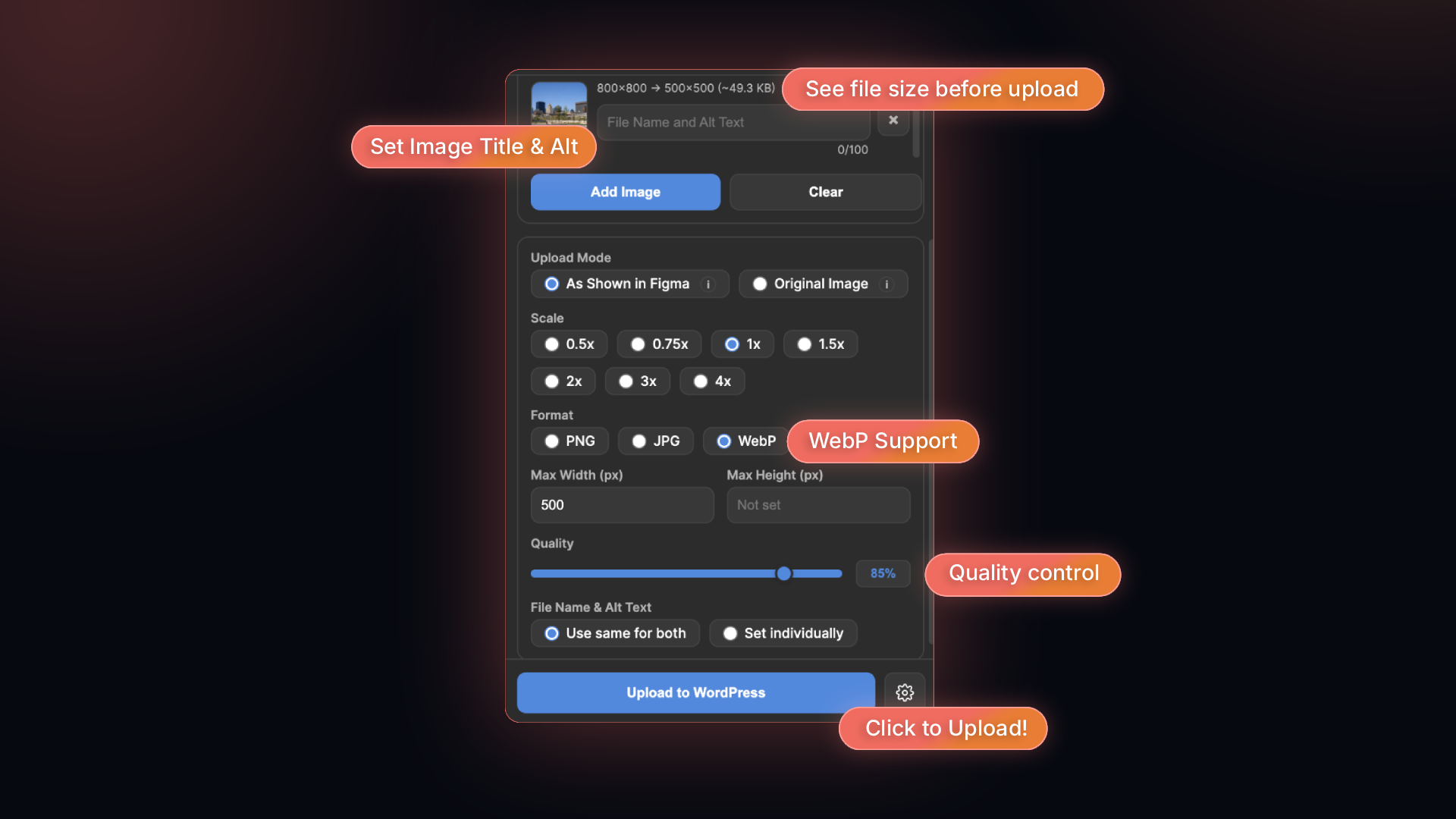
Choose scale, format (PNG, JPG or WebP), max size and quality in Figma, and see the resulting file size before uploading.
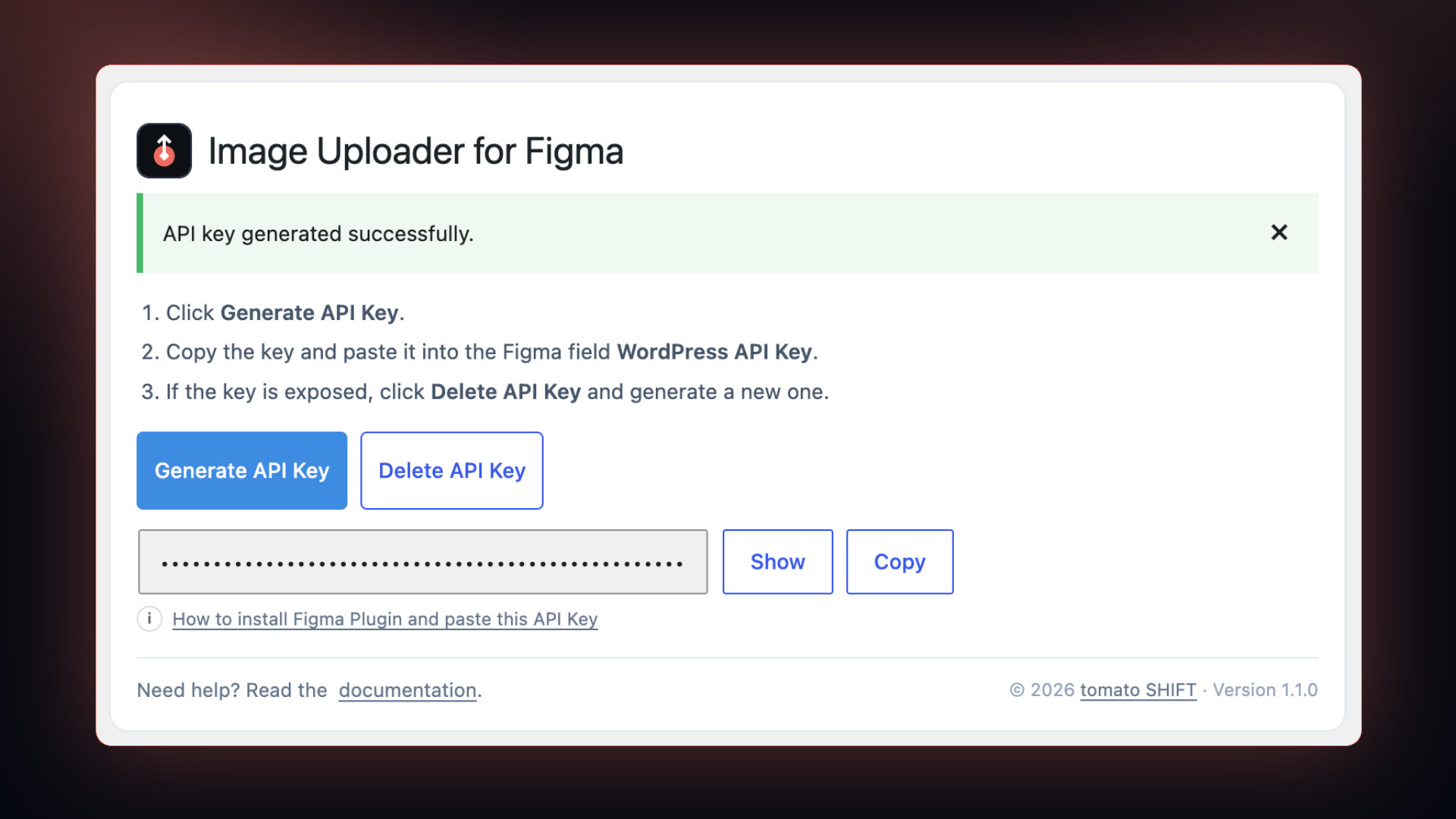
Settings > tomatoSHIFT Image Uploader for Figma: generate the API key and copy it into the Figma plugin.
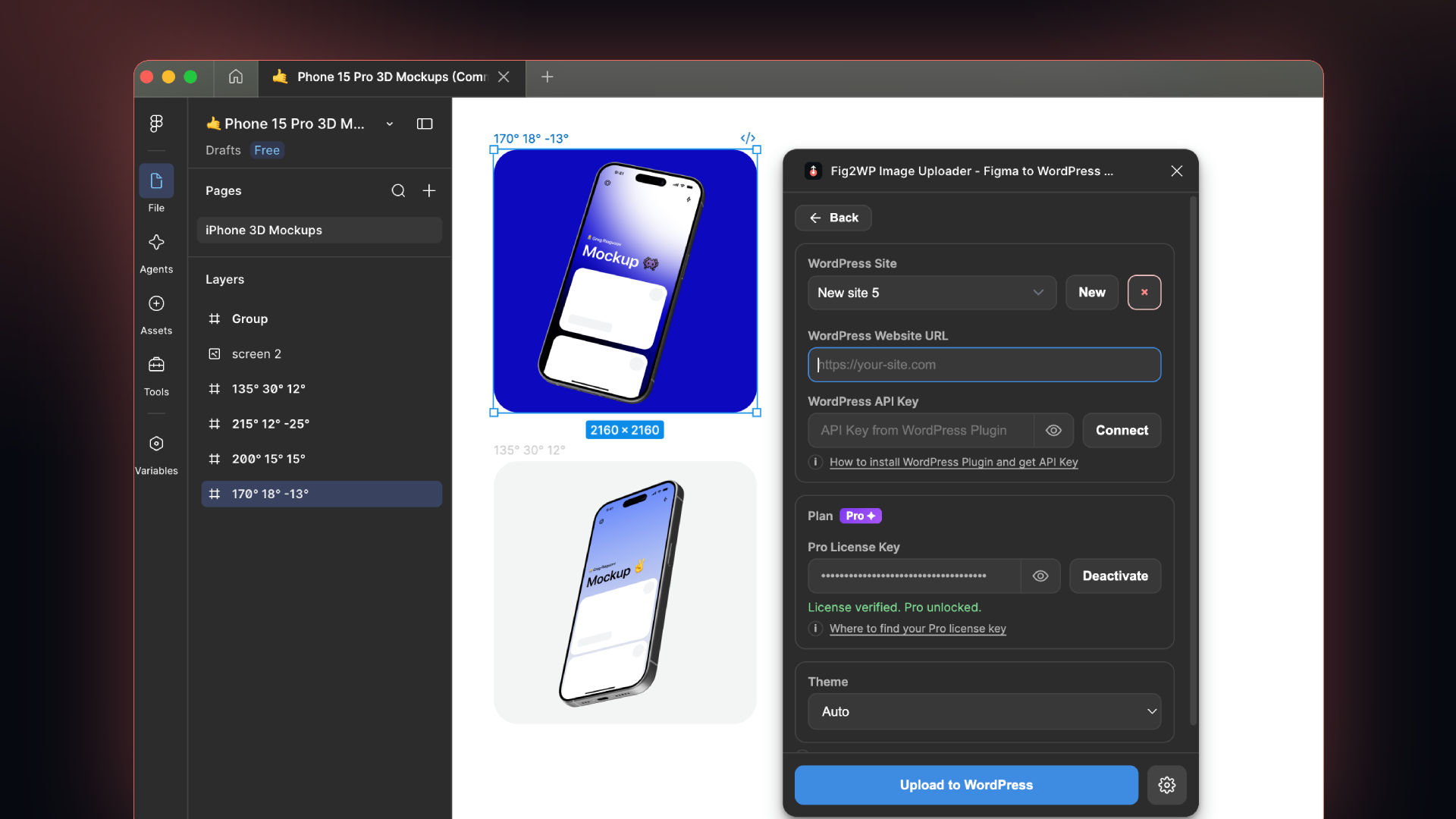
Paste your WordPress site URL and API key into the Figma plugin to connect.
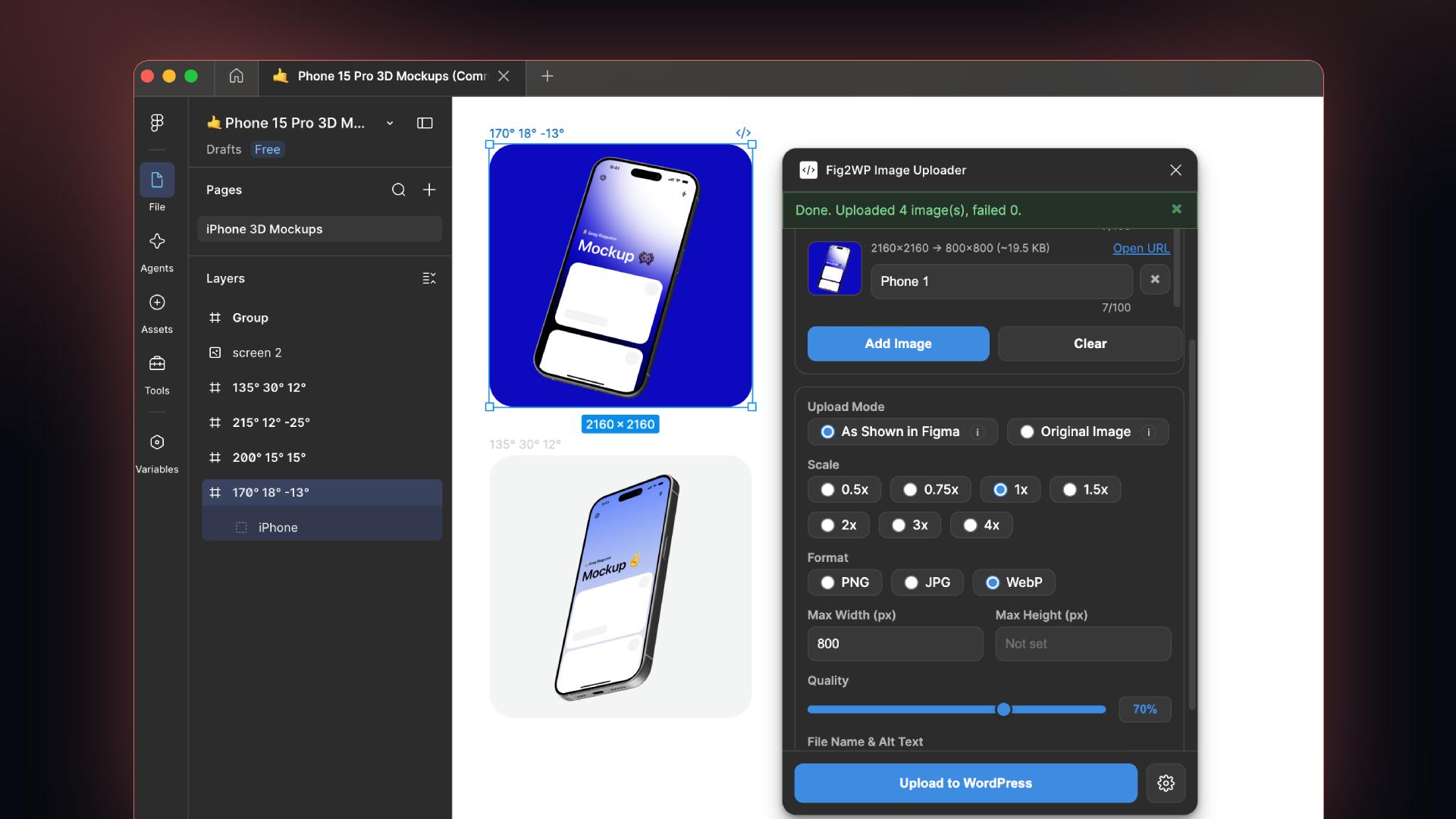
Select layers on the Figma canvas and upload them in one batch.
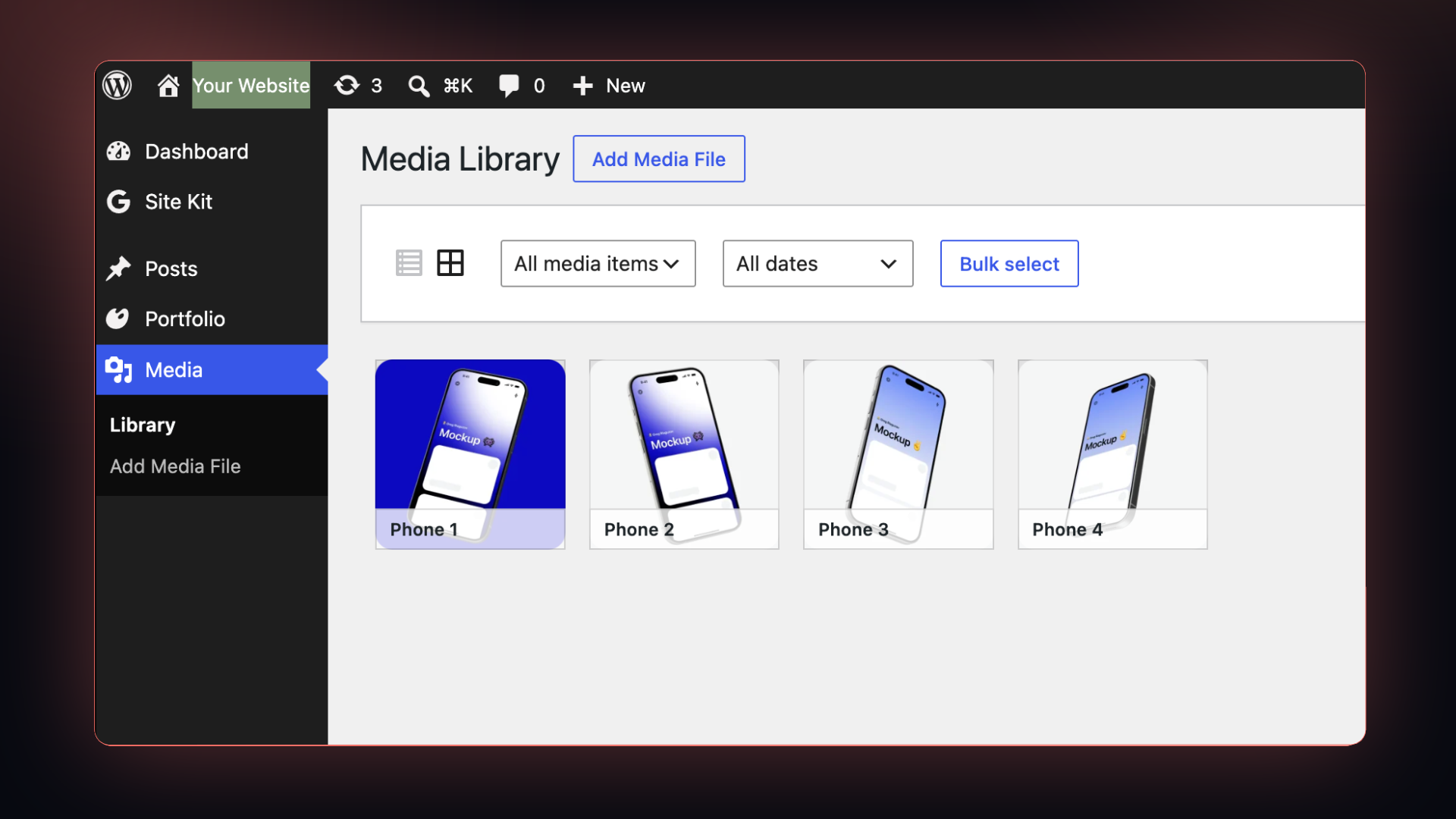
The uploaded images land straight in the WordPress Media Library.
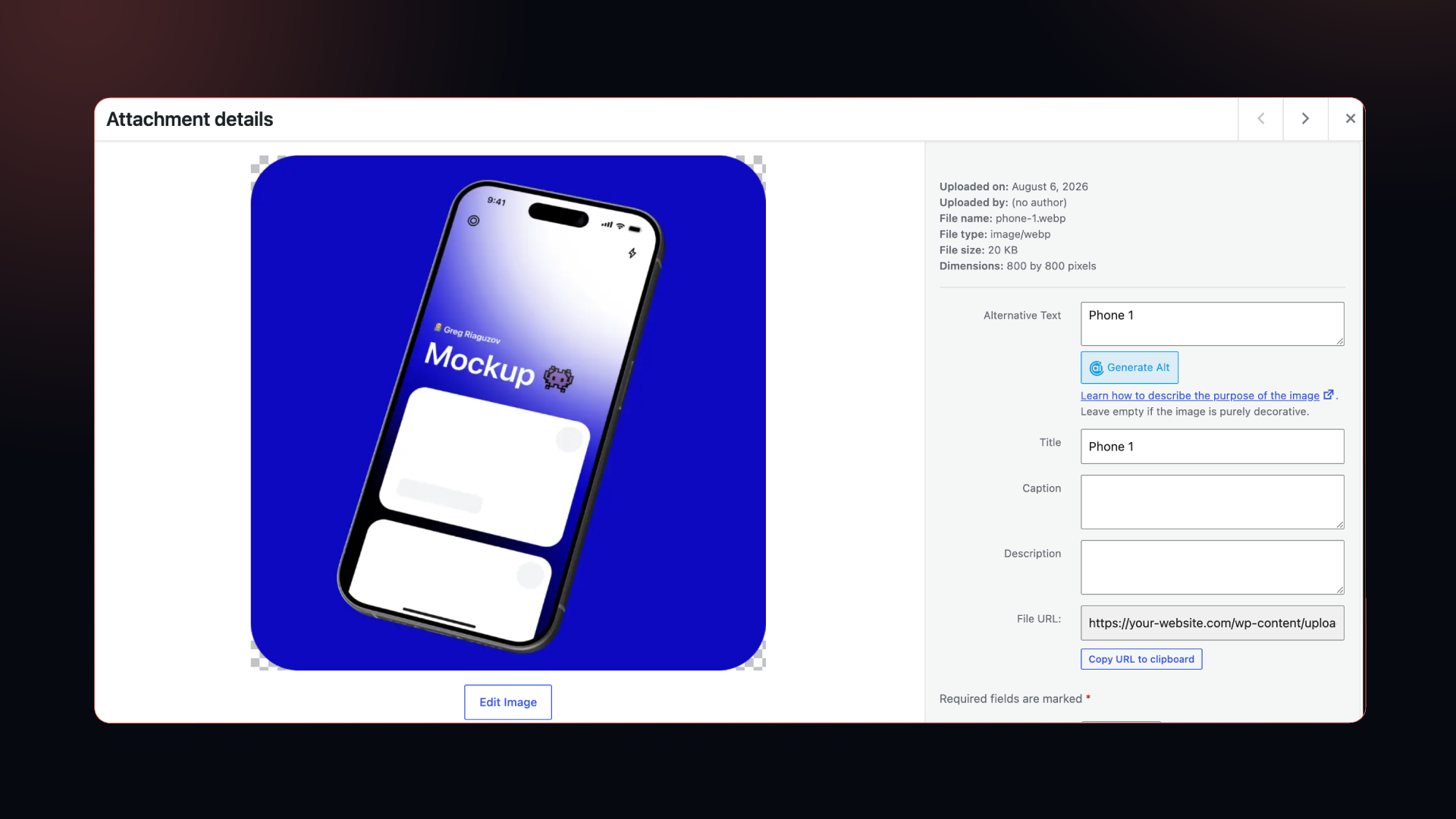
Title and alt text set in Figma are carried over to the attachment.