Trigli Chat Support Wordpress Plugin - Rating, Reviews, Demo & Download

Plugin Description
Trigli Chat Support adds the Trigli AI customer service widget to your WordPress site.
Trigli is an AI customer support platform for small businesses. You upload your policies, FAQs, and product docs to Trigli, and the chat widget answers visitor questions using only that material. When the AI is not confident, or when a visitor asks for a person, the conversation is routed to your team with in-app, email, or Microsoft Teams notifications.
What you get
- A floating chat bubble on your site, styled with your brand color and bot name
- AI answers grounded in the documents you provide, not generic AI guesses
- Automatic handoff to your team when confidence is low or a visitor asks for a human
- Email capture when no agent is online, so you never lose the conversation
- Visitor image uploads, chat transcripts, and proactive chat
- Widget appearance, greeting, tone, and AI behavior managed centrally in your Trigli dashboard
How it works
- Create a Trigli account at trigli.com (a free plan is available; it includes a limited number of chats per month, see trigli.com/pricing)
- Upload the documents your AI should answer from
- Install this plugin and paste your Tenant ID
- The widget appears on your site and starts answering
The plugin itself is intentionally small. It loads the Trigli widget script on your public pages and gives you a settings page for your Tenant ID, widget position, and an optional logged-in user handoff. Everything else is configured in your Trigli dashboard, so changes there apply to your site immediately without touching WordPress.
External Services
This plugin relies on Trigli (https://trigli.com), an AI customer service platform, to function. A Trigli account is required. The free tier works without payment.
Once a Tenant ID is configured in the plugin settings, the visitor’s browser loads the widget script from trigli.com on your site’s public pages and communicates with the Trigli service. While the widget is active, the following visitor data is sent to Trigli’s servers (trigli.com):
- Chat messages typed by visitors, and any images they upload in the chat
- The page URL, page title, and referrer of pages the visitor views while the widget is present, used for live visitor analytics and to give the AI context about what page the visitor is on
- The visitor’s IP address and browser user agent, as with any web request
- A randomly generated visitor identifier and chat session identifier, stored in the visitor’s browser (localStorage) and sent with each ping, so returning visitors can resume their conversation and live visitor analytics stay consistent across pages
- If you enable the optional “Identify logged-in users” setting, the WordPress user ID, email address, and display name of logged-in visitors, used to link their chat history across devices; their name and email are also attached to the widget’s page-view pings so your team can see which signed-in user is browsing which page
The plugin sends no data to Trigli and loads no remote code until a Tenant ID is configured.
Terms of Use: https://trigli.com/terms. Privacy Policy: https://trigli.com/privacy. If your site must obtain consent before loading third-party services, see the consent question in the FAQ.
Screenshots
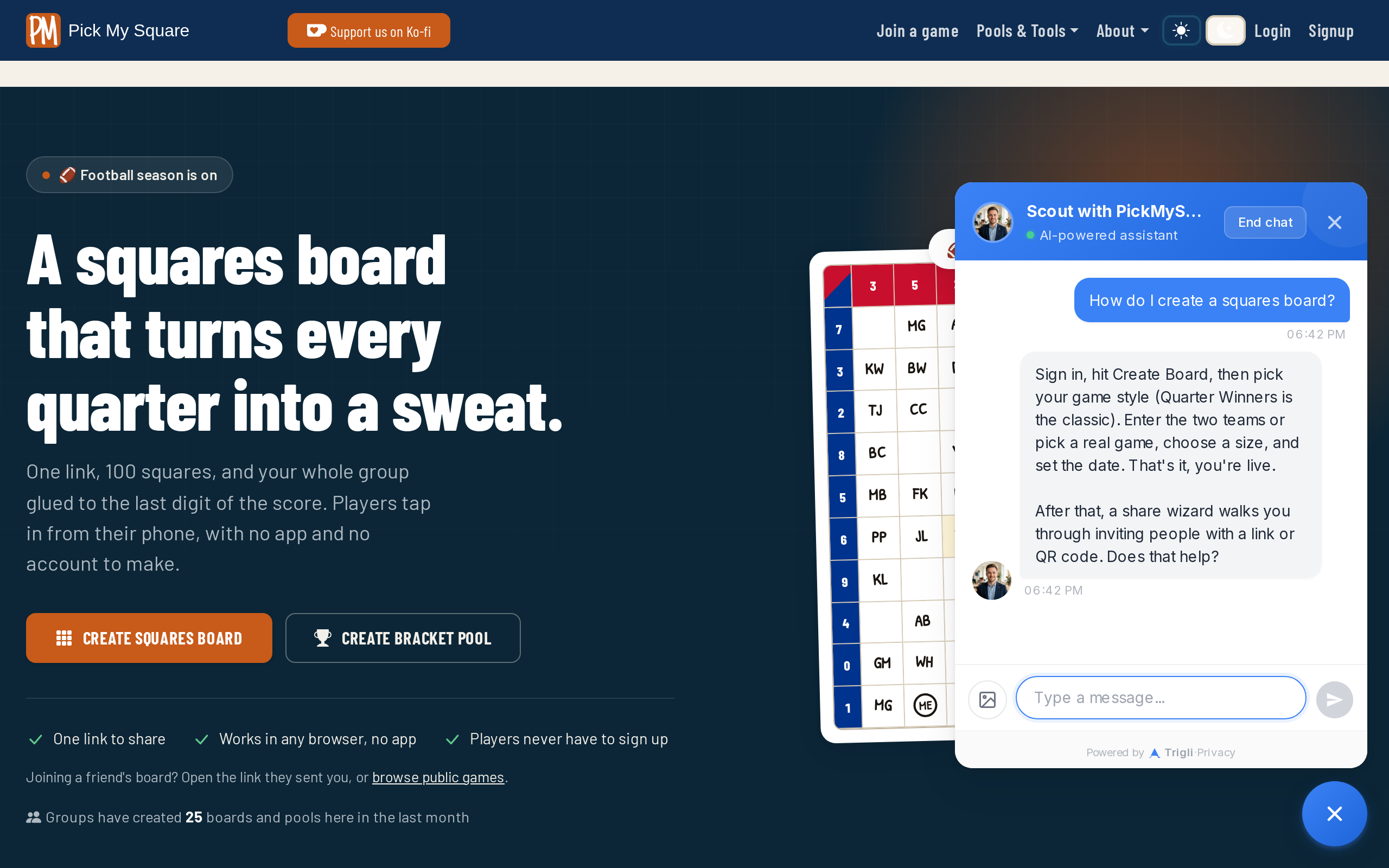
The chat widget on a live site, answering a visitor question from the site’s own documentation.
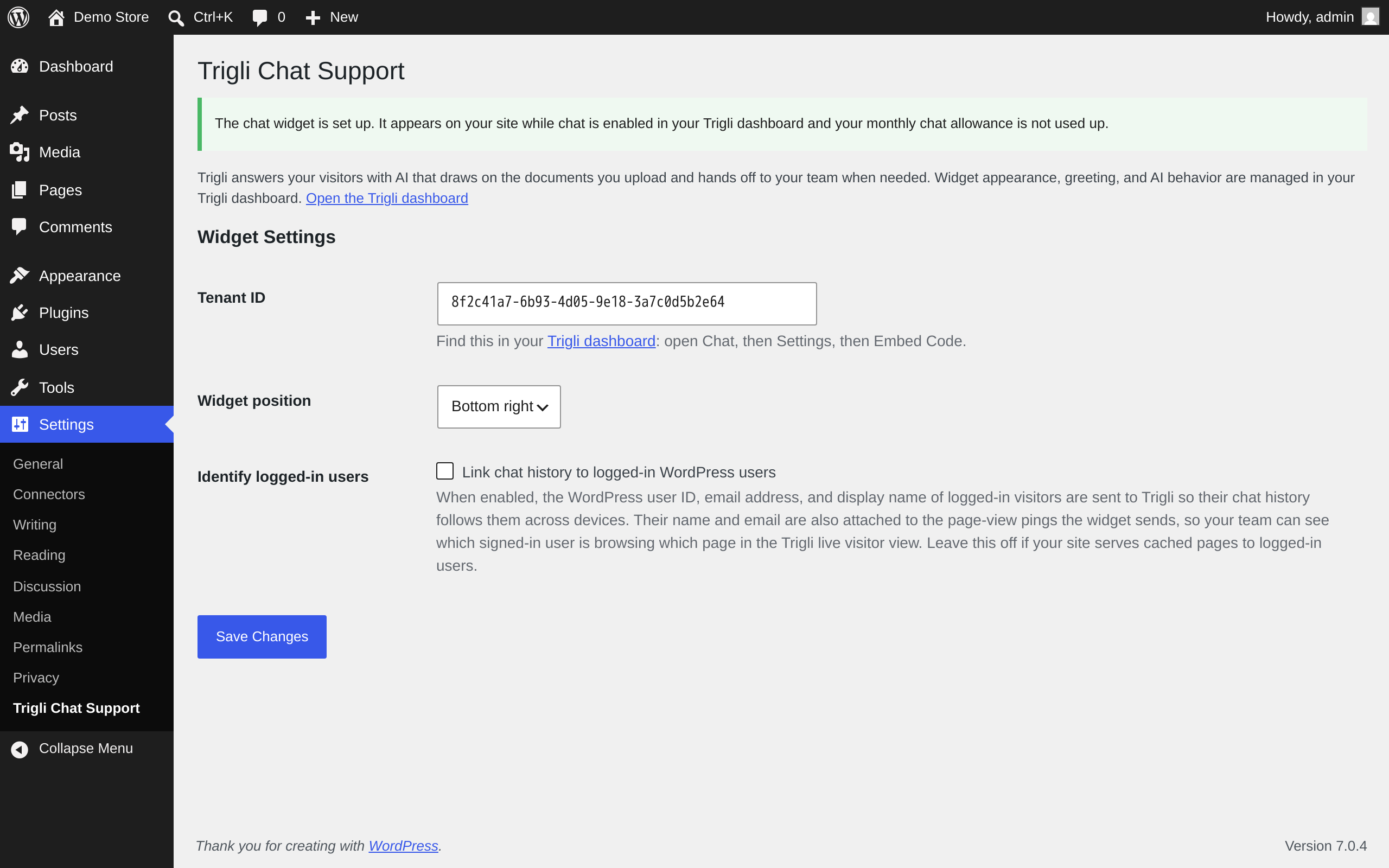
The plugin settings page. Paste the Tenant ID from your Trigli dashboard, choose which corner the chat bubble sits in, and optionally link chat history to logged-in WordPress users.
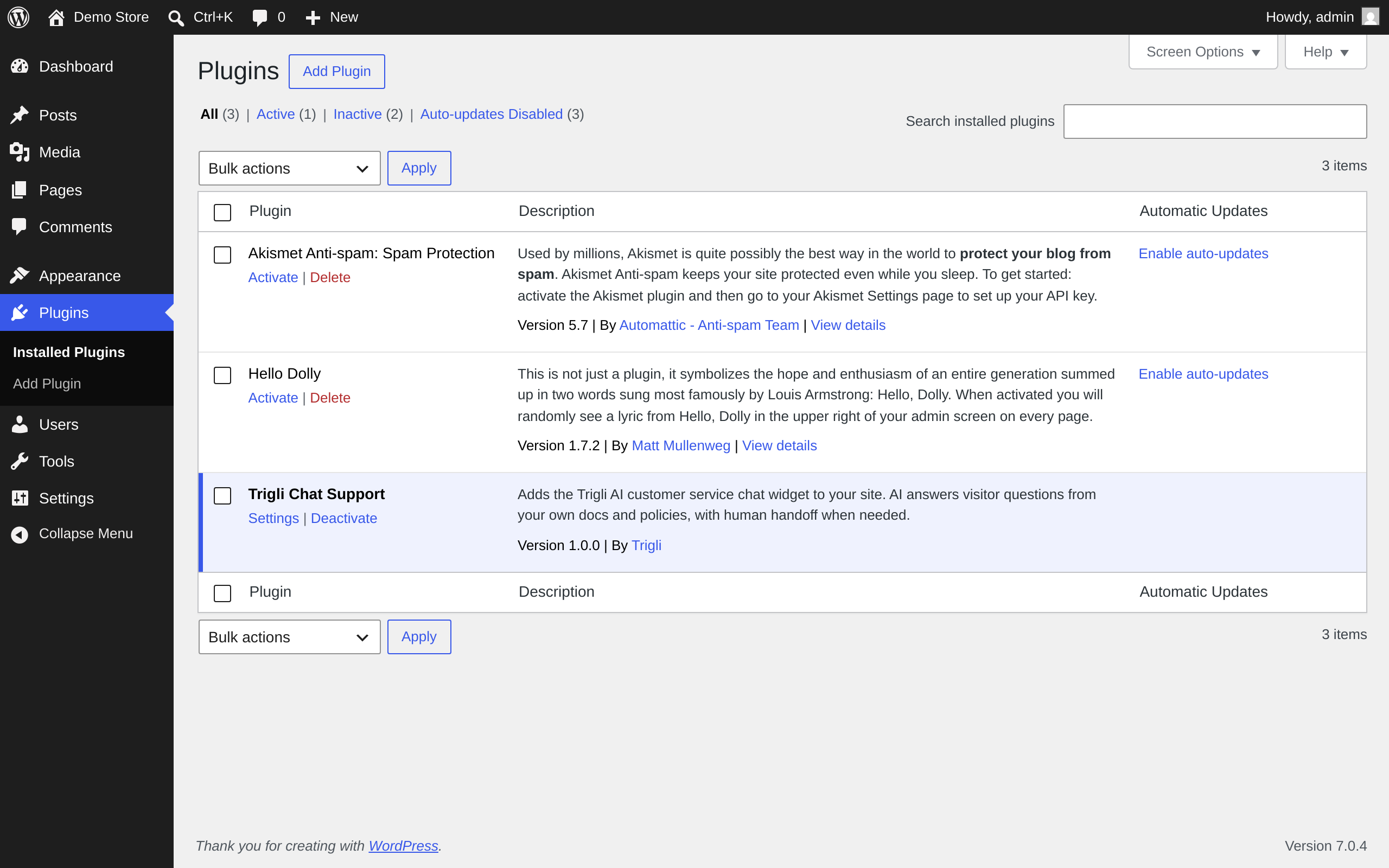
The plugin installed and active. Everything else, including widget appearance, greeting, tone, and AI behavior, is managed in your Trigli dashboard.