TW Simple Slider Wordpress Plugin - Rating, Reviews, Demo & Download

Plugin Description
TW Simple Slider is an easy-to-use WordPress plugin that allows you to create beautiful image sliders without any coding knowledge. Simply add your images, choose a slider style, and display it anywhere on your site using a shortcode.
Key Features
- Simple Interface – Just add images and select slider type
- Multiple Slider Styles – Basic, Fade, and Infinite Scroll
- Drag & Drop – Easily reorder images by dragging
- Responsive Design – Works perfectly on all devices
- Shortcode Support – Display sliders anywhere using [tw_slider id=”123″]
- Lightweight – All resources included locally
- No Coding Required – User-friendly admin interface
How to Use
Creating Your First Slider
- Go to Sliders Add New in WordPress admin
- Enter a title for your slider (e.g., “Homepage Slider”)
- Click Add Images button to upload/select images
- Drag and drop images to reorder them
- Select your preferred slider settings from the sidebar
- Click Publish
- Copy the shortcode displayed in the sidebar
- Paste the shortcode in any post, page, or widget
Displaying Sliders
Using Shortcode:
[tw_slider id=”123″] – Replace 123 with your slider ID
In Posts/Pages:
Simply paste the shortcode in the content editor
In Widgets:
Use the Text widget and paste the shortcode
License
This plugin is licensed under the GPL-2.0+ License. You can freely use, modify, and distribute it under the terms of this license. See the full license at: https://opensource.org/licenses/GPL-2.0
Screenshots
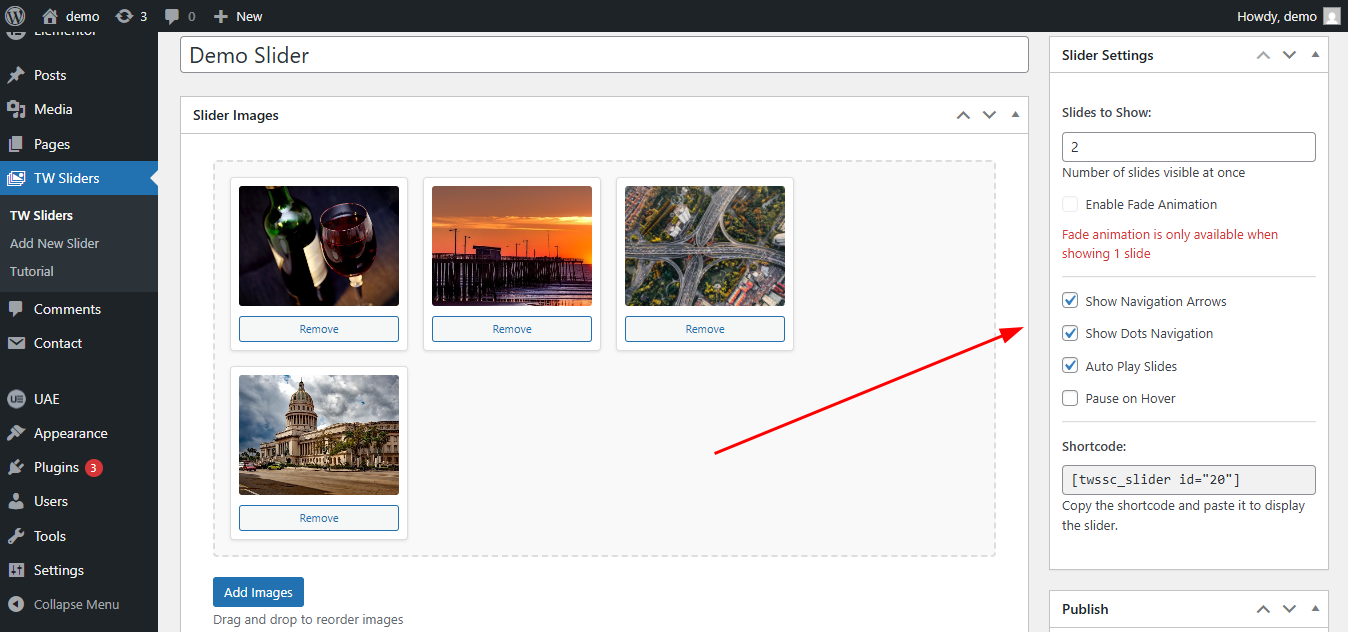
Screenshot 1: Slider Setting – Adding images and choosing between different slider options.
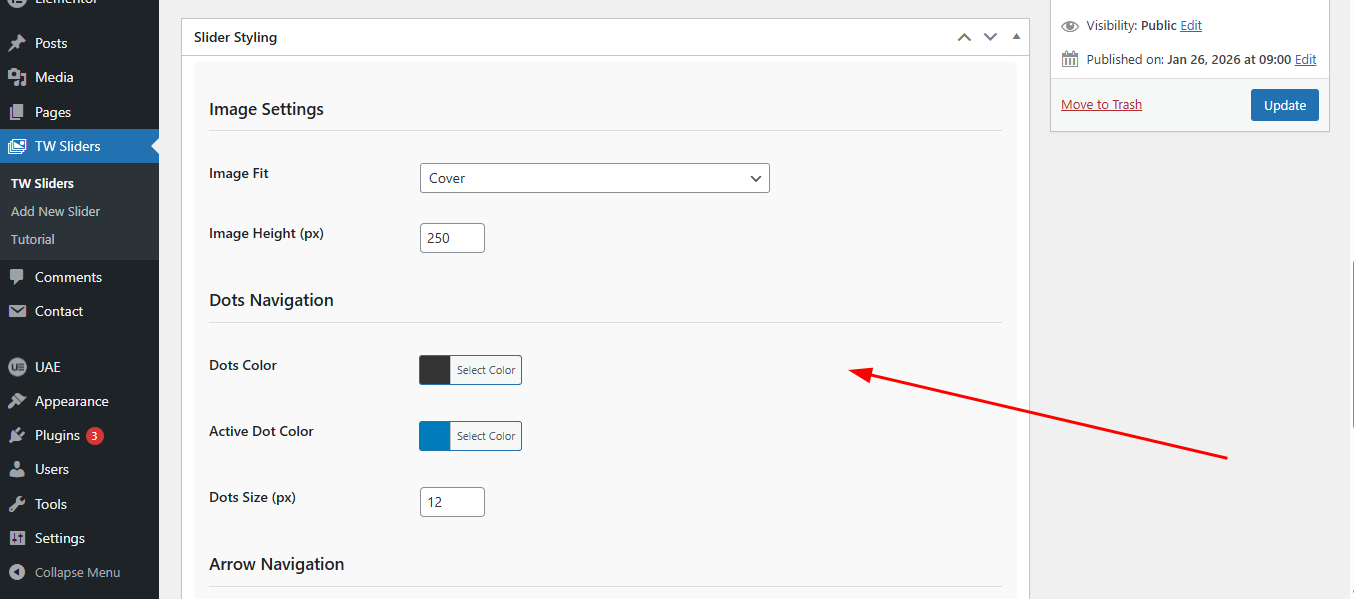
Screenshot 2: Slider Styling – Customizing slider appearance, including height, Image Fit, and visual effects.

Screenshot 3: Frontend Display – Responsive slider on a website.