Uplink Admin Menu Manager Wordpress Plugin - Rating, Reviews, Demo & Download
Plugin Description
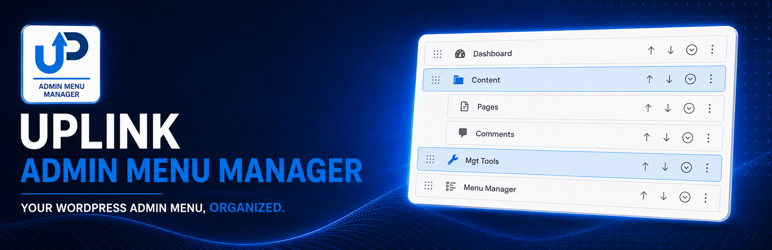
Uplink Admin Menu Manager provides a visual editor for organizing the WordPress admin menu. Create a default menu, add role or user profiles, and arrange the navigation around the work each person performs.
The plugin can:
- Reorder, rename, hide, and recolor top-level admin menu items and their expanded submenus.
- Reorder, rename, hide, and move submenu items.
- Place menu items inside accessible collapsible groups.
- Keep one unpinned group open at a time or let users control each group independently.
- Add custom links and non-clickable headings.
- Adjust the desktop admin menu width.
- Hide selected entries from the Plugins screen by role.
- Protect selected user accounts from profile-management actions.
- Export or import the complete configuration or only its visual settings.
Menu visibility changes navigation only. WordPress roles and capabilities remain the authority for access to admin screens and actions.
Special thanks to Tom Homer and the EtchWP community for their invaluable feedback.
Usage
Menu profiles
The default profile applies to all users. A user profile overrides a role profile, and a role profile overrides the default profile. Deleting an override restores inheritance from the default profile.
Groups
Choose Add group to menu, name the group, and move menu items into it by dragging them or using each item’s Group selector. Group headings use native buttons and expose their expanded state to assistive technology.
Drag from the handle at the left of an item. An item can be dropped directly on a collapsed group heading, and Menu Manager itself can be placed inside a group while remaining protected from hiding or redirection.
Visibility and access
Hiding a menu item removes it from navigation. It does not block its URL. Use WordPress capabilities to control access to admin screens.
Import and export
A complete export includes profiles, menu order, groups, appearance settings, and access rules. A look-and-feel export contains presentation settings only. A visual import does not replace menu structure or access rules.
Security and permissions
Administrators with the manage_options capability can change site-wide settings and any unprotected menu profile. Administrators may also allow selected roles to edit only their own personal menu profile. Forms use WordPress nonces, submitted values are validated and sanitized, and rendered values are escaped for their output context. Menu visibility never grants access to an admin screen.
Third-party libraries
SortableJS 1.15.7 is bundled locally for menu reordering. SortableJS is copyright the SortableJS contributors and licensed under the MIT License. Its license is included at assets/vendor/sortable-LICENSE.txt.
Screenshots

Arrange WordPress menu items and accessible groups in the visual menu editor.

Adjust menu dimensions, touch targets, group spacing, and heading typography with a live preview.

Set global admin menu and plugin submenu colors with live contrast checks.

Define the default colors for open and collapsed group headings and item panels.

Choose which roles may edit personal menu profiles and which menu other roles receive.