Versilink – Replace PDFs Without Breaking Links Wordpress Plugin - Rating, Reviews, Demo & Download
Plugin Description
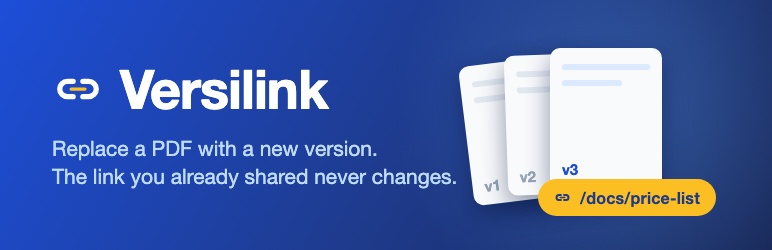
When you update a price list, catalog or PDF guide, the links you already sent by email, in ads or on social media still point to the old copy. This plugin turns an existing Media Library file into a Document. Each new version you upload replaces the file at its current address, so links you already shared serve the new content.
It is aimed at PDF price lists and guides, but works with any file type WordPress lets you upload, including DOCX and XLSX.
Features
- Create a Document from any Media Library file.
- Replace the file in place: its existing address serves each new version.
- Version history with an optional note per version. Users who manage the Document can download previous versions and restore any of them.
- Previous versions are kept in a separate uploads folder under random file names and do not appear in the Media Library.
- A short permanent link (
/docs/your-document, prefix configurable) that always points to the current file. The plugin warns when the prefix clashes with an existing page, post type or taxonomy. - Media Library files that are Documents are marked, and other files get a “Create Document” action.
A note on caching
The permanent link is sent with headers that forbid caching by browsers, but if the site uses a page cache or a CDN, the file’s actual address may still be served from cache until purged. After uploading a new version, purge the relevant cache so visitors see it immediately.
A note on nginx
Previous-version files are stored under a folder with random, non-guessable names, which is the primary protection against direct access. On servers running Apache, an .htaccess file inside that folder also denies all direct requests. nginx does not read .htaccess files, so on nginx that extra layer is not present; the random file names remain the only protection.
Screenshots

Creating a Document from the attachment edit screen.

Version history with notes, downloads and restore.

The Documents list with each Document’s permanent link.

The permanent link prefix setting.