Vigilo Monitor Wordpress Plugin - Rating, Reviews, Demo & Download

Plugin Description
Vigilo Monitor is a lightweight, no-frills site-health monitor built for freelancers and agencies managing client WordPress sites. It watches the three things most likely to take a site down or offline without warning, and emails you before they do:
- Disk usage – percentage used, plus human-readable free/used/total space.
- PHP fatal errors – how many fatal errors were logged in the last 24 hours.
- SSL certificate expiry – how many days remain before the site’s SSL certificate expires.
Checks run automatically once a day via WP-Cron. If any check crosses the threshold you’ve configured, Vigilo Monitor emails your chosen recipient with the details. A dashboard widget also gives you an at-a-glance green/yellow/red status for all three checks, right on your WordPress dashboard.
Why Vigilo Monitor
Most free tools in the directory only cover one of these checks (disk space or nothing else). Vigilo Monitor combines disk, PHP-error, and SSL monitoring with both email alerting and a dashboard widget, in one lightweight plugin with no external services, no build step, and no dependencies.
Features
- Disk usage check with configurable alert threshold (default: 85%).
- PHP fatal-error count from your site’s own debug log (requires
WP_DEBUG_LOG), with a configurable threshold (default: 1). - SSL certificate expiry check with a configurable “days remaining” threshold (default: 14 days).
- Daily automatic checks via WP-Cron.
- Email alerts via
wp_mail()— no third-party email service required. - A “Vigilo Monitor” dashboard widget showing current status for each check.
- A “Run Check Now” button on the settings page so you don’t have to wait for the daily cron.
- Simple settings page under Settings Vigilo Monitor.
- Plain PHP. No build step, no JavaScript framework, no external dependencies.
What this plugin does not do
To keep it lightweight and focused, Vigilo Monitor deliberately does not include: Slack/webhook alerts, a multi-site dashboard, historical usage charts, or automatic remediation of any kind. It checks three things, and emails you when one of them needs attention.
Screenshots
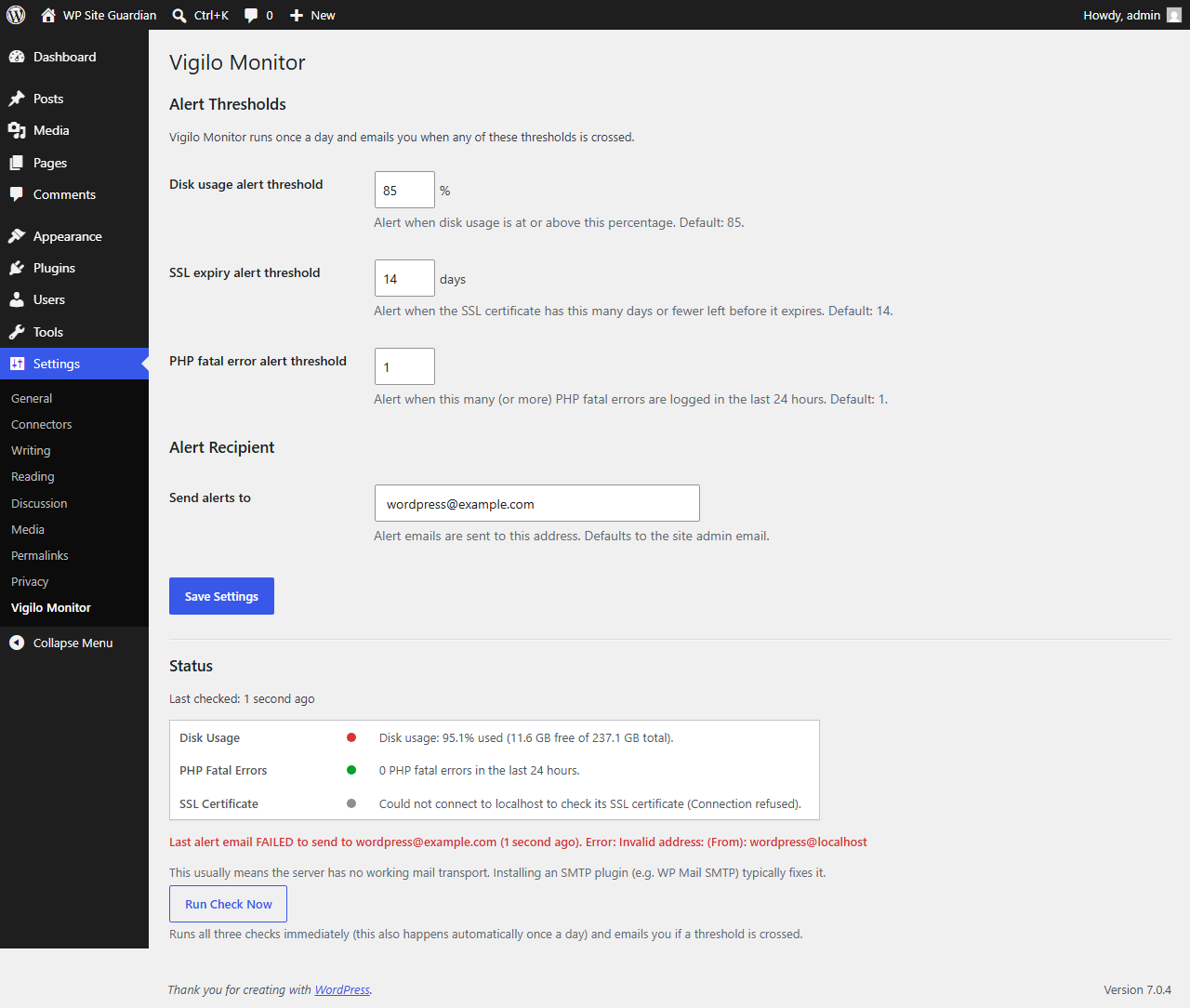
The Vigilo Monitor settings page — configure thresholds and the alert recipient.
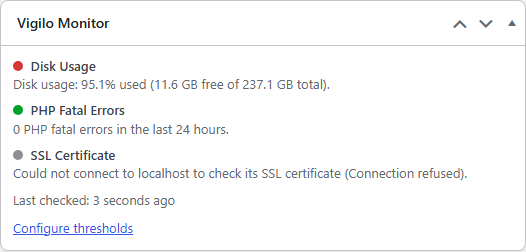
The Vigilo Monitor dashboard widget — at-a-glance green/yellow/red status.