
Vora SMTP Wordpress Plugin - Rating, Reviews, Demo & Download

Plugin Description
WordPress sends mail with PHP’s mail() function by default. Most hosts send it from an address the receiving server cannot verify, so password resets, order receipts and contact form notifications quietly land in spam or vanish.
Vora SMTP replaces that with a real authenticated connection. You point it at a mail service you already control, and every message WordPress sends goes out over that connection instead.
Sending methods
- Generic SMTP — any provider that gives you a host, port, username and password, with TLS, SSL or unencrypted connections.
- Gmail and Google Workspace — connect over OAuth 2.0 by registering your own Google app. No password is stored, and no app password is needed.
- PHP Mail — the server’s own
mail()function, with nothing to configure. Deliverability is the weakest of the three, which is why it exists mainly as a safety net rather than a first choice.
Automatic fallback
A mail provider can stop accepting messages for reasons that have nothing to do with your site: an expired credential, a rate limit, an outage, a DNS failure. When that happens the message is normally lost, and nobody finds out until a customer says they never got their receipt.
- If a send fails, the plugin immediately retries it through a second sending method of your choice.
- PHP Mail is the default fallback, because it needs no credentials and no connection to a third party, so it is still available when the configured provider is not.
- Fallback covers every sending method, including Generic SMTP.
- The log records which method actually delivered each message, so a send rescued by the fallback is never credited to the provider that failed.
- Turn it off, or point it at a different method, on the Providers screen.
Failure alerts
Optionally email a chosen address whenever a message cannot be delivered, including the recipient, the sending method used and the error the mail server returned. Alerts cannot loop: a failing alert never triggers another alert.
Email log, with preview and resend
Every message the plugin handles is recorded, so you can prove what was sent, see exactly what it looked like, and send it again without asking the customer to trigger it a second time.
- Preview — open any logged message and read it as the recipient saw it. HTML email is rendered in a sandboxed frame, so a message can be inspected safely without its markup, styles or scripts touching your admin screen. Storing message bodies is optional and off by default, so you choose whether the log keeps content or only metadata.
- Resend — send any logged message again with one click, to the original recipient, using your current sending method. Useful when a receipt failed while a provider was down, or when a password reset never arrived.
- Searchable history filtered by status, provider, recipient or subject.
- The real error text returned by the mail server when a message fails, not a generic failure notice.
- A record of which sending method actually delivered each message, including when a fallback rescued it.
- Automatic pruning of entries older than a configurable number of days, so the log cannot grow without limit.
Sender identity
Set the From name and address once and optionally force every message on the site to use them, which stops other plugins overriding your sender details. The plugin also repairs invalid defaults such as wordpress@localhost that cause outright send failures on local and staging installs.
Diagnostics
A dashboard summarises messages sent, failures and success rate. You can send a test message to any address and see exactly what the mail server said if it does not arrive.
Privacy
Credentials and OAuth tokens are stored in your own database and are never transmitted anywhere except to the mail provider you configure. The plugin collects no analytics and phones no home. See the External services section below for the full list of endpoints it contacts.
Source code and build process
The plugin’s admin screen is a React application. The file it loads at runtime, build/index.jsx.js, is generated and minified, so the complete, unminified, human-readable source it is built from ships inside this plugin — no external download is needed to read, study, modify or fork it.
- Source:
admin/src/(index.jsx,App.jsx,api.jsandcomponents/), documented inadmin/src/README.md - Build configuration:
package.json - Generated output:
build/index.jsx.jsandbuild/index.jsx.asset.php
Nothing else in the plugin is compiled, minified or obfuscated. All PHP and all CSS (assets/admin.css) is the original source, formatted as written.
To rebuild the generated file from the included source:
- Install Node.js 18 or newer, which includes npm.
- From the plugin directory, install the build tooling:
npm install - Produce the production build:
npm run build
That regenerates build/index.jsx.js and build/index.jsx.asset.php from admin/src/. Use npm run start instead for an unminified watch build while developing, and npm run lint to run ESLint over the sources.
The build uses @wordpress/scripts, WordPress’s own official, free and open source build toolchain (a wrapper around webpack and Babel). It is declared in package.json, is fetched by npm install, and there is no custom webpack configuration — the entry point and output path are the two arguments in the build script.
External services
This plugin connects to the following third party services. It contacts only the services required by the sending method you configure, and makes no outbound request to any third party at all when you use Generic SMTP or PHP Mail.
Google OAuth 2.0
Used when you connect a Gmail or Google Workspace account, to exchange an authorisation code for an access token and to refresh that token when it expires.
- Endpoint:
https://oauth2.googleapis.com/token - Data sent: your Google app’s client ID and client secret, the authorisation code returned by Google’s consent screen, and your refresh token.
- When: only when you click Connect, and afterwards whenever a stored access token has expired.
- Terms of service: https://policies.google.com/terms
- Privacy policy: https://policies.google.com/privacy
Gmail API
Used to transmit outgoing email when Gmail is the active sending method.
- Endpoint:
https://gmail.googleapis.com/gmail/v1/users/me/messages/send - Data sent: the message itself, including recipients, subject, body, headers and attachments.
- When: each time WordPress sends an email while Gmail is selected.
- Terms of service: https://policies.google.com/terms
- Privacy policy: https://policies.google.com/privacy
Microsoft identity platform
This plugin on its own offers no Microsoft 365 sending method, so out of the box it never contacts these endpoints. The OAuth code that does so ships here and is used when the Vora SMTP Pro add-on supplies the Microsoft 365 provider. It is declared for completeness, because the requests are made by this plugin’s code.
Used when you connect a Microsoft 365 account, to exchange an authorisation code for an access token and to refresh it.
- Endpoints:
https://login.microsoftonline.com/,https://graph.microsoft.com/ - Data sent: your Microsoft app’s client ID, client secret and tenant ID, the authorisation code returned by Microsoft’s consent screen, and your refresh token.
- When: only when you click Connect, and afterwards whenever a stored access token has expired.
- Terms of service: https://www.microsoft.com/servicesagreement
- Privacy policy: https://privacy.microsoft.com/privacystatement
Screenshots
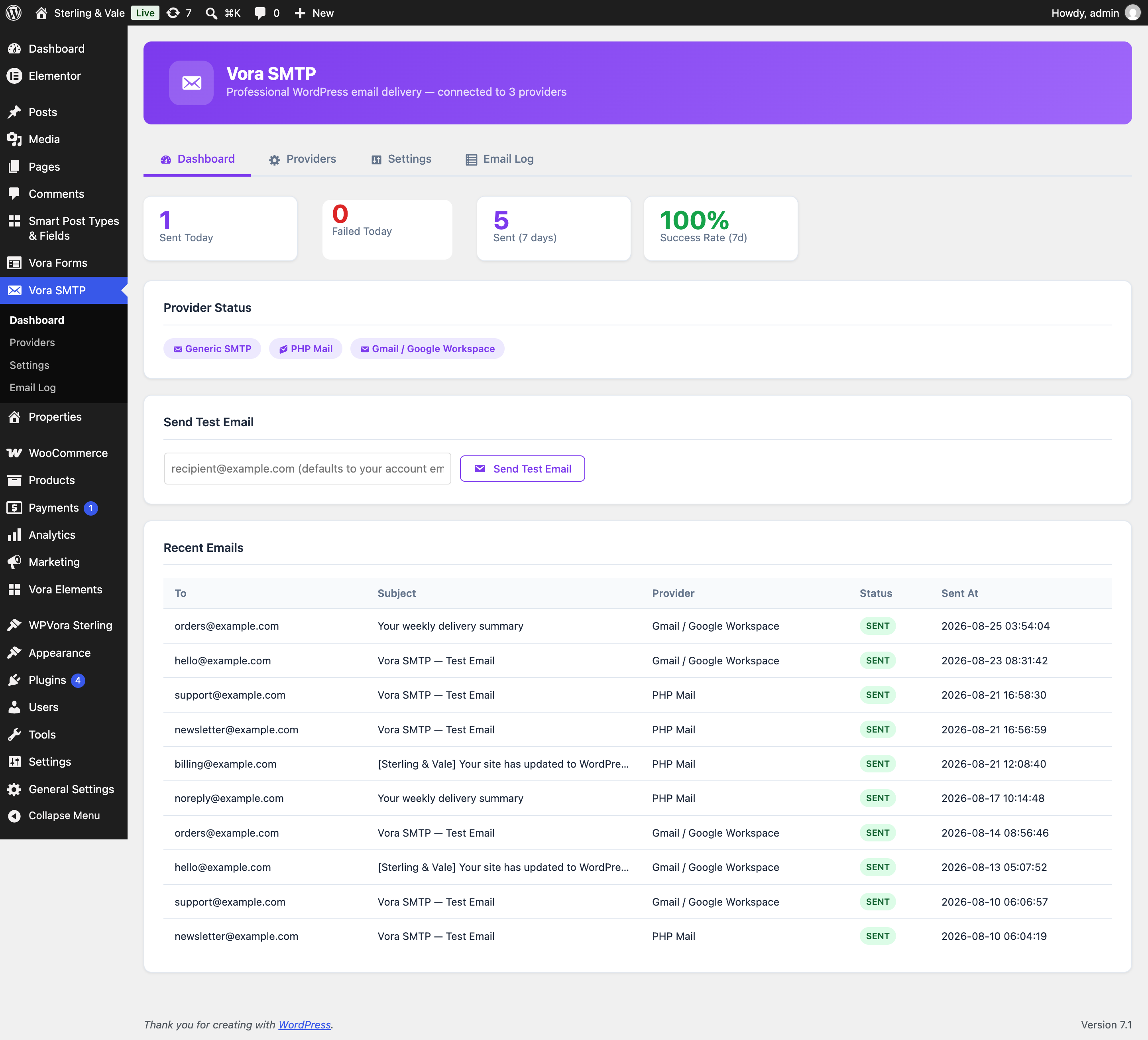
Dashboard with delivery statistics and the test email tool.
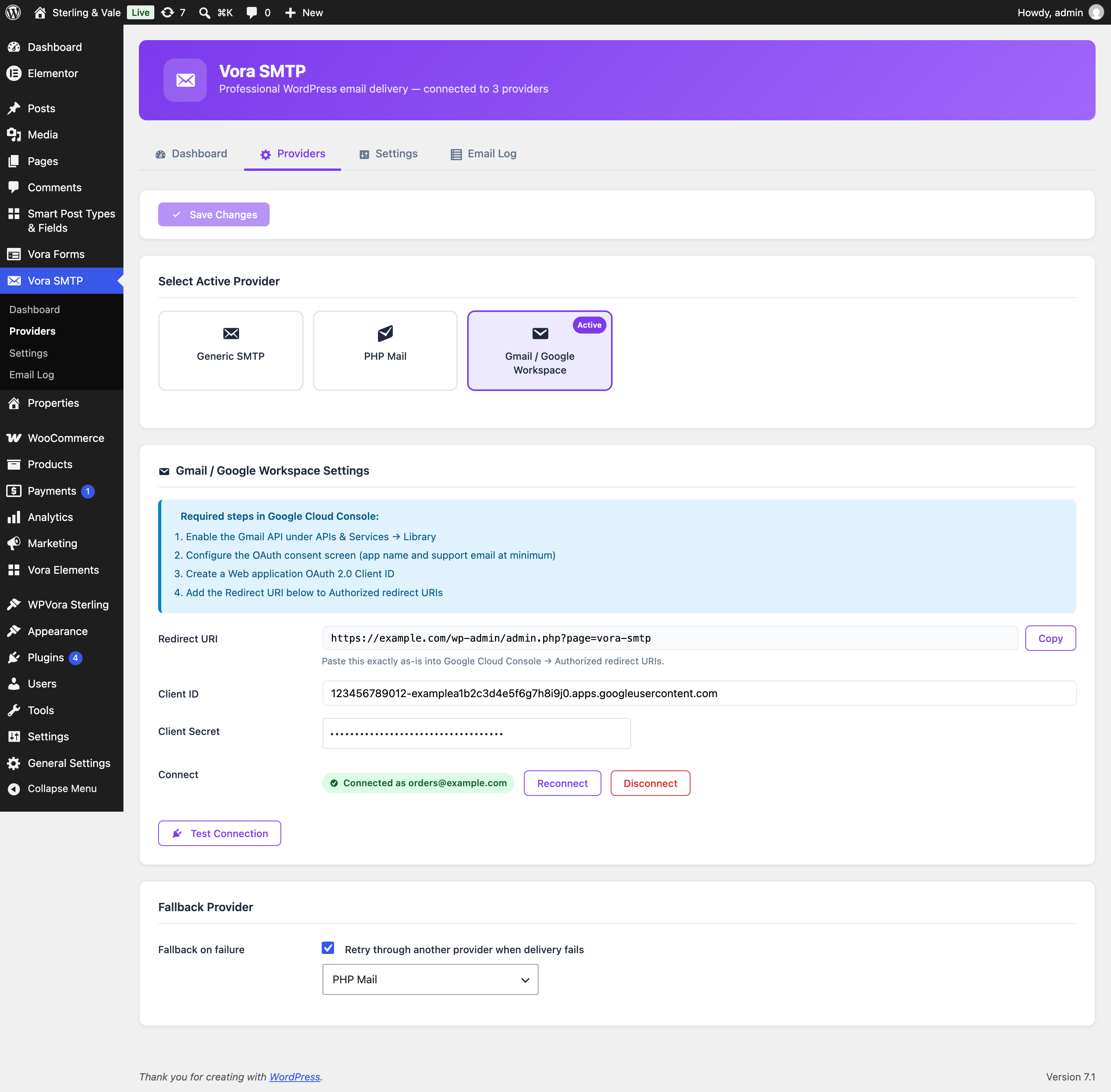
Choosing and configuring a sending method on the Providers screen.
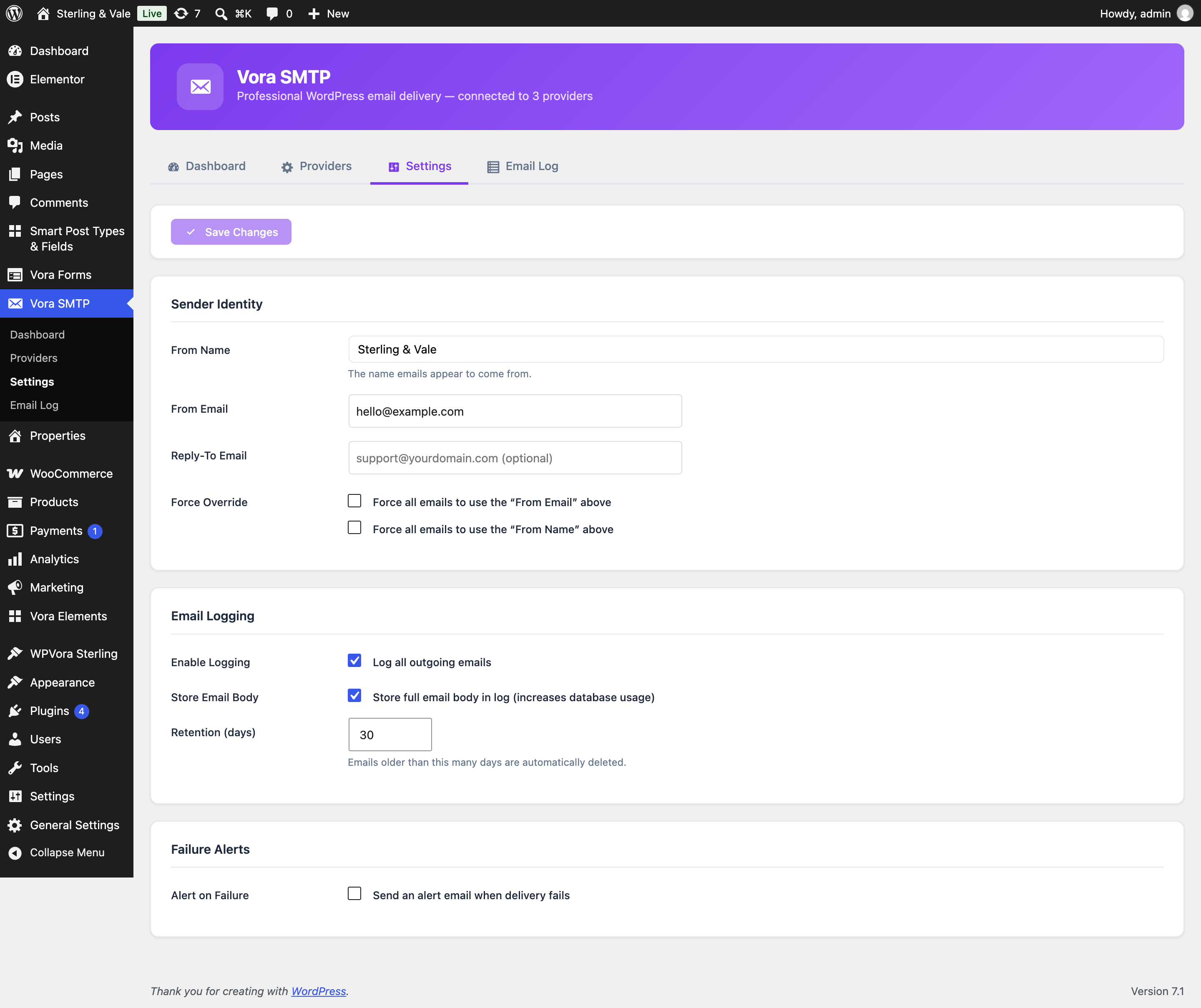
Sender identity and logging options on the Settings screen.
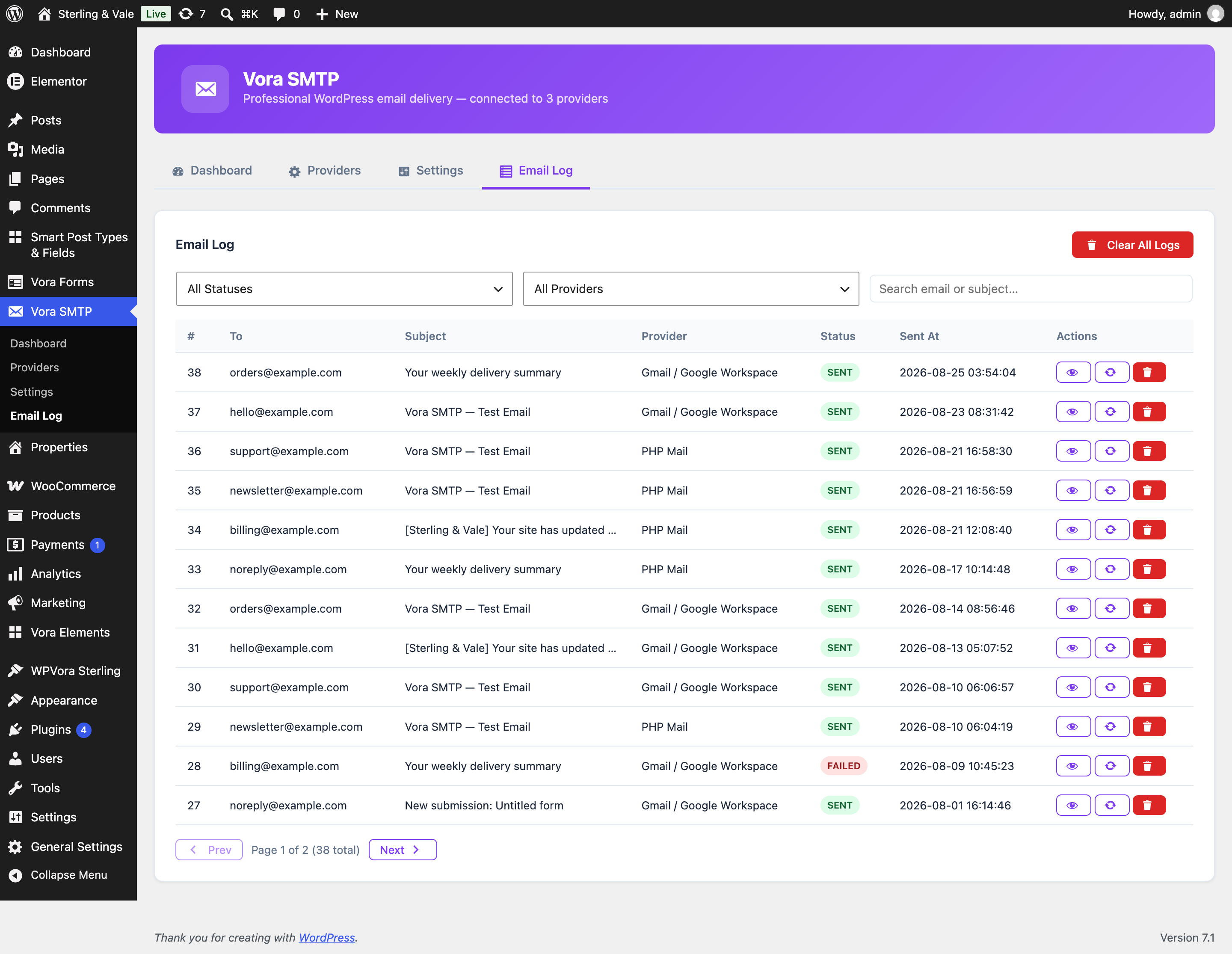
The email log, with filtering and per-message detail.
Similar Plugins:
 Easy WP SMTP – WordPress SMTP And Email Logs: Gmail SMTP, Office 365, Outlook, Custom SMTP, And More
 Rating Widget: Post Rating, 5 Star Rating, Reviews, Thumbs Up & Down, Reaction
 Quill SMTP | Email Delivery & Transactional Email | The Best SMTP Plugin For WordPress That Integrates With 20+ SMTP Mailers