
WebOsmotic Autoload Inspector Wordpress Plugin - Rating, Reviews, Demo & Download
Plugin Description
Every WordPress page request loads a set of “autoloaded” options into memory before a single line of your theme or plugin code runs. Over time, plugins and themes accumulate stale or oversized autoloaded options — cached data, old settings, orphaned transients — that get loaded on every single request, even though almost nothing on the page actually needs them.
WebOsmotic Autoload Inspector finds these for you:
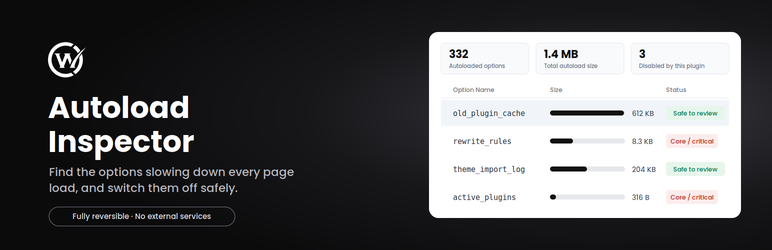
- Lists autoloaded options (the 200 largest), ranked by size, so the worst offenders are immediately obvious.
- Shows your site’s total autoload count and size at a glance.
- Lets you disable autoload for any option with one click — no code, no SQL.
- Flags options that WordPress core (or virtually every site) relies on, and asks for confirmation before you change them.
- Keeps a simple log of exactly what it has changed, with a one-click “re-enable” for anything you want to revert.
- Never deletes data. Disabling autoload only changes how an option loads, not its value.
- No external services, no tracking, no phoning home. Everything happens on your own database.
Why this matters
autoload = yes options are pulled into a single query (`wp_load_alloptions()`) on nearly every page load, including the front end, REST API requests, and cron. A handful of options that grew to hundreds of KB — often abandoned by a plugin that was deactivated long ago — can add real, measurable overhead to every request on your site.
Safety first
WebOsmotic Autoload Inspector is intentionally conservative:
- It never deletes an option or its value — it only flips the autoload flag.
- Anything flagged as “Core / critical” requires an explicit confirmation before autoload can be disabled.
- Every change it makes is logged, so you can see and reverse exactly what happened.
- No settings are silently changed on activation, deactivation, or uninstall.
Screenshots

The main screen: autoloaded options ranked by size, with total count and size, and a flag on core/critical options.

The “Disabled by Autoload Inspector” tab, where every change can be reviewed and re-enabled with one click.


