
WMX Pull Product Images Wordpress Plugin - Rating, Reviews, Demo & Download

Plugin Description
Paste a supplier’s product-page URL on the WooCommerce product edit screen, tick the images you want, and pull them into the Media Library and your product gallery, no manual downloading, uploading, or renaming.
Free
- A “Pull product images” box on the classic WooCommerce product editor.
- Fetch every image from a supplier’s product page by pasting its URL.
- Resolves thumbnail and resize variants back to the original, full-resolution file (WordPress, Shopify, Magento, BigCommerce, imgix / Squarespace).
- Shows each image’s real dimensions (read from the file header) so you can judge quality before importing.
- Hides obvious logos, icons and page junk automatically.
- Preview and hand-pick the images you want, then import them into the product gallery.
- Preserves the supplier’s alt text.
- Safe re-imports: an image already in your Media Library is reused, never downloaded twice.
- If a page can’t be fetched (e.g. a bot challenge), paste its page source and the same detection runs on it.
Pro
Upgrade to Pro (through wmxsoft.com) for the power features:
- Automatically set the featured image from your first pick.
- Replace-gallery mode and finer gallery controls.
- Filter images by size with an interactive slider (for large galleries), plus a configurable minimum size.
- One-click “select all”, drag-to-select a group of images, and rename files to the product slug on import.
- Remember your preferences between imports.
How it works
- Edit or add a product. The “Pull product images” box appears below the editor.
- Paste the supplier’s product page URL and click Fetch images.
- Pick the images you want and click Import selected, and they are added to the product gallery.
- Click Update or Publish to save the gallery with the product.
The page is fetched server-side and parsed for og:image, JSON-LD, itemprop/image_src meta, preload links, img/srcset/picture, lazy-load templates, image-bearing data-* attributes, inline CSS backgrounds, lightbox links, and gallery JSON embedded in scripts (Magento, BigCommerce, Squarespace, Vue/React apps). Galleries that are built entirely in the browser after page load, with no image URLs in the HTML source, cannot be seen.
External services
When you use the image tools, the plugin makes outbound HTTP requests from your web server to two things, only when you ask it to:
- the supplier product-page URL you paste (to read the page and find images), and
- the image URLs on that page (to read dimensions and to download the images you select).
WordPress’s safe HTTP layer blocks requests to private/internal hosts, including on redirects. Make sure you are entitled to use the supplier’s imagery on your store.
The plugin uses the Freemius service for the Pro upgrade and, in the Pro version, to deliver updates and validate licences. It may contact api.freemius.com with basic environment information (such as site URL and plugin/WordPress versions); the Pro version additionally sends your licence key. See the Freemius Terms (https://freemius.com/terms/) and Privacy Policy (https://freemius.com/privacy/).
Screenshots
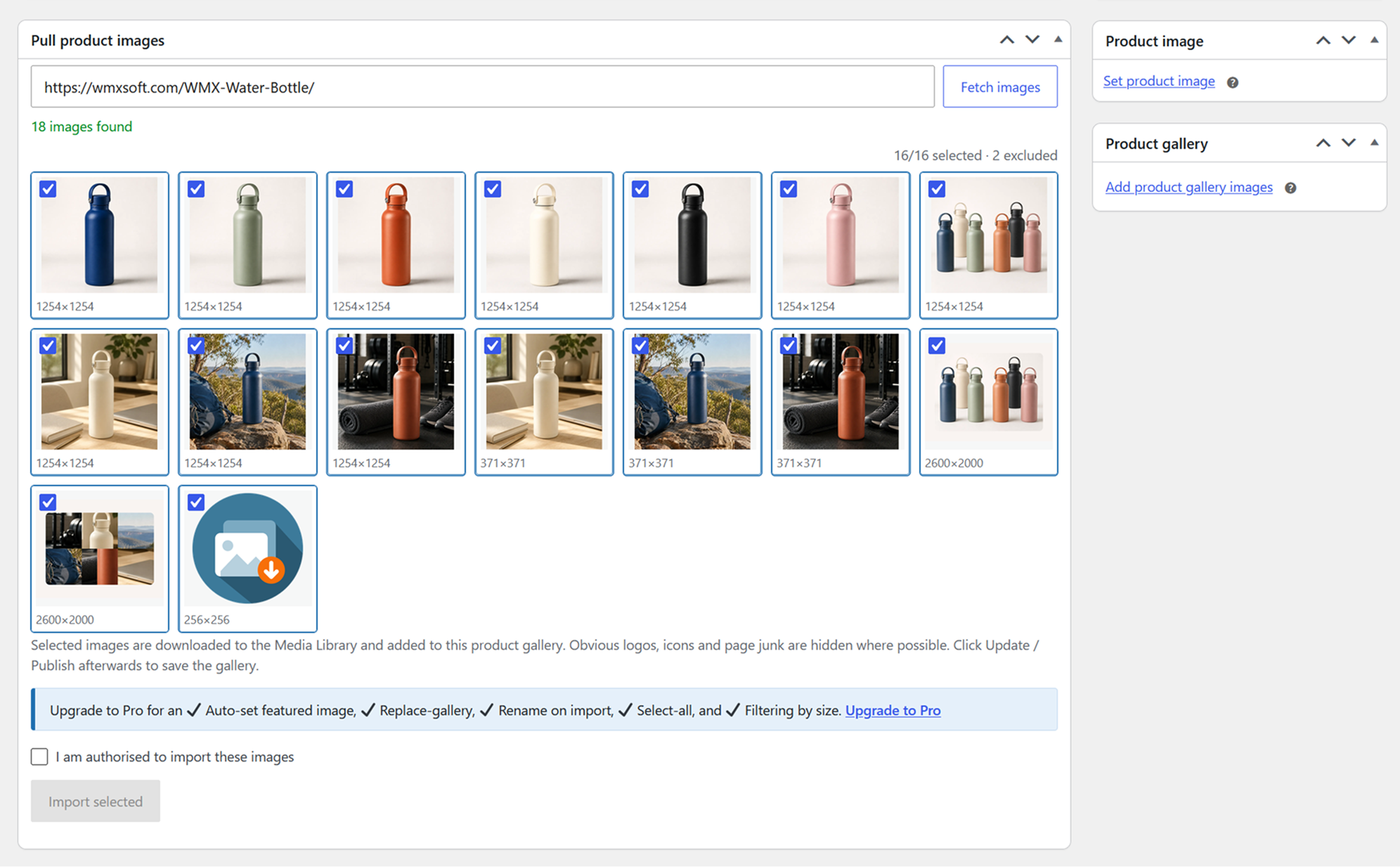
After fetching images from a supplier URL, pick the ones you want. Each tile shows its real dimensions, and obvious logos, icons and page junk are hidden.
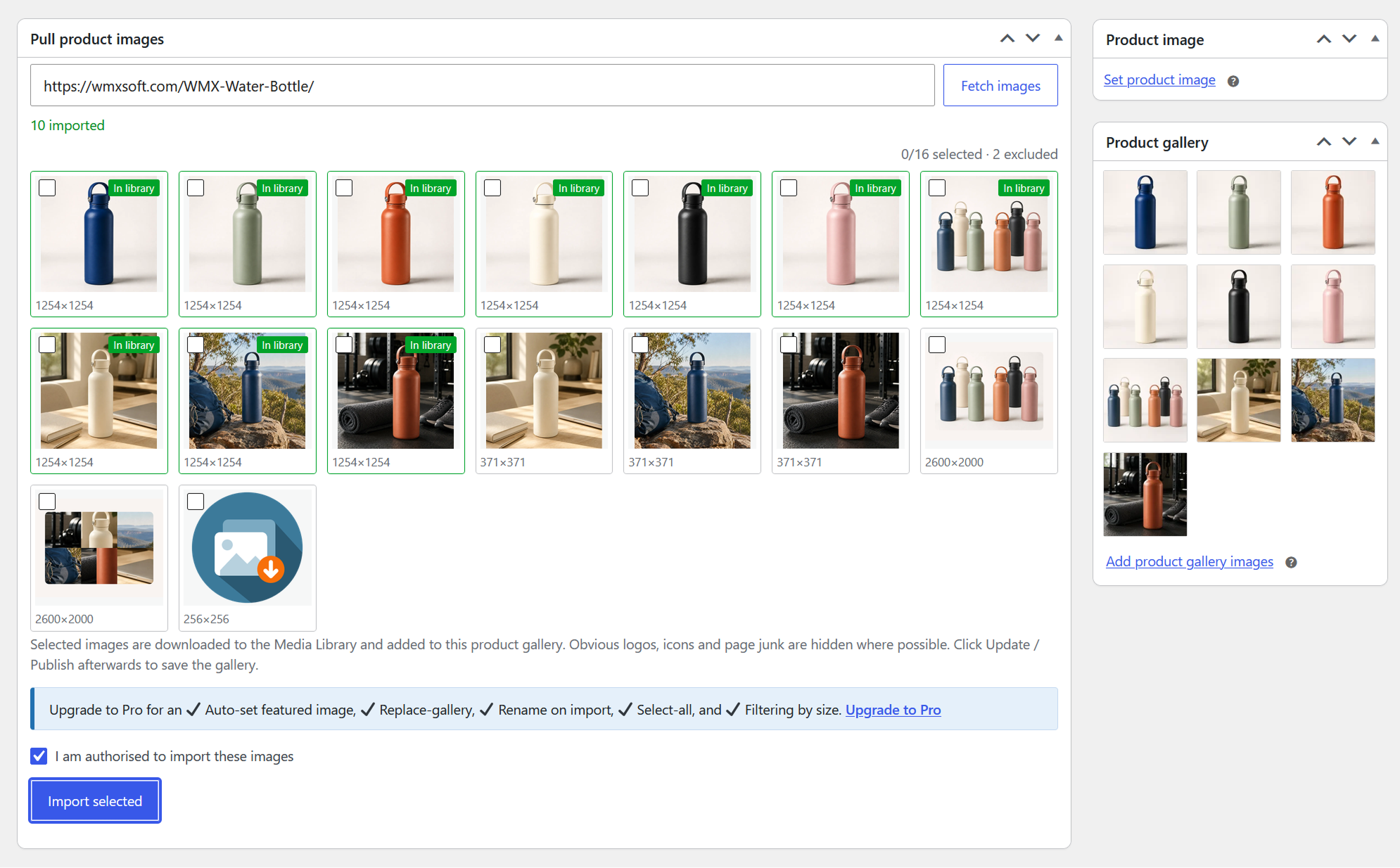
The picked images imported straight into the WooCommerce product gallery, ready to publish.


