
WPHEKA Edit Orders For WooCommerce Wordpress Plugin - Rating, Reviews, Demo & Download
Plugin Description
WooCommerce locks an order once it is paid. Changing a size, adding an item or fixing an address then means cancelling, refunding by hand, working out tax and shipping, and sending a new invoice.
WPHEKA Edit Orders for WooCommerce lets you edit a paid order in a few clicks, and it handles the money for you:
- Order costs less? It refunds the difference through your payment gateway, with the items put back in stock.
- Order costs more? It creates a small linked order for the difference and emails your customer a link to pay it. The change is made when it is paid; until then the order ships as it was.
- Nothing changes in price? The change is made straight away.
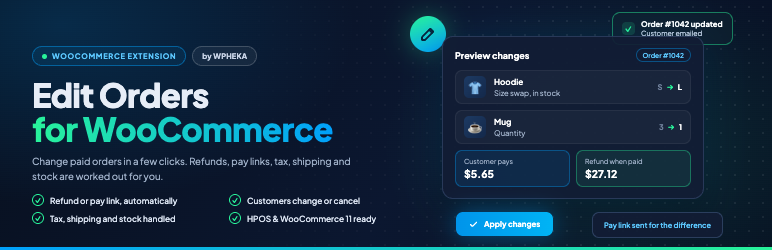
You always see a preview first: what changes, what is refunded, what the customer pays and what happens to stock.
Store owners can
- Change quantities, remove items and add products to Processing and On hold orders, with an optional price for added products
- Swap a variation, such as a size or colour, with the price difference worked out from what the customer actually paid (coupons included)
- Change the shipping or billing address, with shipping re-rated from your shipping zones and tax worked out again for the new address
- See linked balance orders on the order screen, copy the pay link, send it again or cancel it
- Approve or decline cancellation requests in WooCommerce > Edit Orders, next to a log of every change
Customers can
Within the time you allow (one hour by default), from the thank-you page, My Account or the link in their order email:
- Cancel the order, with a reason. Cancel straight away with a refund, or send you a request to approve.
- Change the delivery address, with any difference in shipping or tax shown before they confirm
- Change a size or colour to another option that is in stock
- Edit their order note
- Say “All good, no changes needed” to close the window early
Changes stop as soon as the order ships: when it is completed, a tracking number is added (WooCommerce Shipment Tracking, Advanced Shipment Tracking, AfterShip) or WooCommerce marks it fulfilled. Customers with an account make changes while logged in. Guests use the link in their order email. As on WooCommerce’s own order pages, a guest who comes back later from another browser first confirms the email address on the order, so a forwarded link alone can’t redirect a parcel.
The money is always handled correctly
- A paid order’s totals are never changed directly. Decreases are real WooCommerce refunds, with tax split per tax rate, so your reports stay right.
- If your payment method can’t refund automatically, the refund is still recorded with stock restored, the order is flagged “Manual refund needed” and you get an email. It never claims a refund happened when it didn’t.
- Cash on delivery: changes adjust the amount to collect instead of moving money.
- Orders paid by authorization only are left alone until they are captured.
Emails
Seven WooCommerce emails, which you can turn on or off and reword in WooCommerce > Settings > Emails: order updated, balance due (with the pay link), manual refund needed, cancellation requested, order cancelled, cancellation declined and customer changed an order. The order confirmation email gets a “change or cancel” link while changes are allowed.
Built for WooCommerce today
- Works with High-Performance Order Storage (HPOS) on or off, and with the Cart and Checkout blocks
- Works with classic and block themes
- Templates and emails can be overridden in your theme; developer hooks are documented
- No tracking and no notices outside its own screens
Screenshots

Preview before you apply a change: what changes, the refund and the stock moves.

The “Edit order” box on the order screen, with a balance order and its pay link.

The customer’s panel on the thank-you page, with the time left to make changes.

A customer confirming an address change that costs more.

Cancellation requests and the activity log in WooCommerce > Edit Orders.

Settings in WooCommerce > Settings > Edit Orders.


