Yee3DPrint – 3D Print Calculator Wordpress Plugin - Rating, Reviews, Demo & Download

Plugin Description
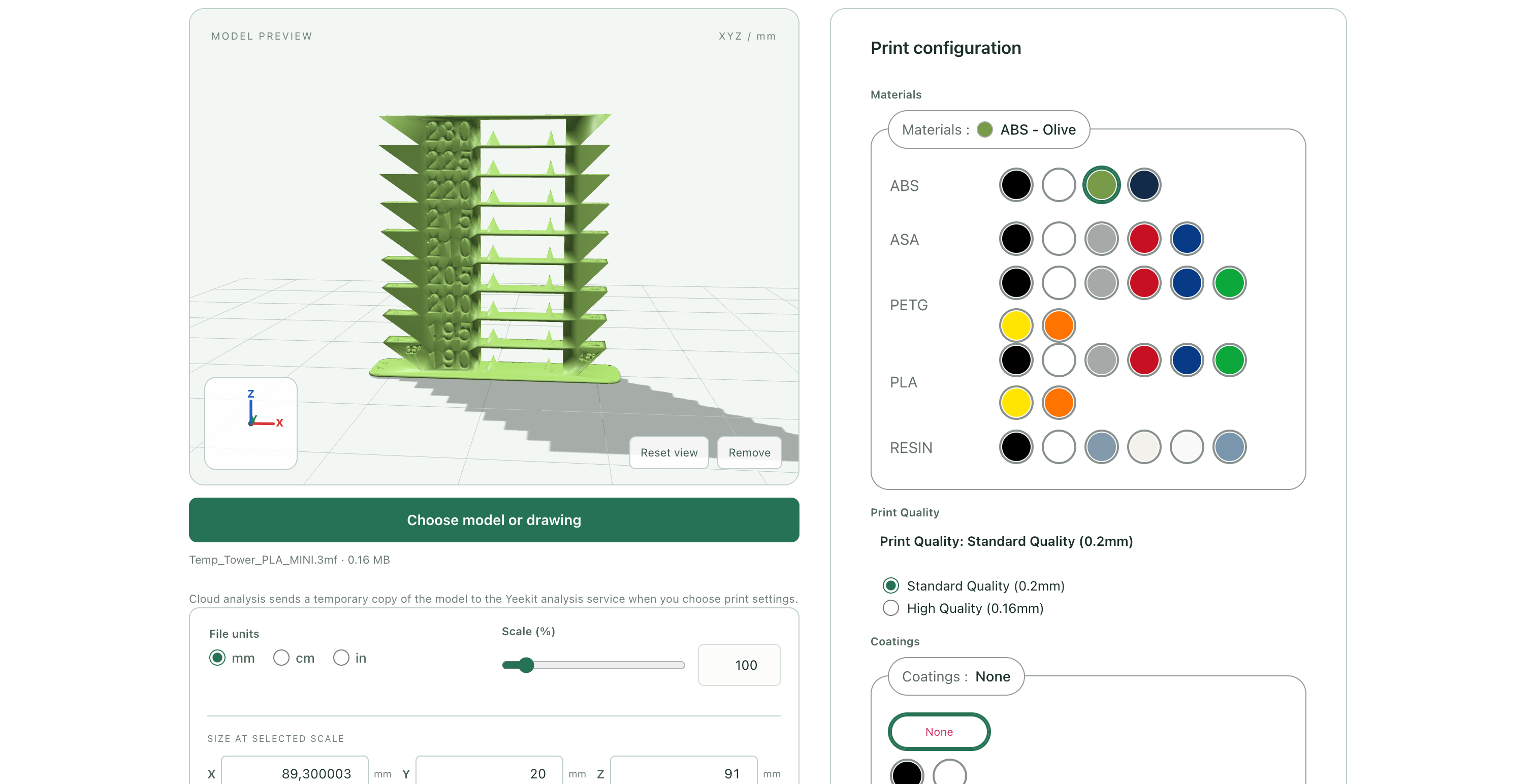
Insert the Yee3DPrint block in the WordPress editor or place [yeekit_3d] on a page. Both render the same PHP configurator on the storefront. The Yee3DPrint Settings tabs separate print options, model preview, uploads, cloud PrusaSlicer analysis, and checkout. Model preview settings control scene colors, top and bottom light positions, ground, grid, fog, XYZ axes, build volume box, automatic rotation, camera fit on resize or scale changes, optional auto scaling, shadows, and visibility of File units, Scale controls and Model Stats. The Disable display setting hides a catalog and excludes it from required selections and pricing. Customers upload a model, inspect it in 3D and choose print options. Checkout mode adds the priced model to WooCommerce and opens checkout; Cart and checkout mode shows separate Add to cart and Checkout buttons. Add to cart keeps the customer on the configurator with a View cart link, while Checkout opens payment directly. Estimate-and-request mode shows an estimated subtotal and collects contact details without creating a cart item. Request-price mode collects contact details without displaying or requiring a configured price. The configurator is independent of WooCommerce products and variations.
Cloud PrusaSlicer analysis is an optional publisher-hosted SaaS feature. The shop enables it and may enter a purchase code under Settings Cloud PrusaSlicer analysis. The plugin creates a private token automatically and registers the shop with the publisher service, which verifies the shop’s public HTTPS WordPress endpoint. The plugin checks purchase codes with add-ons.org before saving; the SaaS server checks them again before granting licensed quota. Without a code, each registered site has 50 successful test analyses total. Any active, unexpired purchase code grants 5,000 successful analyses per UTC month, shared across sites using that code. The SaaS server enforces the quota; when it is exhausted, the shop must contact add-ons.org. The plugin defaults to the publisher’s HTTPS analysis domain. Existing publisher-provisioned tokens continue to work. Token rotation and paid plans beyond 5,000 calls are not implemented yet.
The Main color setting under Yee3DPrint Settings Print options sets the accent color for both step layouts, including buttons, selected controls and progress indicators.
When a selected service has a blank or unusable price, a Material costs zero, or the whole configuration totals zero, the configurator replaces cart and checkout actions with a price-request form. Explicitly configured zero-price Printers, Coatings, Post-processings and Infills are free options and do not block checkout when the configuration has a positive total. Print Quality is a specification, not a separately priced service. The server verifies the selection and saves a quote when pricing is incomplete. Existing cart items are removed if their current catalog prices change to require a quote.
Yee3DPrint Settings appears first in the plugin’s submenu. Catalog examples are optional: activation creates no Materials, Printers, Coatings, Post-processings or Infills. The Sample data tab reports catalog counts and creates or removes 3D-printing and CNC-cutting examples independently. Sample 3D materials start at 1 currency unit per cm³; sample CNC materials start at 1 currency unit per cm of cutting path. Sample machines and print options include example prices; 3D materials include density, and the CNC machine includes engraving and speed settings. Running Create again fills marked older zero-price samples while preserving nonzero prices entered by the shop. Removal moves only marked sample options to Trash; catalog options created by the shop are kept. The Print options tab has 3D-printing and CNC-cutting views; the CNC view omits Coatings display and Infills display because those controls apply only to 3D printing.
The Request price settings tab remains available for every checkout behavior because an unpriced service can switch any calculated checkout to a price request. Opening it after selecting a new request mode saves that mode first. The tab controls whether Full name, Company, Phone and Notes are required, optional or hidden on the request form. Customer email always remains required. The shop can enable an email notification, set its recipient and customize its subject with a {quote_id} placeholder. The notification contains the request details and a protected admin link to the saved quote; it does not attach or expose the model file. If sending fails, the quote remains saved and its detail page shows the notification failure.
The read-only Yee3DPrint Settings Pricing guide tab explains zero prices, each catalog option’s pricing rule, per-gram materials, setup fees, quantity, and checkout behavior with an example.
Show demo is enabled by default. It displays an Explore the Demo card above the File units and Scale controls; the card hides when a model loads and returns when the model is removed. The bundled 10 mm cube always loads with mm file units, yielding 1 cm³ at 100% scale; it is only sent to the shop if the customer submits its configuration. Materials and Coatings use the color palette display by default. These settings remain editable under Print options.
Yee3DPrint Quotes and Orders lists uploaded models, including those awaiting checkout. Its submenu counter and list labels show which quotes and orders have not been viewed; opening a record’s details marks it viewed. Open a model to see its saved statistics and print options, customer name and email, and a link to its WooCommerce order when checkout is complete.
DEMO : https://demo.add-ons.org/3d-print/3d-printing-service/
The Yee3DPrint admin menu contains five separate post types:
* Materials: configurable base-price basis, up to 20 editable extra-price rows, preview color, and optional layer-height override.
* Printers: price per piece, one setup fee per uploaded model, build volume, editable Print Quality choices with layer heights, compatible materials.
* Coatings: optional single selection, price per piece, compatible materials.
* Post-processings: optional multiple selections with checkboxes, or a single selection with radio/dropdown; price per piece, compatible materials.
* Infills: percentage, price per piece, compatible materials.
Use the post title for the option name. A Material’s Enabled setting controls whether it appears in the configurator, regardless of its editor status; trashed and auto-draft materials remain excluded. The other four catalogs still require published entries. A zero-priced Material requires a price request; an explicitly zero-priced non-material option is free, while a blank non-material price requires a request. Options with unsupported model-based pricing remain selectable for a price request. No material restriction means all materials. The server checks the selected IDs, enabled state, prices where needed, and material compatibility before accepting a model. The Print configuration panel stays visible but its controls are locked until a valid model is loaded. Removing the model clears the selections and locks them again.
The configurator unlocks each required step in sequence. Settings Print options First print option chooses Materials first or Printers first. Once the first option is chosen, the second list shows only compatible entries. Compatibility uses both the Material’s allowed Printers and the Printer’s allowed Materials; an empty restriction list permits all. Changing an earlier choice clears incompatible later choices.
Edit each Printer’s Print Quality choices under Build Volume & Specs using the Add quality and Remove buttons. Existing printers start with Standard and High Quality choices based on their default layer height. With only one available Printer, the frontend selects it automatically and hides the Printer control. With one Quality choice for that Printer, the frontend also hides Print Quality and applies that choice automatically; with multiple Quality choices, customers choose Quality without seeing a redundant Printer selector. The effective layer height is saved with the quote.
Pricing: sum of selected option prices multiplied by quantity, plus material and printer setup fees once per uploaded model. Material base prices and repeater extras can use server-calculated geometry (solid volume, bounding volume/XY, surface area, removed volume), actual or volumetric weight, and cloud-analyzed support volume or print time. Supported ASCII DXF drawings require a Laser Cutting material and machine. Customers choose Cut, Engrave or Ignore for each DXF layer. Cut length is measured on the server and can use a Material price per centimeter; Engrave length uses the machine’s engraving price per centimeter. A blank engraving rate prevents automatic checkout for drawings with engraved layers. For DXF, fixed and cutting-path Material rules apply; 3D-only rules such as gram and volume are skipped. Set a cutting-path rule if you want a nonzero DXF Material charge. The +% extra applies to the Material subtotal. Price entries follow the WooCommerce currency and tax-entry setting. WooCommerce calculates tax, coupons and payments. The frontend subtotal is an estimate; the server recalculates prices when the model is submitted and again when WooCommerce calculates the cart. Changing a catalog price before checkout can therefore change an open cart total. Setup is a separate taxable fee and is not multiplied by quantity.
A hidden internal simple product transports each model into the WooCommerce cart. It stays out of the shop catalog, storefront search and core product sitemap, and its direct product URL returns 404. Each upload is a separate cart line with its own private file, settings and price snapshot. The product cannot be purchased directly without a validated upload. Configure shipping/tax behavior through WooCommerce; the model’s physical shipping weight is not inferred. Payment uses installed WooCommerce payment methods. Classic checkout, Cart/Checkout Blocks and HPOS use native WooCommerce APIs. Deactivation drafts the internal service product; a later configured upload restores it.
Preview formats:
* STL: ASCII and binary geometry.
* OBJ: geometry only, no external MTL or textures.
* 3MF: core meshes, components, build transforms and units. Preview uses the selected material color. Advanced extensions, textures, slicer settings and external component references are not supported.
* STEP/STP: bundled OpenCascade WebAssembly conversion, normalized to millimeters.
Under Yee3DPrint Settings Uploads and limits, choose which formats customers may upload. STL, OBJ, 3MF, STEP, STP and DXF are enabled by default; DWG is off by default. STP uses the STEP importer. Supported ASCII DXF drawings up to 5 MB show a 2D preview and a separate laser-cutting configurator. The optional sample data includes an editable Default Laser Cutter plus Plywood 3 mm and Acrylic 3 mm materials priced at 1 currency unit per cm of cutting path. The sample machine’s engraving rate is 0 and can be changed. Print Quality, Coatings and Infill are excluded from DXF orders. The original drawing and chosen layer operations are verified again on the server when submitted. This reader supports LINE, CIRCLE, ARC, ELLIPSE, straight LWPOLYLINE and SPLINE entities. Drawings with unsupported entities, including inserted blocks and bulged polylines, can still use the manual quote form. DWG remains manual quote only. The frontend format label and file picker follow the setting, and the server checks the same list when accepting uploads. Disabling a format does not delete existing private models.
View rotation is not a production orientation setting. Original model bytes are preserved; the file’s unit at upload and the scale are saved separately. After upload, the mm/cm/in control converts the displayed X/Y/Z sizes without changing physical dimensions, volume, price or scale. The selected unit before upload sets the source unit for STL, OBJ and DXF files; the bundled demo cube uses mm. Editing any X/Y/Z size updates the uniform scale and the other two sizes. Model Stats show bounding dimensions and volume, triangle count, surface area, and solid-mesh volume when the preview mesh is closed and manifold (up to 150,000 triangles per mesh for the topology check). Without a slicer, model weight is a solid-volume estimate when the selected Material has density configured. When cloud PrusaSlicer analysis is enabled and the publisher endpoint is configured, the browser sends a temporary millimeter STL to the shop site, which forwards it to the publisher service. It then shows sliced material usage, support volume, print time, and a filament-weight estimate when density is configured. The publisher service receives model geometry and bounded printer settings; its retention and privacy terms must be supplied before launch. This is an FDM estimate based on the selected Material, Printer, and Infill settings. Build-volume warnings use browser estimates, not a server-certified manufacturability check. There is no automatic mesh repair or printer control.
At configuration submission, available Model Stats are saved with the private quote and copied to the WooCommerce order line item. The admin pages read that saved snapshot without reopening or analyzing the 3D file. Unavailable estimates remain blank; older orders show only fields that were previously stored.
Privacy: originals are stored in a private database table, never public Media Library URLs. Shop managers and authenticated order owners can download them. Guests can purchase but do not receive a publicly accessible file link. When cloud analysis is enabled, temporary model geometry and bounded print settings are sent to the publisher service. A purchase code entered in Settings is stored in WordPress options, checked with add-ons.org, and sent privately to the publisher analysis service; the latter stores only its hash and a monthly usage count. When disabled, the model is not sent to that service. All viewer assets are bundled locally. WooCommerce collects customer billing/shipping information at checkout; the plugin associates the resulting order with its models. A salted IP hash is retained briefly for upload throttling. WordPress privacy export/erase covers model metadata; order-linked records require shop review before erasure.
Files expire after the configured retention period (default 90 days), except files associated with active orders. WordPress cron must run for cleanup. Uninstall preserves data unless YEEKIT_DELETE_DATA is explicitly set to true. That option deletes plugin catalog entries, model records, files, settings and the internal service product. WooCommerce orders are never deleted by uninstall.
Development and source
The complete human-readable source for the generated browser files is included in this plugin: src/frontend.js and src/model-stats.mjs generate assets/frontend.js; src/model-worker.js generates assets/model-worker.js. Build tooling and pinned dependencies are included in package.json and package-lock.json. From the plugin directory, run npm ci followed by npm run build to regenerate both browser assets and their license notices. The build uses esbuild and Three.js 0.186.0. Do not package node_modules. No runtime CDN is used. Cloud analysis runs on a separate publisher-hosted service.
Third-party browser code bundled into these assets: Three.js 0.186.0, MIT, https://github.com/mrdoob/three.js; its fflate module contains fflate 0.8.2, MIT, https://github.com/101arrowz/fflate. See assets/frontend.js.LEGAL.txt, assets/model-worker.js.LEGAL.txt and assets/license.three.txt. STEP preview also uses occt-import-js 0.0.23 and OpenCascade (LGPL 2.1 with the OpenCascade exception), source at https://github.com/kovacsv/occt-import-js and https://github.com/Open-Cascade-SAS/OCCT; see assets/license.occt-import-js.txt, assets/license.occt.txt and assets/license.occt-exception.txt. The occt-import-js.js and occt-import-js.wasm files match the published occt-import-js 0.0.23 npm package byte for byte and are not generated by this plugin’s npm build.