ZA-ONE Maintenance Report Wordpress Plugin - Rating, Reviews, Demo & Download
Plugin Description
Show your clients what was done this month. ZA-ONE Maintenance Report records maintenance work on a WordPress site automatically, lets you add the work you did by hand (“Replaced the banner, 20 minutes”), and turns both into a monthly maintenance report. View it in the admin screen, print it or save it as PDF from your browser, download it as Markdown or CSV, or email it every month.
It is made for web agencies and freelancers who look after WordPress sites and want a clear record behind their maintenance fee.
What is recorded automatically
- Updates of WordPress, plugins and themes — with the version before and after, and whether the update was automatic.
- Plugins and themes installed, activated, deactivated and deleted, and theme switches.
- Logins of administrators and editors (you can choose to record everyone). In the report (screen, print, Markdown and email), only the number of logins and the last login per person appear. The CSV download lists each login on its own line.
- Users added, deleted, and role changes.
- Posts and pages published, and published posts updated (one record per post per hour, so a long editing session counts once).
- Important settings changed: site address, site title, tagline, administration email, membership, default role, permalinks, language, timezone and search engine visibility. Only the name of the setting is recorded, never its value.
Each kind of record can be turned off in the settings.
Work added by hand
In the “Work log” tab, click “+ Add work” and enter a work date, a task, details and the time spent. Hand-entered work is listed by its work date. Entries you added can be deleted (with 5 seconds to undo); automatic records cannot. Until the recipients are set, something is recorded and a first report is sent, a short “First steps” box shows what to do next.
The monthly report
The report covers one calendar month in the site’s timezone and has the same content on the screen, in print, in Markdown and in email:
- Heading with the addressee (optional, for example “Example Co., Ltd.”), your logo (optional, screen and print only), the site name and month, the site address, the period, the date it was made and “Prepared by” (optional).
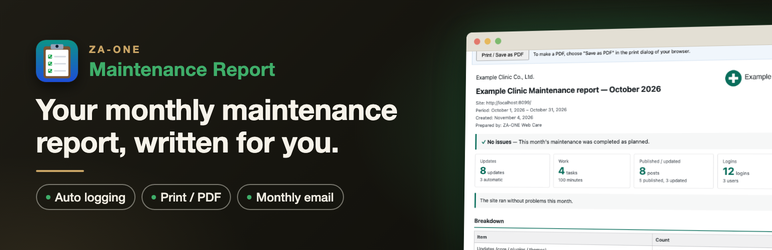
- Summary cards and an overall result — one line that says “No issues”, “Action needed” (when the latest ZA-ONE Site Watch check found something) or “No records”, and four big numbers: updates (and how many were automatic), work added by hand (and the minutes), posts published or updated, and logins (and how many people). Then the opening message (optional, for months that have ended).
- A breakdown table: updates (core, plugins, themes, how many automatic), plugins added, deactivated and deleted, posts published and updated, user changes, settings changes, manual work (number and total minutes) and logins.
- The latest status, if there is a recent check result from ZA-ONE Site Watch (within the last 35 days).
- Update details, manual work, other events and logins per person.
Addressee, logo and brand colour — set them in the settings; a live preview of the top of the report changes as you type. The brand colour is used for the lines under the headings, the numbers on the cards and the bar of the opening message.
Outputs:
- Screen — a preview in the “Report” tab.
- Print / PDF — a print view without the admin menus, sized for A4. Use your browser’s “Save as PDF”.
- Markdown and CSV downloads (the CSV is UTF-8 with BOM and opens in Excel; cells that could be read as formulas are made safe).
- Email — a simple one-column HTML email (600 px wide, no images) with the overall result in the subject, for example “[No issues] Example Clinic — Maintenance report — October 2026”. Send any month now, or turn on automatic sending of last month’s report on a day and time you choose. A failed automatic delivery is retried once after 30 minutes.
- Check before sending, and a test to yourself — “Send this month now” first asks who will get which month and how many records it has. “Send a test to yourself” emails the same report only to the site administration email address; it is not counted as a delivery. The report tab shows when the report was last sent.
Privacy
ZA-ONE Maintenance Report does not store IP addresses, user agents (browser information), passwords, form contents, post content or setting values. The records hold the user ID and a copy of the display name of the person who did something, the display name of the person it was done to (a user who was added, whose role was changed or who was deleted), and the names and versions of what changed (plugin names, post titles, setting names). A display name that is an email address is stored as “User #ID” instead. The recipient email addresses are stored only in the settings and are never written to the records. In the report (screen, print, Markdown and email) logins appear only as the number of logins and the last login per person; the CSV download lists each login on its own line. Records older than the period you choose (6, 13 or 24 months; 13 by default) are deleted once a day. Changes made with WP-CLI or by scheduled tasks are recorded as “System”.
Built by
ZA-ONE builds and maintains WordPress sites in Japan. If you would like someone to look after your site, see zone-web.jp.
Known limitations
- When you upload a ZIP to overwrite a plugin that is already installed, it is recorded as “installed”, not as an update.
- On Multisite, updates and activations done in the Network Admin screens are recorded only on the main site.
Planned for later versions
Uptime monitoring, backups, a bundled PDF library, reports that combine several sites, client accounts that can read the report, sending to chat services, invoices and yearly reports. Recording IP addresses of logins is not planned.
External services
This plugin does not connect to any external service. Reports are emailed only with WordPress’s wp_mail() function to the recipients you set.
Screenshots

The “Report” tab: the overall result, the four summary cards, the breakdown and the update details.

The print view with the addressee, a logo and a brand colour, ready to print or save as PDF.

The “Work log” tab: “+ Add work”, the recorded events and the form to add work by hand.

The “Settings” tab with the live preview of the top of the report.