ZapGifts: Gift Cards & Gift Certificates Wordpress Plugin - Rating, Reviews, Demo & Download
Plugin Description
ZapGifts helps restaurants, salons, spas, studios, tour operators and shops sell gift cards and gift certificates from their own WordPress site. You put a gift card form on a page, the recipient gets an eGift card by email, and you track the balance in wp-admin until it is spent.
A restaurant can sell dinner for two as a December gift. A salon or day spa might sell a haircut or a massage, and a yoga studio a month of classes. The buyer can add a personal message, and the recipient can spend the card over several visits until the balance runs out.
Three ways to take payment
You choose during setup, and you can change it later.
- Online, with a free ZapGifts account. Connect a ZapGifts account and your gift card forms take card payments through your own Stripe or Square account. The money goes to your processor account. ZapGifts charges 2.9% + $0.30 per gift card sold through ZapGifts checkout, plus your processor’s normal fee. On a $50 gift card, the ZapGifts fee is $1.75. There is no monthly fee. ZapGifts bills its fees weekly to a card you add in your ZapGifts account. Current rates are at https://www.zapgifts.com/pricing.
- Through WooCommerce. Sell gift cards as a WooCommerce product in the checkout you already run. Customers can spend their gift card balance at both the classic checkout and the block checkout. ZapGifts charges no fees on WooCommerce sales, and the plugin never sends WooCommerce orders to ZapGifts.
- Order requests you collect payment for yourself. The form sends you an order request instead of taking payment. The buyer gets an email saying you will contact them about payment. The card waits in the awaiting-payment queue and can’t be used yet. Once the buyer has paid you in person or over the phone, click “Mark paid & send” and the recipient gets the gift card by email.
Free in WordPress, with no limits
- Unlimited gift cards, each with bundled artwork (General, Happy Birthday, Wedding or Christmas) or your own image from the media library
- Fixed amounts, or amounts the buyer chooses between a minimum and maximum you set
- A live preview while you edit a gift card
- Gift card form and balance lookup as blocks or shortcodes
- Order requests with an awaiting-payment queue and “Mark paid & send”
- Gift card emails with your own subject line and card colors, plus CC and BCC
- Full and partial redemption, with an activity log for every card
- Balance adjustments with staff notes, and a void action for cards that should not be used
- Reports on sales and outstanding liability, meaning the unspent balances you owe customers
- CSV import for existing or physical gift cards, CSV export at any time, and bulk code generation for printed cards
- A WooCommerce gift card product type, with balance redemption at the classic and block checkout
What a free ZapGifts account adds
- Card payments on your gift card forms through your own Stripe or Square account
- Buyers can pick a future delivery date, which suits birthdays and holidays
- Printable PDF gift cards with a scannable barcode
- A sales dashboard at zapgifts.com
Connecting is optional. Everything in the free list above keeps working without an account.
Until you connect, ZapGifts screens show short tips about taking payment online, which you can dismiss, and the “Gift card order awaiting payment” email you get for each order request has one line about connecting. To turn both off, untick “Show ZapGifts connection tips” under ZapGifts > Settings (General tab, Advanced section).
Cards sold through ZapGifts checkout are redeemed in your ZapGifts dashboard, which holds their balance. WordPress keeps a read-only copy of each one so all your gift cards show up in one list. Sales completed on ZapGifts after you connect are copied here.
The bundled gift card artwork is made by ZapGifts and released under GPLv2 or later, the same license as the plugin.
External Services
This plugin can connect to ZapGifts (https://www.zapgifts.com), a gift card checkout service run by ZapGifts. The plugin sends nothing to ZapGifts until a site administrator clicks Connect ZapGifts on the ZapGifts > Connect page, or pastes an API key there under “Advanced: connect with an API key”. Once you are connected, that menu item reads “ZapGifts Account”. This readme calls it the Connect page either way. On sites that sell through WooCommerce or take order requests without connecting, the plugin never sends anything to ZapGifts.
Here is every way the plugin talks to ZapGifts, when it happens, and what is sent. Every request from your server goes to https://www.zapgifts.com. The one exception is artwork for imported cards, described under Gift card import.
- Connect link. Clicking Connect ZapGifts sends your browser to https://www.zapgifts.com/register with your site URL, your site name, the address on your site that ZapGifts sends you back to, a random one-time state value, and source=wordpress. You sign in or create an account there and approve the connection. This is a link your browser follows, and the plugin sends nothing from your server at this step.
- Code exchange. After you approve, ZapGifts sends your browser back to your site with a one-time code. Your site sends that code and your site URL to POST https://www.zapgifts.com/api/v1/plugin/connect/exchange and receives an API key, which is stored in your WordPress database.
- Account status. GET https://www.zapgifts.com/api/v1/plugin/entitlements confirms the API key works. It reads your account name and currency, your fee rate, which payment processors you connected, and whether a billing card is on file. The Connect page uses this for its setup checklist. It runs when you connect or save a key, and when you click Check connection or Retry setup. While you are connected but have no Stripe or Square account set up in ZapGifts, it also runs when you open the Connect page, at most once a minute.
- Webhook registration. POST https://www.zapgifts.com/api/v1/plugin/webhooks sends your site’s webhook address (the one under Incoming webhooks below) so ZapGifts can tell your site about completed sales. ZapGifts replies with the secret it signs them with. It runs when you connect or save a key, and again on Check connection or Retry setup if the webhook is missing.
- Gift card sync. The plugin creates or updates a matching gift card at https://www.zapgifts.com/api/v1/gift-cards at these times: for every active gift card when you connect or save a key; for one gift card each time you save it with Active ticked on the Gift Cards screen while connected; for active gift cards that aren’t linked yet when you click Link now in the setup checklist on the Connect page or the Welcome page; and for every active gift card when you change Default expiration in ZapGifts > Settings while connected. It sends the gift card’s name, description, price (or its minimum, maximum and a few preset amounts), artwork image URL, expiry, and whether it is active. New cards are marked so they stay off the public ZapGifts browse page. Before it updates a linked fixed-price card, the plugin reads that card from the same address (GET with the card’s id). If you set that card in ZapGifts to issue more than its price, the higher amount is kept unless you change the price in WordPress. When you save a linked gift card with Active unticked, or delete it, the plugin sets its ZapGifts card to draft so it stops selling.
- Gift card import. GET https://www.zapgifts.com/api/v1/gift-cards lists the gift cards in your ZapGifts account. The plugin does this when you connect or save a key, to check that linked cards still exist, and when you click “Import cards you created on ZapGifts” on the Connect page or “Import from ZapGifts” on the Gift Cards screen. Artwork for imported cards is downloaded into your media library from the image address saved on the card in ZapGifts. Images uploaded to ZapGifts are on www.zapgifts.com. If you entered an image address from another site on a card in ZapGifts, the plugin downloads the image from that address.
- Checkout sessions. When a buyer submits a gift card form that takes online payment, the plugin sends POST https://www.zapgifts.com/api/v1/plugin/checkout-sessions with the ZapGifts gift card id, the amount, currency and quantity, the purchaser’s and recipient’s names and email addresses, the personal message, the delivery date the buyer picked (if any), the id of the gift card in WordPress, source=wordpress, and the page address to return to. The buyer then pays on the ZapGifts checkout page, and their card details go to your Stripe or Square account without passing through WordPress.
- Incoming webhooks. When a gift card sells through ZapGifts checkout, ZapGifts sends a signed POST request to /wp-json/zapgifts/v1/webhooks/zapgifts on your site. It carries the order number and date, the buyer’s and recipient’s names and email addresses, the message, and each card’s code, amount, balance, currency and expiration date, so WordPress can keep a copy. Requests without a valid signature are rejected.
- Disconnect. Clicking Disconnect on the Connect page, or deleting the plugin, sends DELETE https://www.zapgifts.com/api/v1/plugin/connection with your site URL. ZapGifts stops sending webhooks to this site. A key created by the Connect ZapGifts button is revoked. A key you pasted in yourself stays active in ZapGifts, because it may serve other tools, and you can delete it under API Keys in your ZapGifts dashboard. The plugin then deletes the key from WordPress.
- Links to zapgifts.com. Some pages link to www.zapgifts.com. A link sends nothing from your server, and a browser only contacts ZapGifts when someone clicks it. On the public balance lookup, a card sold through ZapGifts checkout shows a link to https://www.zapgifts.com/redeem in place of its balance (see Privacy). The “Powered by ZapGifts” link shows on a gift card form only if you turn it on. Links in wp-admin to ZapGifts pages, such as pricing and your ZapGifts dashboard, add source=wordpress-plugin to the address.
After you connect, every request your site sends to the ZapGifts API carries your API key in a request header and names the plugin and its version in the User-Agent header. The artwork download for imported cards sends neither.
ZapGifts terms of service: https://www.zapgifts.com/terms
ZapGifts privacy policy: https://www.zapgifts.com/privacy
Privacy
Gift card records are stored in your WordPress database. They can include purchaser and recipient names, email addresses, personal messages, staff notes, gift card codes, balances and each card’s activity log. For gift cards sold through WooCommerce, the order item also stores the recipient’s name and email address, the purchaser’s name and the message.
The plugin adds no tracking or analytics to your site. A “Powered by ZapGifts” link shows on a gift card form only if you tick “Show Powered by ZapGifts link” when you edit that gift card. It is off by default.
The public balance lookup shows only the balance, status and expiration date for the code entered. A card that is awaiting payment or void shows only a note that it isn’t active. For a card sold through ZapGifts checkout, the lookup shows a link to https://www.zapgifts.com/redeem in place of the balance, because ZapGifts keeps that card’s balance. The code is not added to the link, and your site sends nothing to ZapGifts. If the visitor clicks the link, zapgifts.com opens in a new tab and the ZapGifts privacy policy applies there.
If you connect ZapGifts, the data described under External Services is shared with ZapGifts and handled under its privacy policy. WooCommerce orders are never sent to ZapGifts.
The plugin adds suggested text for your privacy policy, which you can copy from Settings > Privacy (Policy Guide tab). It also works with the WordPress personal data tools under Tools > Export Personal Data and Tools > Erase Personal Data. Erasing replaces the person’s own name and email address, and the personal message, on each gift card that has their email address. It does the same in the card’s activity log and staff notes and, for gift cards sold through WooCommerce, in the order item. The code, amount and balance stay, so the card can still be redeemed. WooCommerce’s own privacy tools handle the rest of a WooCommerce order, such as the billing details.
Screenshots
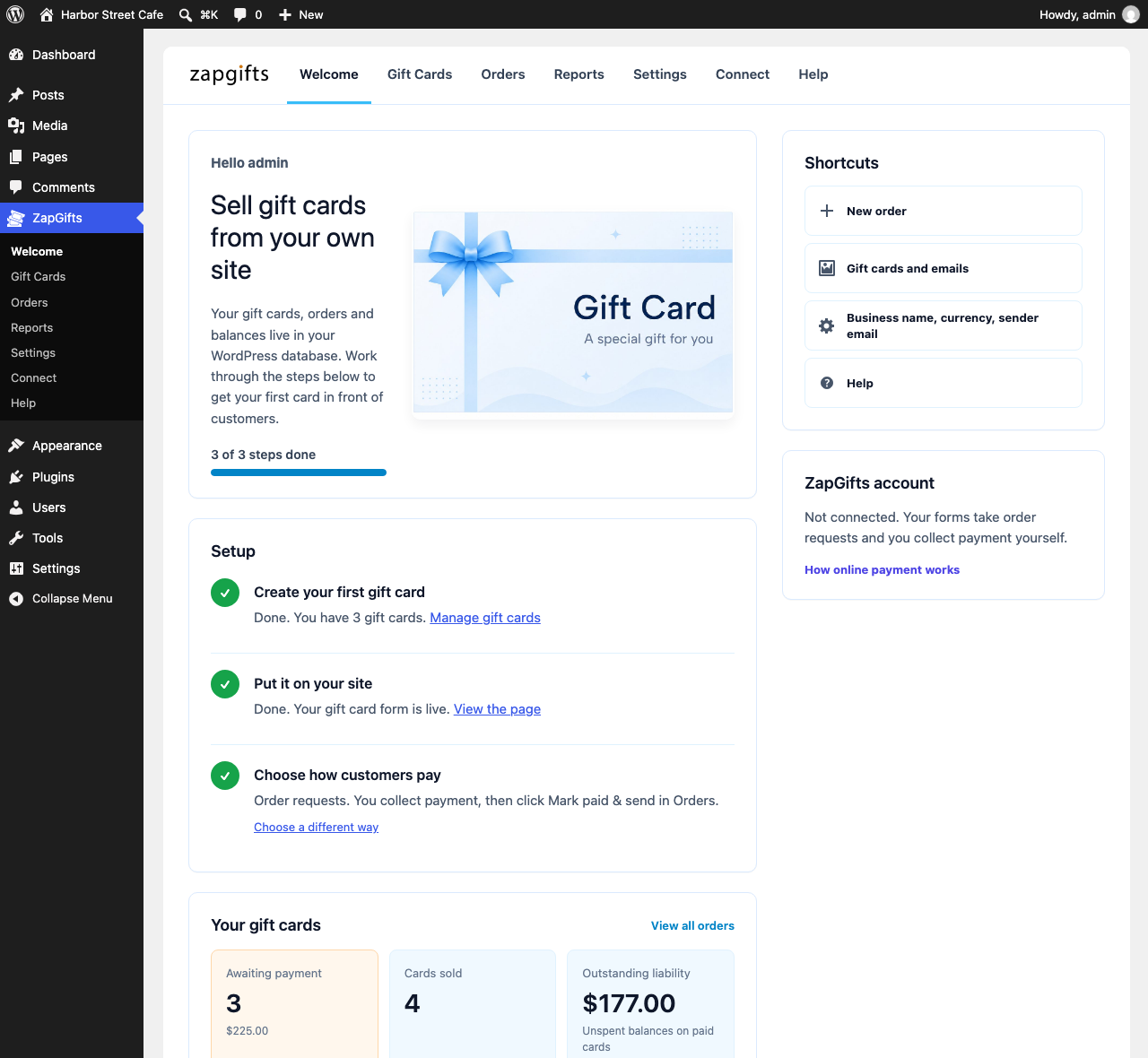
Welcome page with the setup checklist
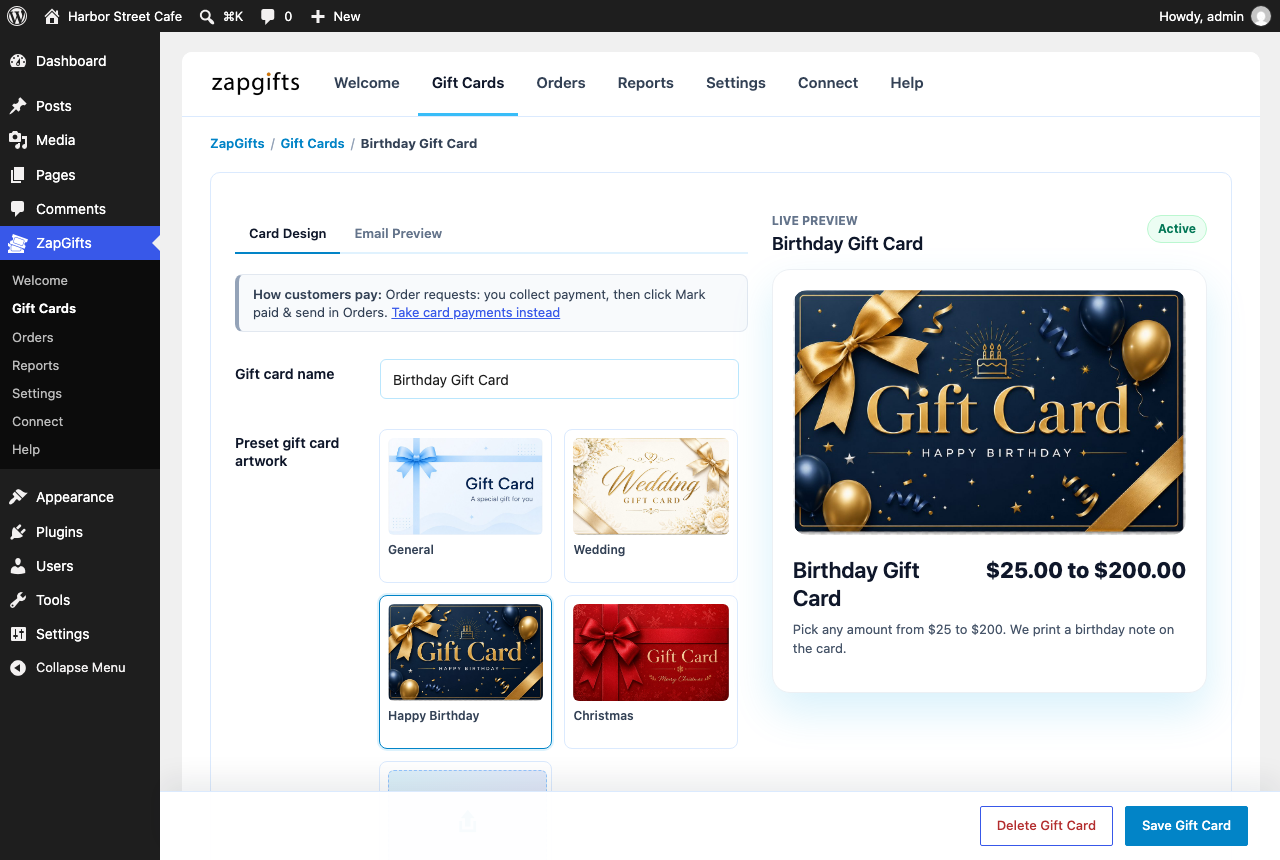
Gift card editor with a live preview

Gift card order form on a page
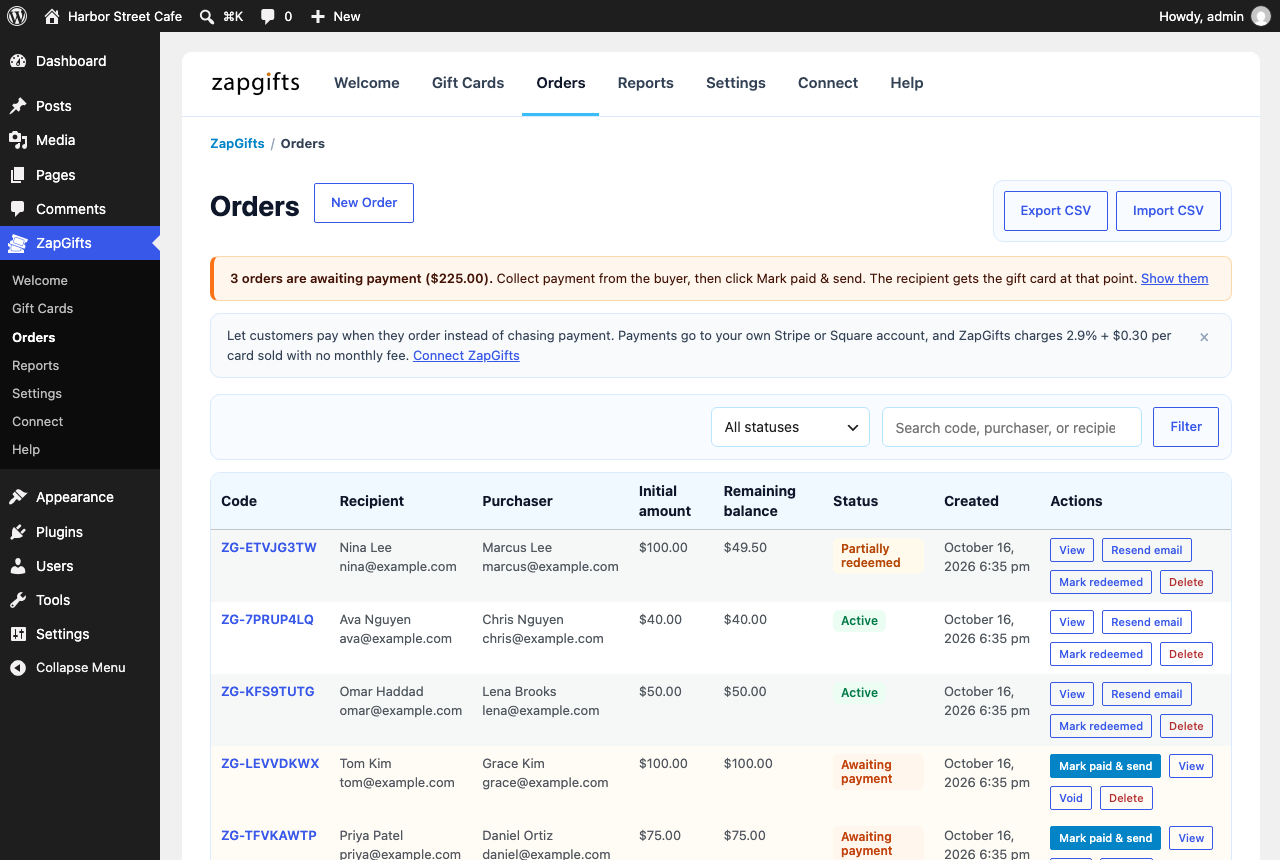
Orders screen with a notice about orders awaiting payment
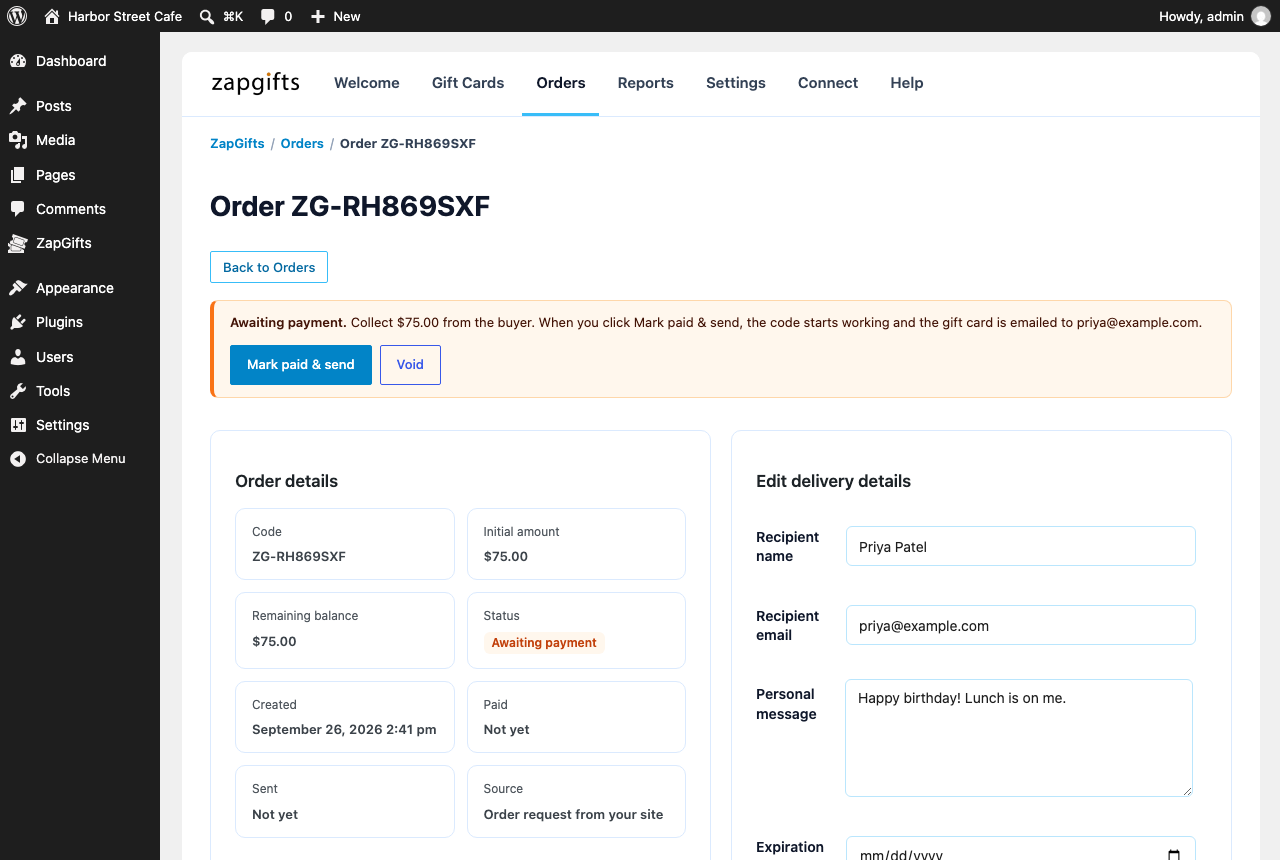
An order awaiting payment, with Mark paid & send and the order details
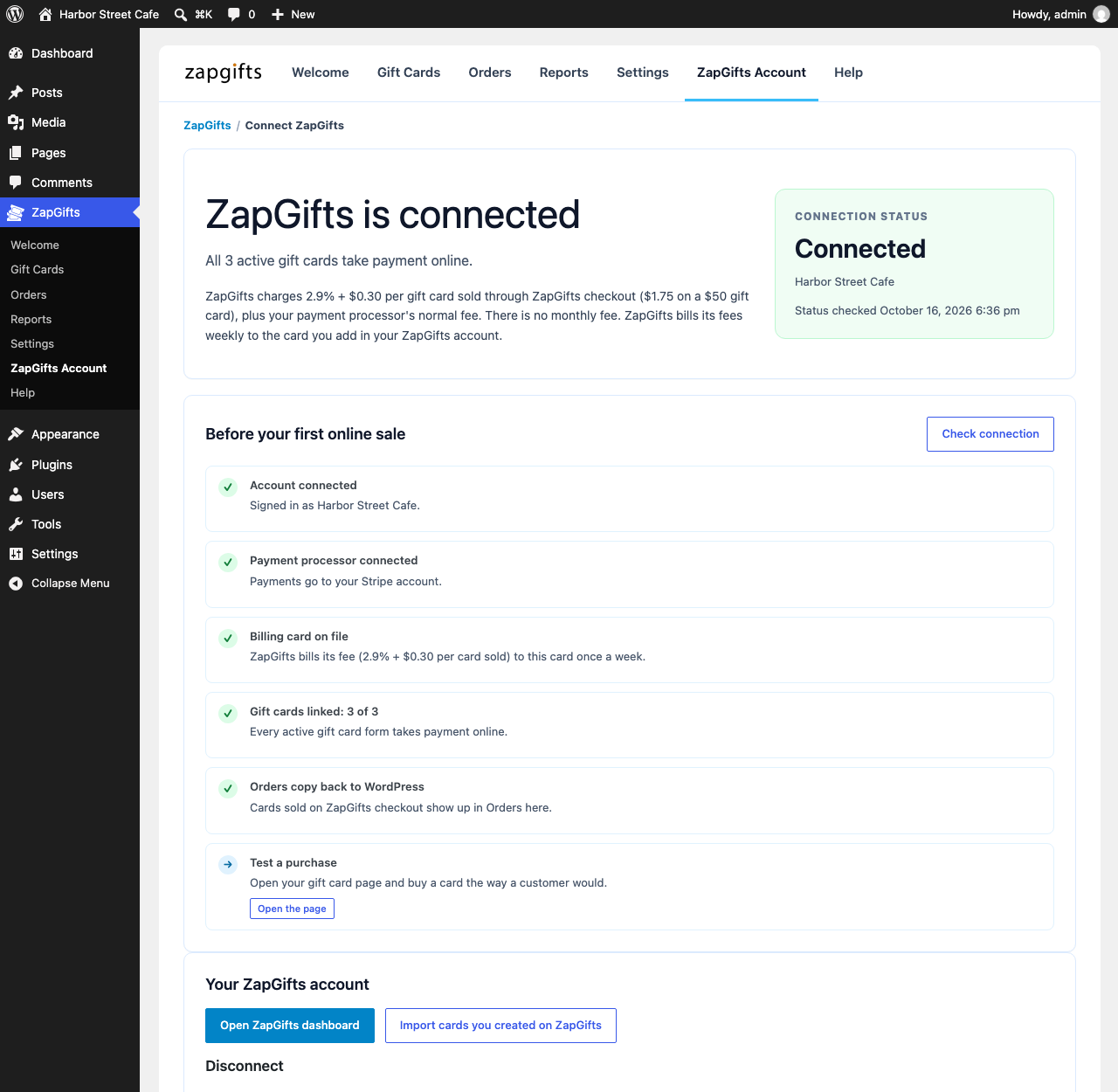
Connect page after connecting, with the setup checklist
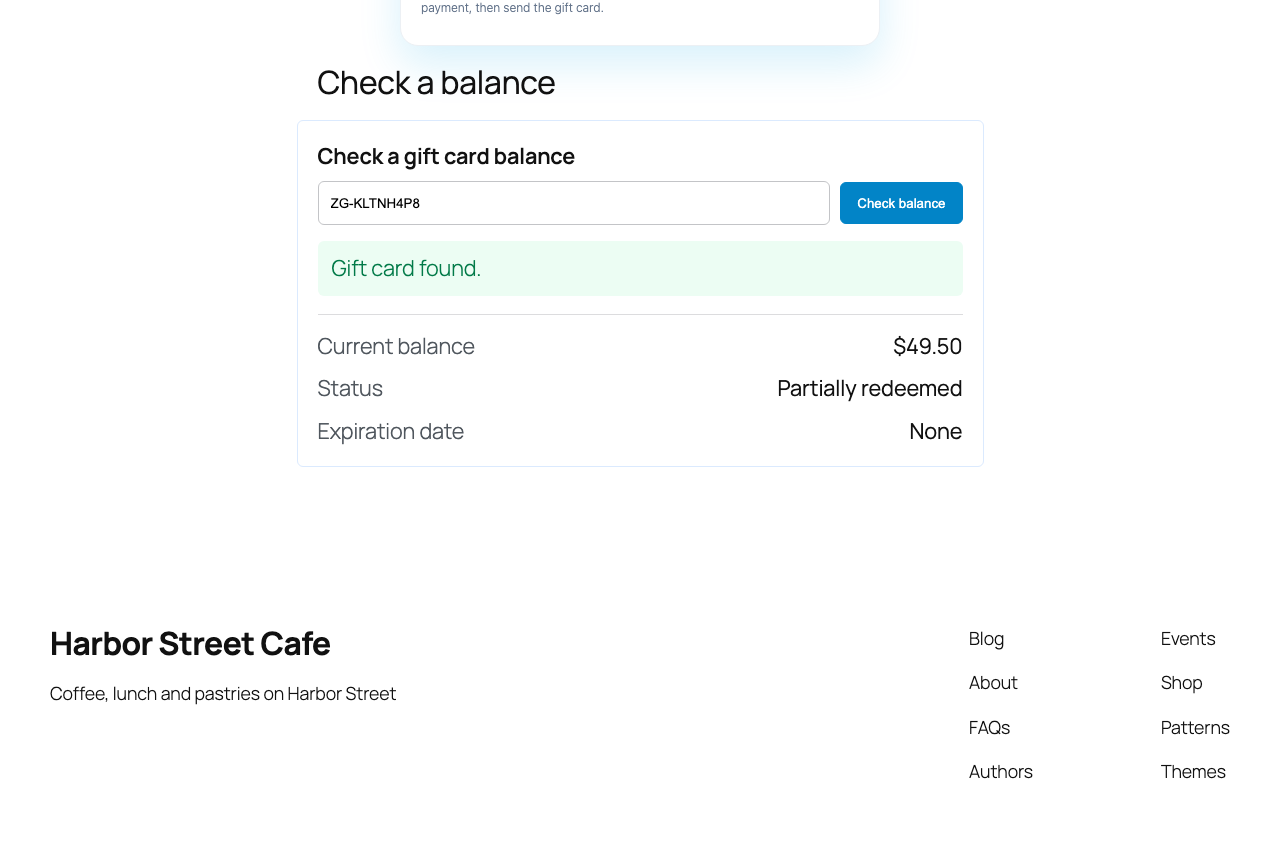
Balance lookup