Mad Cow Product Tabs For WooCommerce Wordpress Plugin - Rating, Reviews, Demo & Download

Plugin Description
Mad Cow Product Tabs for WooCommerce gives you control over the tabs on your WooCommerce product pages.
Turn off the Description, Additional Information or Reviews tabs, change the order they appear in, and add as many custom tabs as you need. Each custom tab can be shown on every product, only on products in chosen categories, or only on products you pick individually.
Here is a quick overview:
Default tabs
- Disable Description, Additional Information or Reviews, site-wide or on individual products
- Reorder the default tabs by changing their priority
Custom tabs
- Add unlimited custom tabs
- Write content in the standard WordPress editor, with media uploads, HTML and shortcodes
- Set a numeric priority to place each tab among the defaults
- Choose where each tab appears: all products, selected categories, selected products, or nowhere while you work on it
- Override any tab on a single product from the product editor
Visibility options
- All Products – the tab appears on every product, and can still be switched off per product
- Specific Categories – the tab appears only on products in the categories you select
- Product Specific – the tab appears only on products where you enable it in the product editor
- None (Hidden) – the tab is saved but not displayed, useful while drafting content
Default tab priorities
Description is 10, Additional Information is 20, and Reviews is 30. Set a custom tab’s priority relative to those to control where it lands.
Requirements
WooCommerce 7.0 or later must be installed and active. The plugin is compatible with High-Performance Order Storage (HPOS).
Screenshots
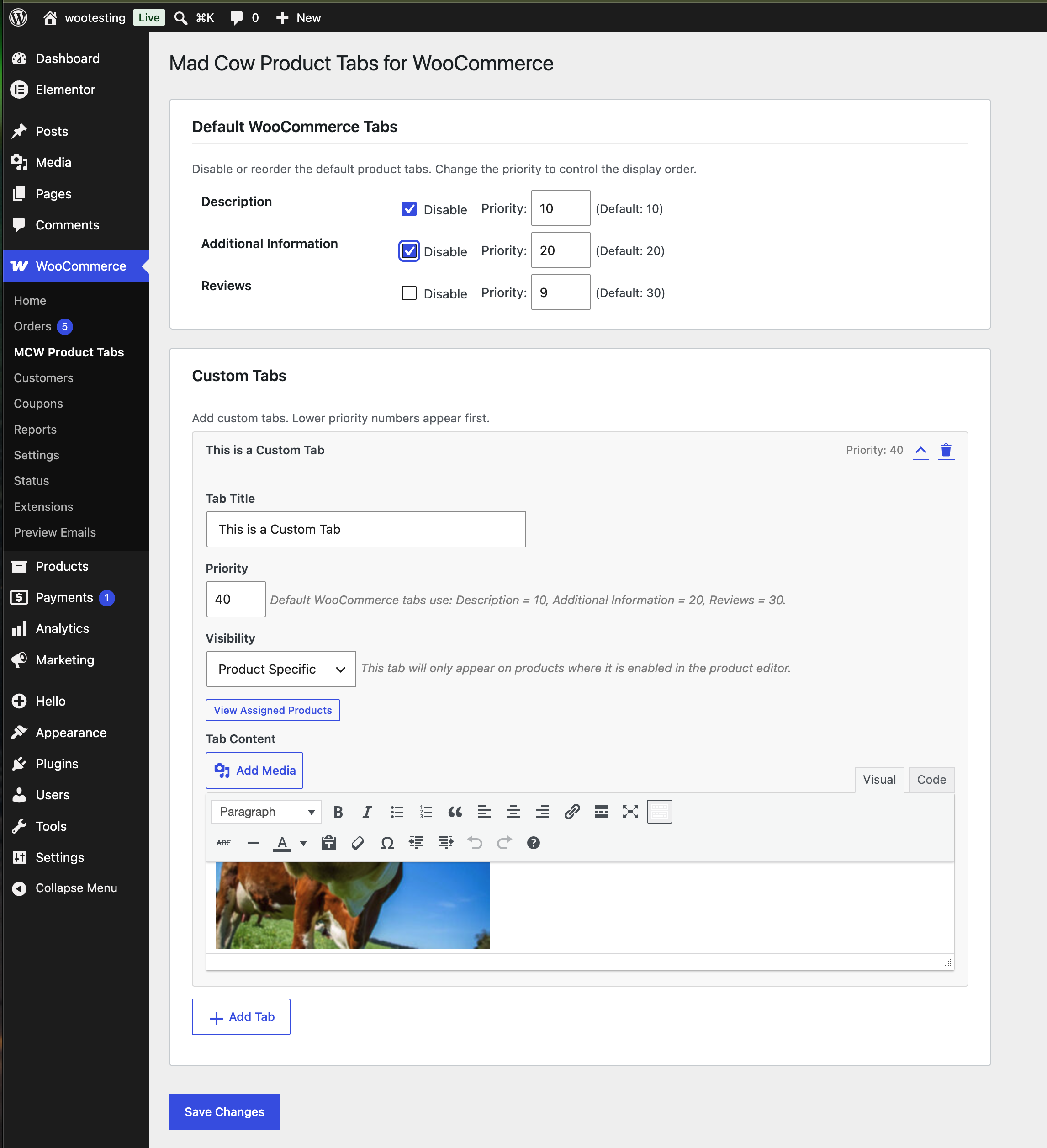
The settings screen: disable or reorder the default tabs, and add custom tabs with visibility targeting.
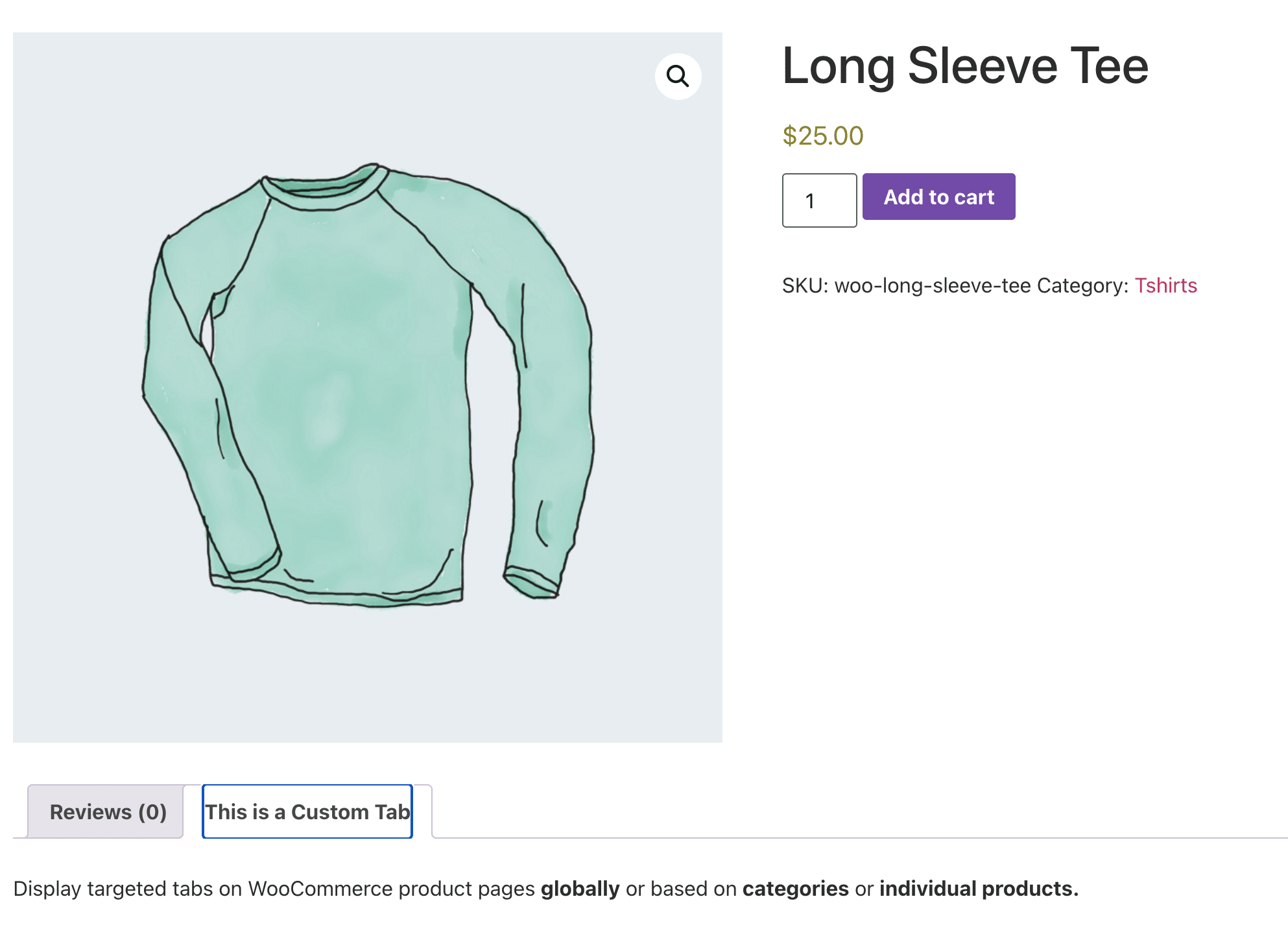
A custom tab on the front end of a product page.
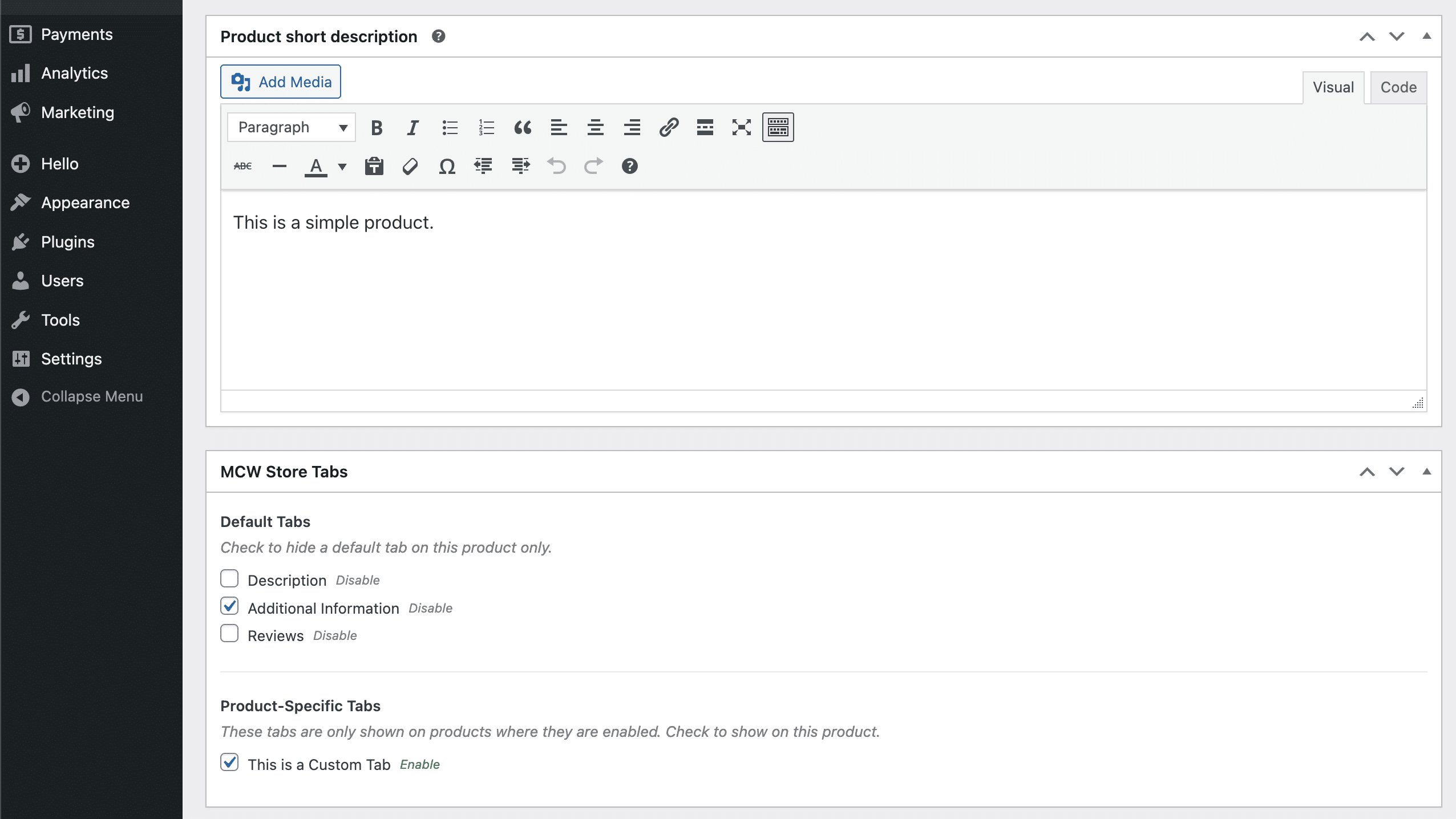
Per-product overrides in the product editor, for enabling or disabling any tab on a single product.