
MyVendorHub For WooCommerce Wordpress Plugin - Rating, Reviews, Demo & Download

Plugin Description
MyVendorHub for WooCommerce forwards new orders to MyVendorHub and receives vendor responses (status, notes, tracking) back on your store.
Features:
-
Redirect connect to MyVendorHub (no embedded secrets — WordPress.org ready)
-
Open MyVendorHub from wp-admin after connect (signed SSO launch — no re-login)
-
Permissions disclosure onboarding before external redirect
-
Manual Store ID + API token paste (Advanced)
-
Automatic order forwarding on checkout
-
Secure REST callback for MyVendorHub outbound updates
-
HMAC signature verification on all callbacks
-
WooCommerce Settings MyVendorHub admin page
-
HPOS (High-Performance Order Storage) compatible
Merchants manage vendors, rules, and responses in the MyVendorHub web dashboard — not inside WordPress.
External services
This plugin connects to MyVendorHub API hosts over HTTPS (default: https://www.myvendorhub.com). Data transmitted:
-
Connect — site URL, store display name, per-site plugin token
-
Order sync — order number, line items, SKUs, vendor names, shipping address, customer email
-
Inbound callbacks — MyVendorHub POSTs status, notes, and tracking to your WordPress site
No MyVendorHub admin passwords are stored. See MyVendorHub Privacy Policy.
Connect flows
Redirect flow (recommended — WordPress.org / SaaS)
No MyVendorHub secrets are embedded in the plugin. Review the permissions checklist, accept the disclosure, then click Connect to MyVendorHub to open MyVendorHub with your siteUrl, a per-site pluginToken, and a CSRF state parameter. After you sign in, MyVendorHub returns storeId and apiToken to this settings page.
Manual token paste
Create or open your WooCommerce store in MyVendorHub, then copy Store ID and API token from MyVendorHub Settings API access. Paste them under Advanced Manual connection in WooCommerce Settings MyVendorHub.
Direct connect (self-hosted development only)
Define VENDORHUB_WC_CONNECT_SECRET in wp-config.php matching your MyVendorHub server env. A Direct connect (dev) button appears for HMAC-signed registration.
Screenshots
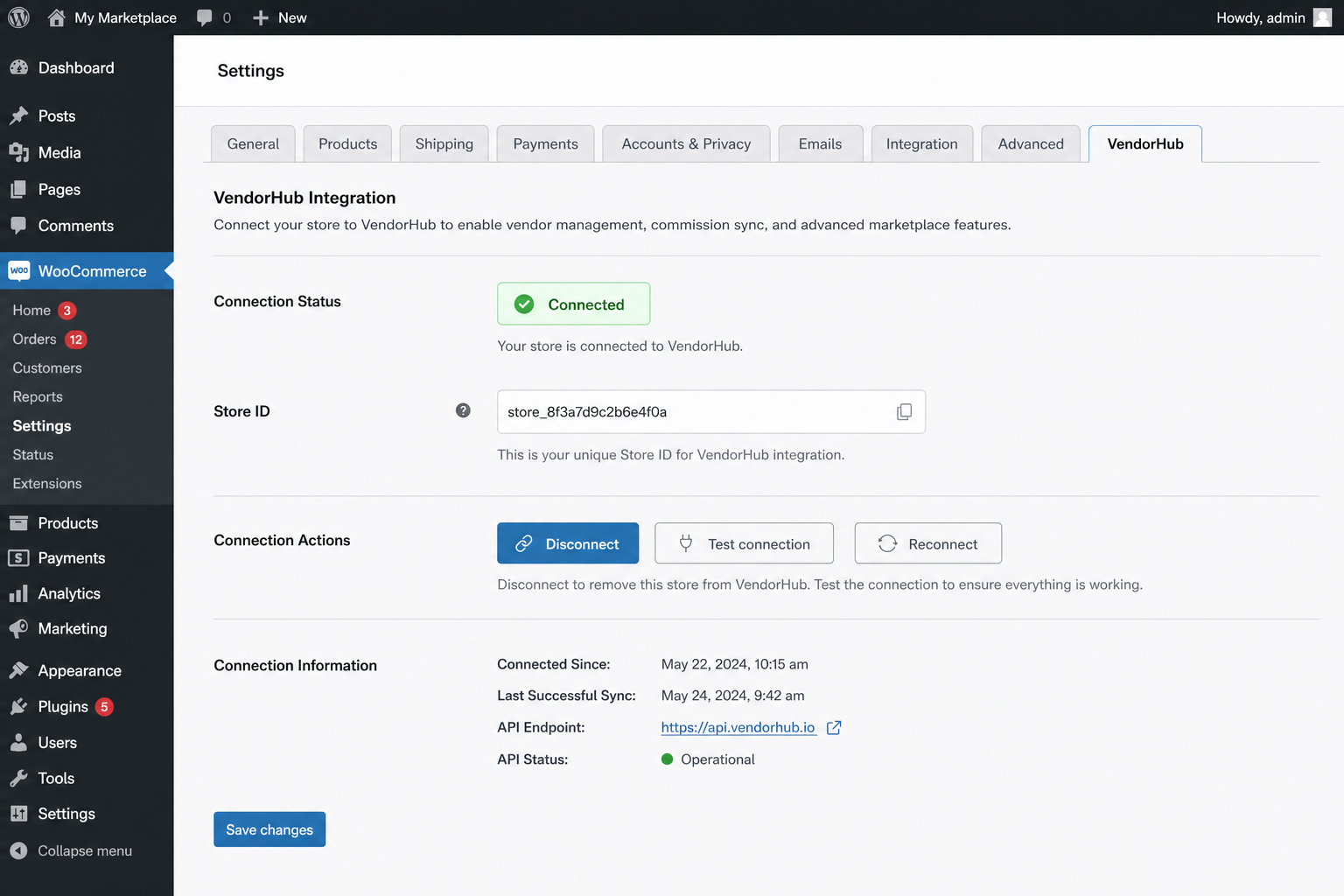
WooCommerce → Settings → MyVendorHub onboarding (permissions disclosure)
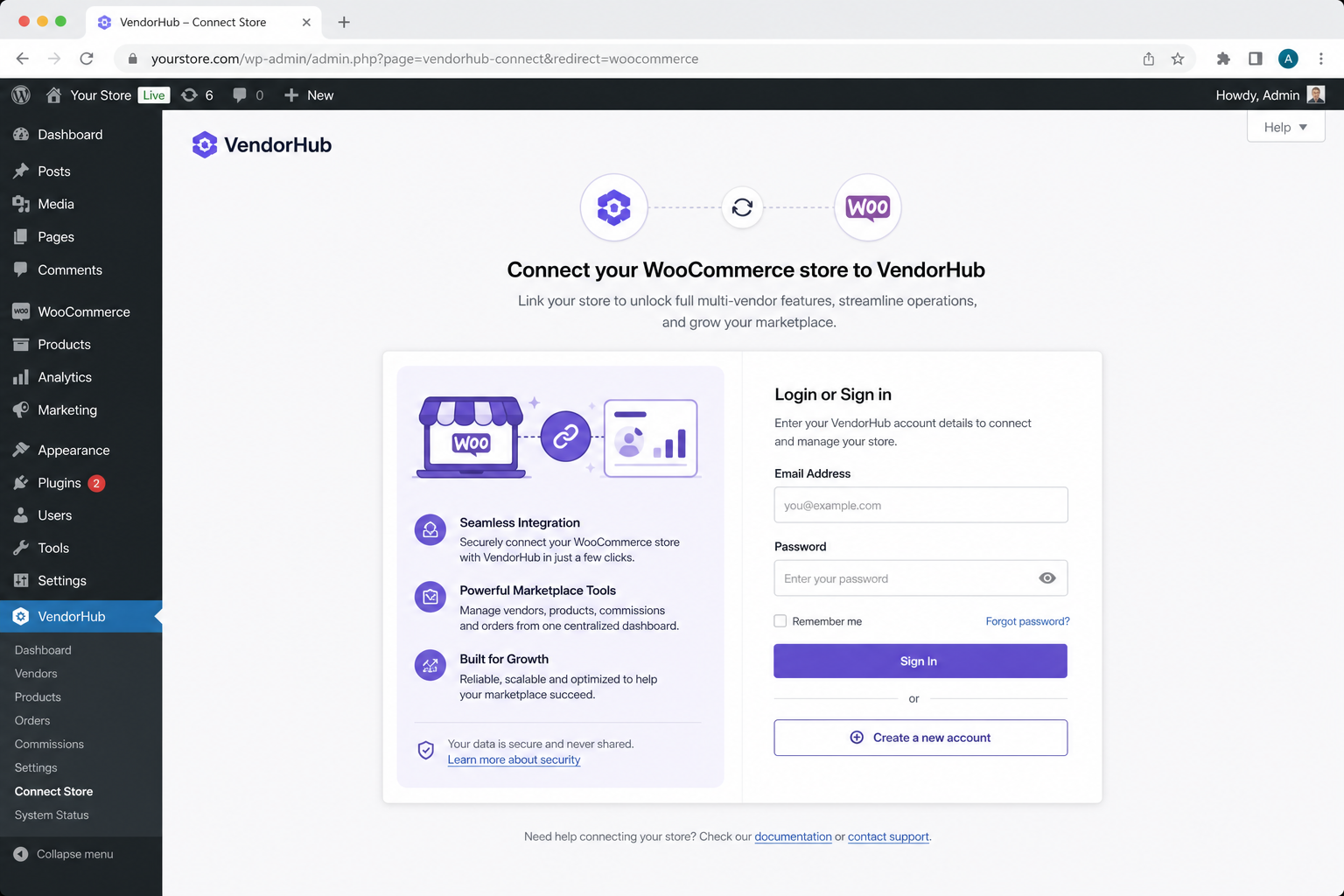
Connected state with Open MyVendorHub (SSO launch)
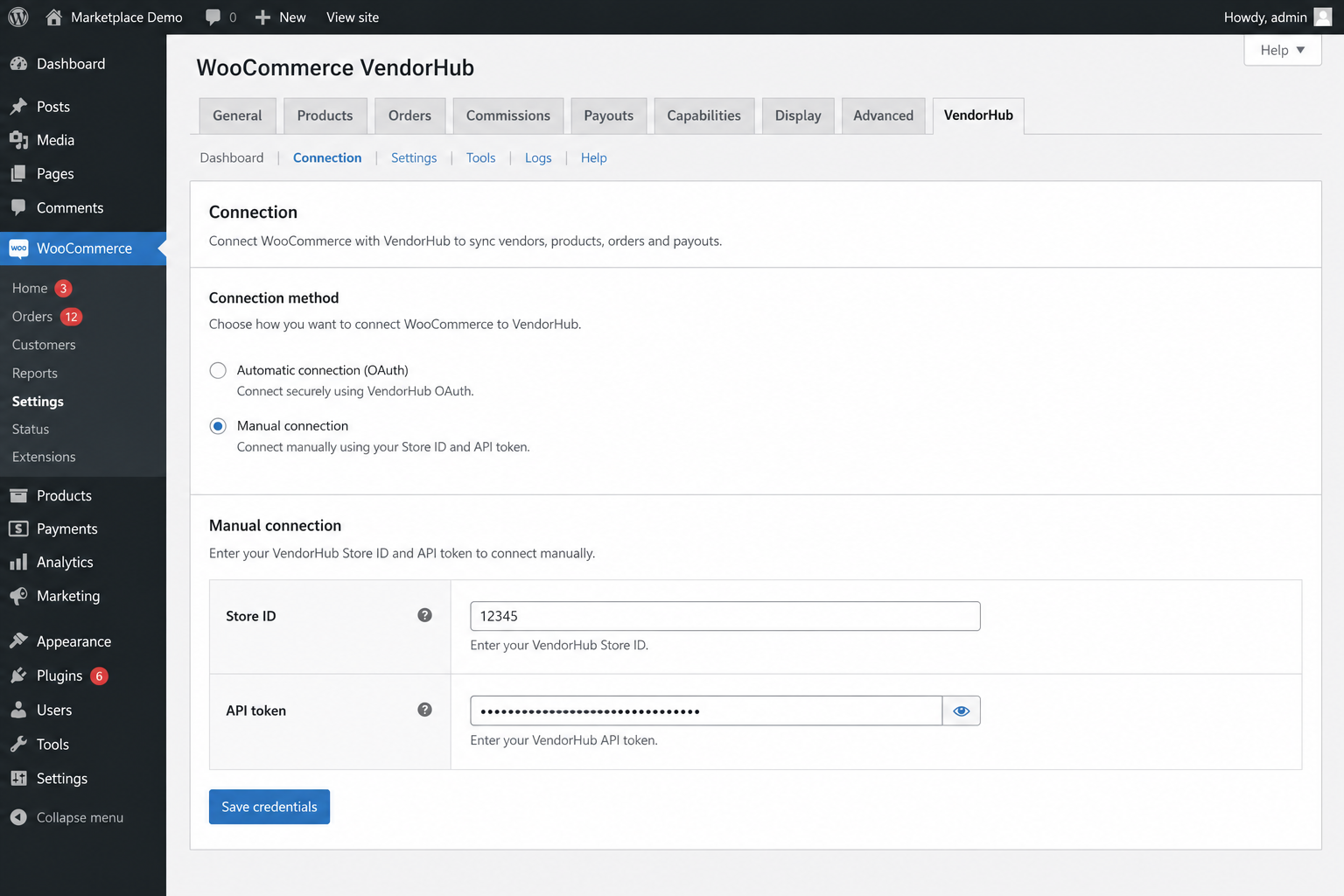
Advanced manual Store ID and API token entry
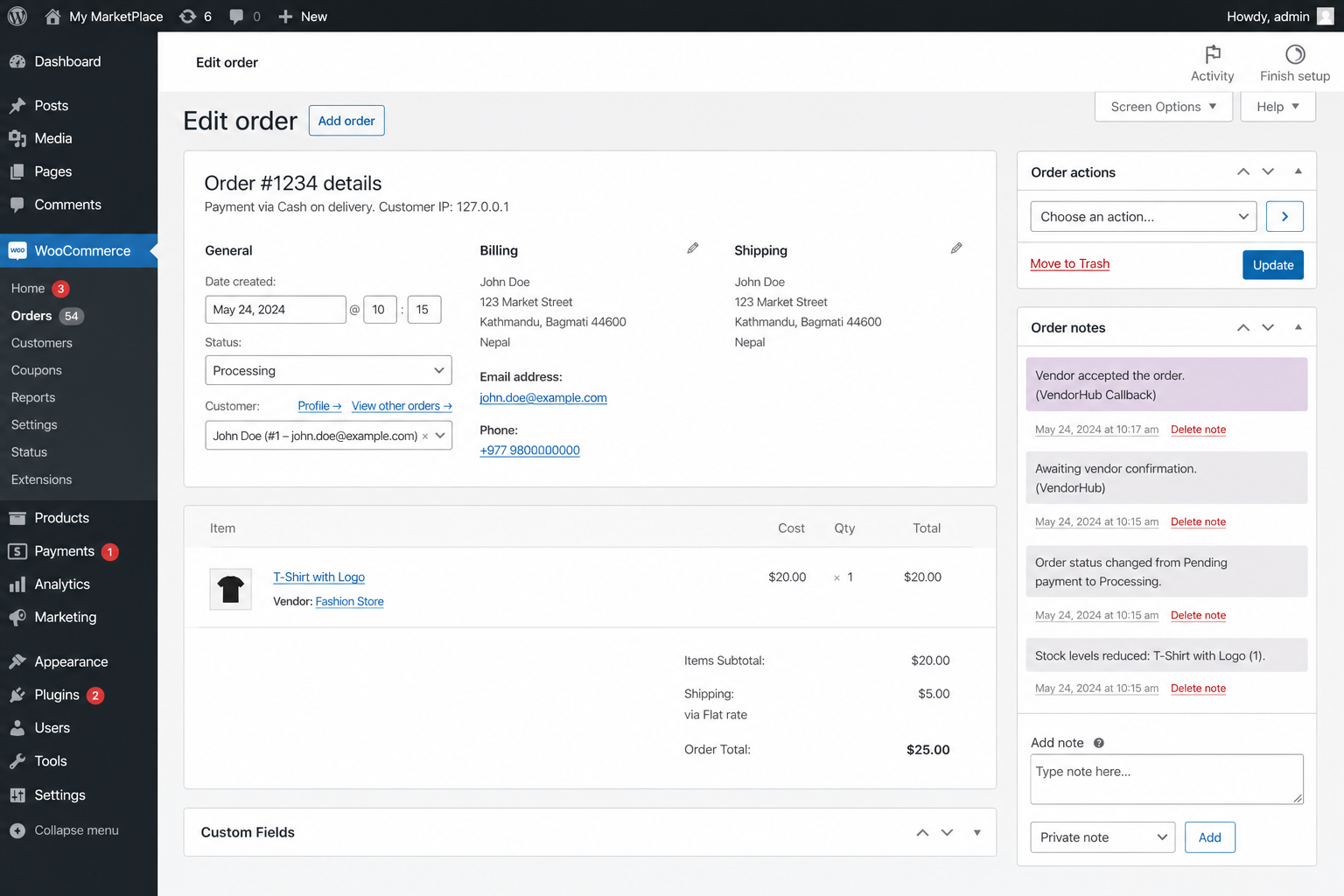
Order note applied after vendor accept in MyVendorHub


