ProductLift: Feedback, Roadmap, Changelog, Knowledge Base Wordpress Plugin - Rating, Reviews, Demo & Download
Plugin Description
Build Products Your Customers Actually Want
ProductLift is the complete platform for gathering feedback, prioritizing features, and sharing your roadmap, powered by AI.
What you get with ProductLift:
- Feedback Portal – Collect feature requests and ideas from your customers
- AI Prioritization – Use RICE, ICE, or custom frameworks to prioritize what to build next
- Public Roadmap – Share your product roadmap with customers and stakeholders
- Changelog – Publish updates and automatically notify voters when features ship
- Knowledge Base – Create help articles and reduce support requests
- SSO Integration – WordPress users automatically sign in to your feedback portal
Trusted by 6,000+ product teams worldwide. Rated 4.8/5 on G2.
How It Works
1. Create Your Feedback Portal
Sign up at ProductLift and customize your feedback portal. Choose your colors, domain, and settings.
2. Install This Plugin
Install the ProductLift plugin on your WordPress site and enter your portal URL.
3. Collect Feedback
Visitors can submit feature requests, vote on ideas, and see your roadmap. Logged-in WordPress users are automatically authenticated via SSO.
Features
SSO (Single Sign-On)
When enabled, logged-in WordPress users are automatically authenticated in your ProductLift feedback portal. No separate passwords needed, users can immediately submit and vote on features.
Shortcodes
Easily embed ProductLift widgets in your content:
[productlift_link text="Give Feedback"]– Auto-login link to your portal[productlift_widget text="Suggest feature"]– Popup widget trigger[productlift_sidebar text="Open Widget"]– Sidebar widget trigger[productlift_embed height="700" tab="feedback" align="wide"]– Embed a feedback, roadmap, changelog, or knowledge base board inline. The embed auto-resizes to fit its content, soheightis only the initial and minimum height (in pixels) reserved before the board finishes loading. Usetab="roadmap"/tab="changelog"/tab="kb"to switch boards, andalign="full"for edge-to-edge,align="none"to keep the theme’s default content width.
Widget Types
- Popup Widget – Opens a feedback form in a modal
- Sidebar Widget – Slides in from the side of the screen
- Embedded Board – Full feedback board embedded in your page
External Services
This plugin connects to ProductLift’s external services to provide its core functionality.
What data is transmitted:
When SSO is enabled and a user is logged in to WordPress, the following data is sent to ProductLift servers:
– User email address
– User display name
– WordPress user ID
– User avatar URL
This data is transmitted when pages are loaded to enable automatic authentication to your ProductLift feedback portal.
External domains used:
- app.productlift.dev – ProductLift application and widget hosting
Service links:
- Service website: https://productlift.dev
- Terms of Service: https://www.productlift.dev/legal/
- Privacy Policy: https://www.productlift.dev/legal/
This integration is essential for the plugin’s core functionality. The external service processes user data to enable seamless authentication between your WordPress site and your ProductLift feedback portal.
Screenshots
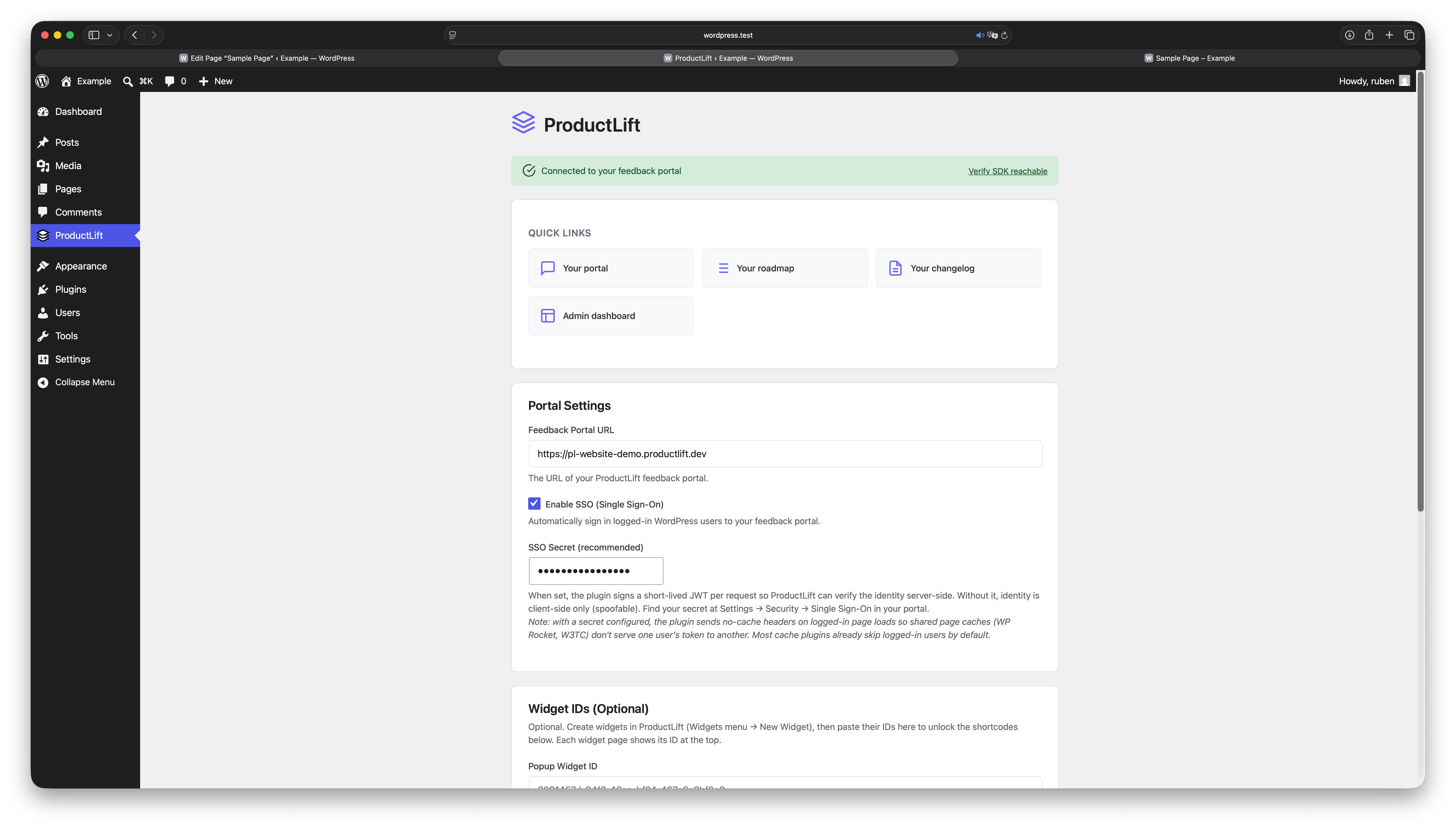
Admin settings page in “Connected” state, showing quick links, SSO configuration, and widget IDs.
![A ProductLift feedback board embedded in a WordPress page via <code>[productlift_embed]</code>.](https://ps.w.org/productlift-feedback/assets/screenshot-2.png?rev=3646935)
A ProductLift feedback board embedded in a WordPress page via
[productlift_embed].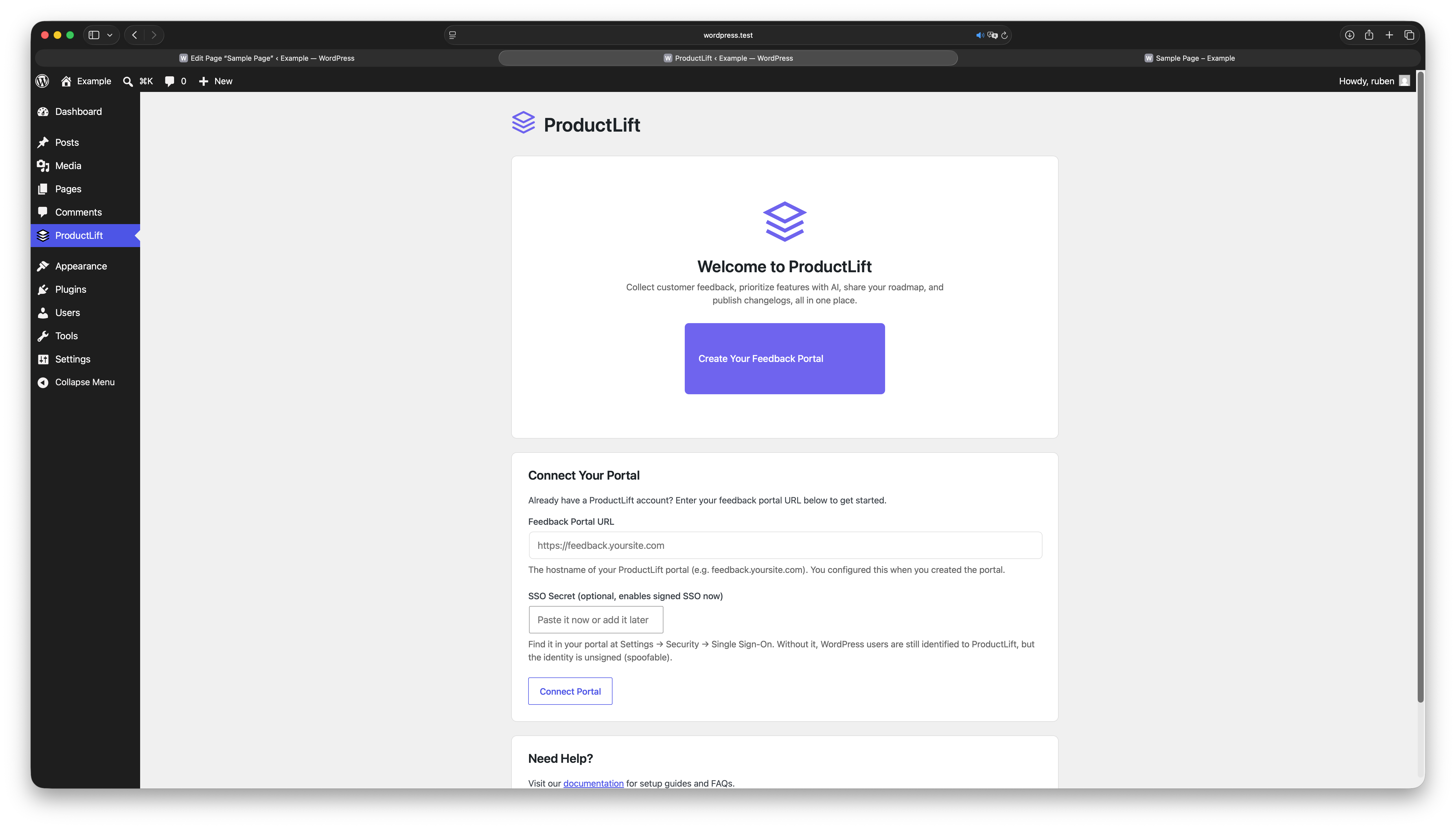
First-run onboarding: enter your portal URL and optional SSO secret to connect.
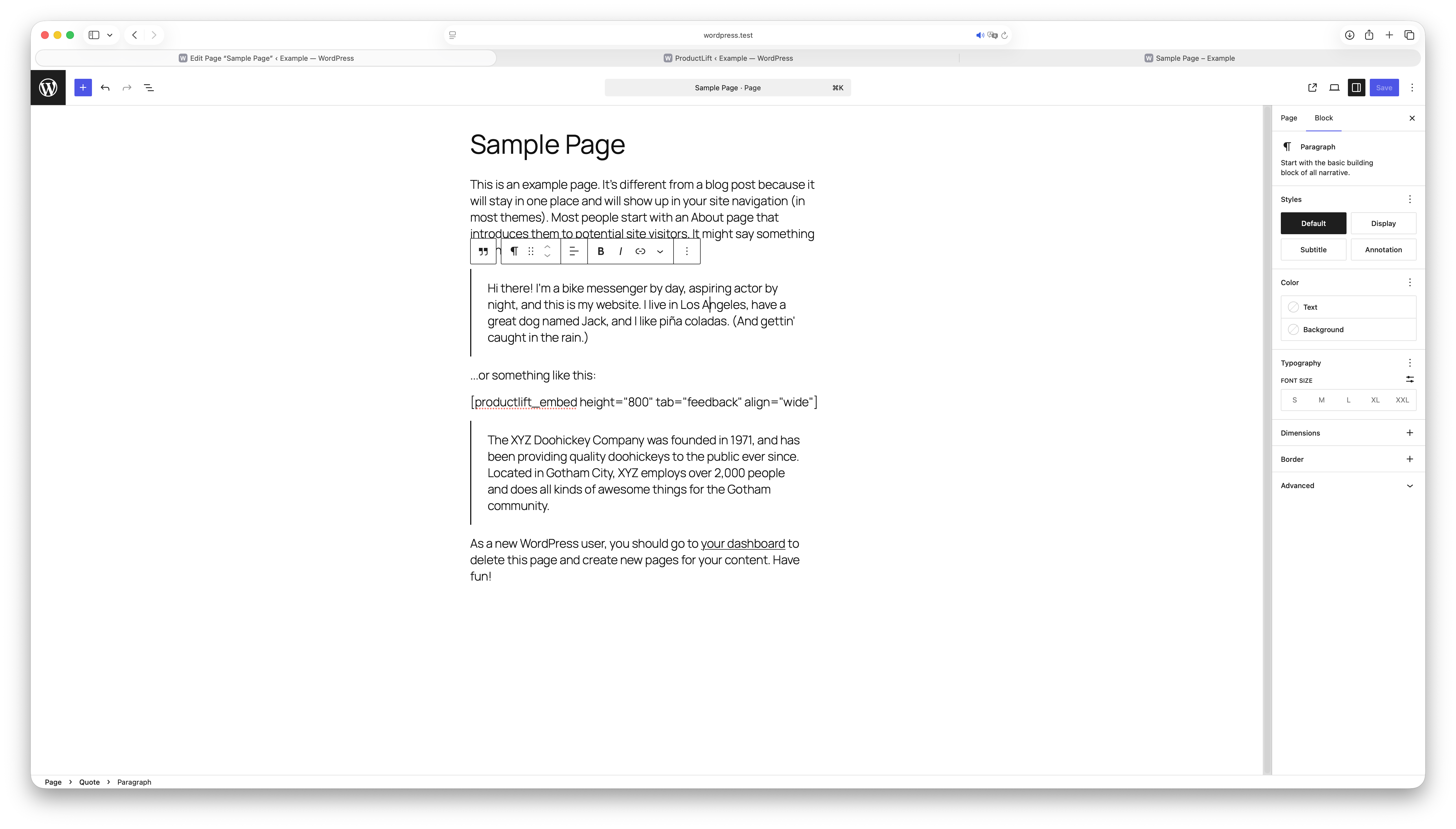
Adding a shortcode block inside the WordPress block editor.