Super Speedy Imports Lite Wordpress Plugin - Rating, Reviews, Demo & Download
Plugin Description
Super Speedy Imports Lite imports CSV and XML files into WooCommerce products, WordPress posts and pages.
Give it the file you want to import, uploaded from your computer or fetched from a URL or API, and it works out where every column goes. Check the mapping, change anything you like, then run the import from the dashboard or with WP-CLI. Import an updated file and it updates the items already on your site and adds the new ones.
Measured with this exact WordPress.org build on a 4-vCPU server, through the dashboard: 100,000 simple WooCommerce products imported in 90 seconds, 1,000 products with their images downloaded from a remote image host and resized in 74 seconds, and a price and stock update of 10,000 products in 10 seconds. Full results and how to reproduce them: https://www.superspeedyplugins.com/benchmarks/super-speedy-imports/results/lite-2-99-21-import-speed/
What it imports
- WordPress posts and pages, and simple WooCommerce products
- Post fields: title, content, excerpt, status, dates, slug and more
- WooCommerce fields: SKU, GTIN, regular and sale prices and sale dates, stock, weight and dimensions, tax, shipping class and more
- Categories, tags and brands, including hierarchies such as
Men > T-Shirts, and WooCommerce global attributes such aspa_color - Custom fields (postmeta)
- Featured images from URLs, each URL downloaded once however many rows use it
- XML files, converted to an import under Migration Tools
- Imports saved in WP All Import on the same site, converted under Migration Tools into imports you review before running
Running your own import
- Give it your file. Click New Import and drop in a CSV, or paste the URL of a CSV file or API. It reads the file and recognises what it holds (screenshots 1 and 2). XML files go through Migration Tools, which converts them and finds the repeating record for you (screenshot 3).
- Check the mapping. The import is already configured: every column it recognises is mapped to its field, and the panel on the right shows the real values from your file, row by row (screenshot 4).
- Make any corrections you want. Map a column somewhere else, add a column, combine columns in a transform, or set the hierarchy and multiple-value separators for a taxonomy (screenshot 5).
- Run it. Preview & Run shows the file, the row count and what happens to items already on your site, then Start Import runs it with every stage and its timing on screen (screenshots 6 to 8).
- Or run it from WP-CLI with
wp ssi <import id>, and add that command to cron to run it on a schedule (screenshot 9).
Every import matches rows to items already on your site with a unique identifier column. By default this is SKU for products and post title for posts, and you can choose another: GTIN / UPC / EAN / ISBN for products, or post title + category for posts. Pro matches on any field or combination of fields.
Three ways to run it
- The dashboard – Preview & Run shows the file, the row count and the matching field, then runs the import with every stage and its timing on screen
- WP-CLI –
wp ssi <import id>runs any import; put it in cron to run it on a schedule - AI agents – an AI coding agent runs imports with WP-CLI, and 32 WordPress Abilities API tools let it upload files, create and change imports, preview the first item and read the results over the REST API (
/wp-abilities/v1), with no MCP setup needed
Try it in one click
- Install and activate the plugin.
- Open Super Speedy > Imports and go to the Demo Data tab.
- Click Load this sample on one of the samples: 1,000 posts with featured images, 20,000 posts, or 1,000 simple WooCommerce products with categories, brands, colours and images.
- On the Imports tab, press Preview & Run, then Start Import, and watch it import.
Super Speedy Imports Pro
Everything above is included here, with no row limit. Pro, a separate download from superspeedyplugins.com, adds:
- Variable products – parents and their variations, with per-variation prices, stock and attributes
- Product galleries – several images per product, with alt text and captions
- ACF and SCF fields – scalar, choice, group and repeater fields
- Custom PHP transforms – split, format, look up or calculate a value before it is written
- Custom post types – any registered post type
- Term descriptions and term metadata – for the categories, tags and attributes an import creates
- Image size selection – generate only the image sizes you choose
- Parallel workers from WP-CLI – and per-stage performance tuning
- Built-in scheduled imports
- Match on any field – or any combination of fields
- CSV export – export your catalogue and use the file as the start of the next import
- Direct help from the developer in the Super Speedy Plugins Discord
Comparison and pricing: https://www.superspeedyplugins.com/plugins/super-speedy-imports/
External services
Your own data sources
The plugin makes outbound HTTP requests only to addresses you give it, and only while an import you started is running:
- The source URL of an import, when you choose to load a CSV or XML file from a URL or FTP server instead of uploading it, whether through the admin screen, WP-CLI or the plugin’s Abilities API tools. It is fetched at the start of each run of that import.
- The image URLs inside your file, to download featured images (and, in the paid edition, gallery images). Each distinct URL is downloaded once and reused on later runs.
These requests are made with WordPress’s own HTTP functions and carry nothing but the request for the file. Beyond the requests described in this section, the plugin contacts no other server: it sends no data about your site, your users or your imports to Super Speedy Plugins or to anyone else.
Local process checks (not a service)
On Linux servers, an import started with WP-CLI records its own process identity from the server’s local /proc files and /etc/machine-id (stored only as a hash), so that a later run can tell whether an interrupted import has really stopped. These are files on your own server, read locally; nothing is sent anywhere.
Screenshots

Give it your file: drop in a CSV and it recognises what the file holds.

Or paste the URL of a CSV file or API, here WooCommerce’s own sample products file on GitHub.

XML files go through Migration Tools, which converts them and finds the repeating record.

The import it configured from WooCommerce’s sample file. The panel on the right shows the real values from your file, row by row.

Make any corrections you want: combine columns in a transform, or set the hierarchy and multiple-value separators.

Preview & Run shows the file, the row count, the matching field and what happens to items already on your site.

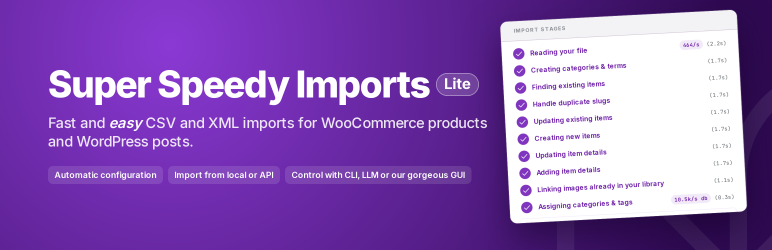
An import running, with every stage and its timing on screen.

The finished import, with any follow-up jobs and the WP-CLI command for each.

The same import from WP-CLI with
wp ssi <import id>, ready to add to cron.
The imported products in WooCommerce, with prices, stock, categories, brands and featured images.

No CSV to hand? Load a sample from the Demo Data tab and run it.