
TVS Block Newsletter Wordpress Plugin - Rating, Reviews, Demo & Download
Plugin Description
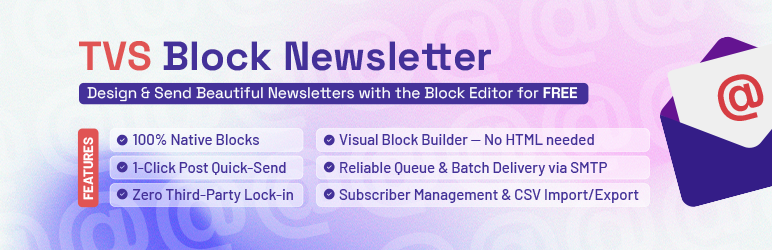
TVS Block Newsletter is a lightweight, native WordPress newsletter and email marketing plugin. Design newsletters visually using the native Block Editor and send campaigns directly from your WordPress dashboard using your site’s default SMTP setup.
Key Features
- Native Block Editor: Design email campaigns visually using standard paragraph, heading, list, button, and image blocks.
- Quick-Send from Post Editor: Send published blog posts directly as email newsletters to subscribers with one click from the post editor sidebar.
- Database-Backed Queue: Prevents PHP execution timeouts and SMTP rate limits by sending emails in customizable background batches via WP-Cron.
- Comprehensive Subscriber Management: View, search, filter, inline-add, import (CSV), and export (CSV) subscriber lists effortlessly.
- Frontend Signup Block & Shortcode: Place newsletter signup forms anywhere using the custom Block Editor block or shortcodes with custom parameters.
- Inline Email-Safe Styling: Automatically converts block editor layouts into HTML tables and inline styles for 99%+ inbox rendering across Gmail, Apple Mail, and Outlook.
- 1-Click Unsubscribe: Personalized unsubscribe merge link automatically included in every email footer.
- Zero Third-Party Lock-in: Uses your site’s default
wp_mail()and SMTP setup.
Shortcode Guide & Form Embedding
You can embed newsletter subscription forms anywhere on your site using Block Editor Blocks or Shortcodes.
Basic Shortcode
Paste [tvs_block_newsletter_signup] in any Page, Post, Sidebar, Footer Widget, or Popup plugin.
Customized Shortcode Parameters
Customize heading titles, descriptions, and button labels directly in the shortcode:
title: Sets the heading text (default:"Subscribe to Our Newsletter").description: Sets the subtext (default:"Get the latest updates directly in your inbox.").buttonText: Sets the button label (default:"Subscribe Now").
Examples:
[tvs_block_newsletter_signup title="Join Our VIP Club" buttonText="Sign Up Free"]

[tvs_block_newsletter_signup title="Subscribe to Our Newsletter" description="Get exclusive weekly tips delivered straight to your inbox." buttonText="Subscribe Today"]<h3>How to Use</h3>
1. Designing & Sending a Newsletter
- Go to TVS Block Newsletter Create Newsletter.
- Type your email subject in the Title box.
- Design your email body using standard blocks.
- In the right sidebar box (Send Campaign Settings), click 🚀 Queue & Send Newsletter.
2. Quick-Sending a Blog Post
- Edit any published blog post in WordPress.
- Look at the right Document Sidebar panel for 📧 TVS Newsletter Quick-Send.
- Click 🚀 Quick Send as Newsletter.
3. Importing & Exporting Subscribers
- Go to TVS Block Newsletter Import & Export.
- Upload a CSV file to import email lists, or click Export CSV File to download a backup.
Screenshots

Dashboard metrics overview and recent campaigns tracking.

Subscriber management table with search, status filters, and manual add form.

Native block newsletter editor.

Post editor sidebar quick-send button.

Frontend newsletter signup form block.
Similar Plugins:
 Rating Widget: Post Rating, 5 Star Rating, Reviews, Thumbs Up & Down, Reaction
 WordPress To PDF, Download As PDF Document Of Any WordPress Post Types, Download Post As PDF, PDF Viewer, PDF Block, View PDF On WordPress – Document Engine
 Newsletter & Bulk Email Sender – Email Newsletter Plugin For WordPress